
The Underwriting Ring Accumulation feature is submission-focused: it helps you evaluate the impact of adding new risks to your portfolio. It applies your specific underwriting guidelines—including rings, policy terms, and custom threshold criteria—to drive go/no‑go decisions at bind time. Download a PDF version of this Quick Start Guide.
We’ll cover:
- Ring Accumulation Basics
- Configuration
- How To Run A Ring Accumulation
- Visualize And Understand Results
- FAQs
Ring Accumulation Basics
SpatialKey’s dynamic ring model has 2 basic types: Magic Ring or Target analysis.
The Magic Ring uses an approach that applies multiple overlapping rings (or concentric rings) radiating around your schedule location to calculate your peak accumulation within a chosen radius— including a ring centered around the prospective risk. Those rings are deduplicated and narrowed down, leaving one worst-case ring for each schedule location. The resulting ring is determined by calculating the greatest exposure from the schedule and portfolio locations that fall within it.
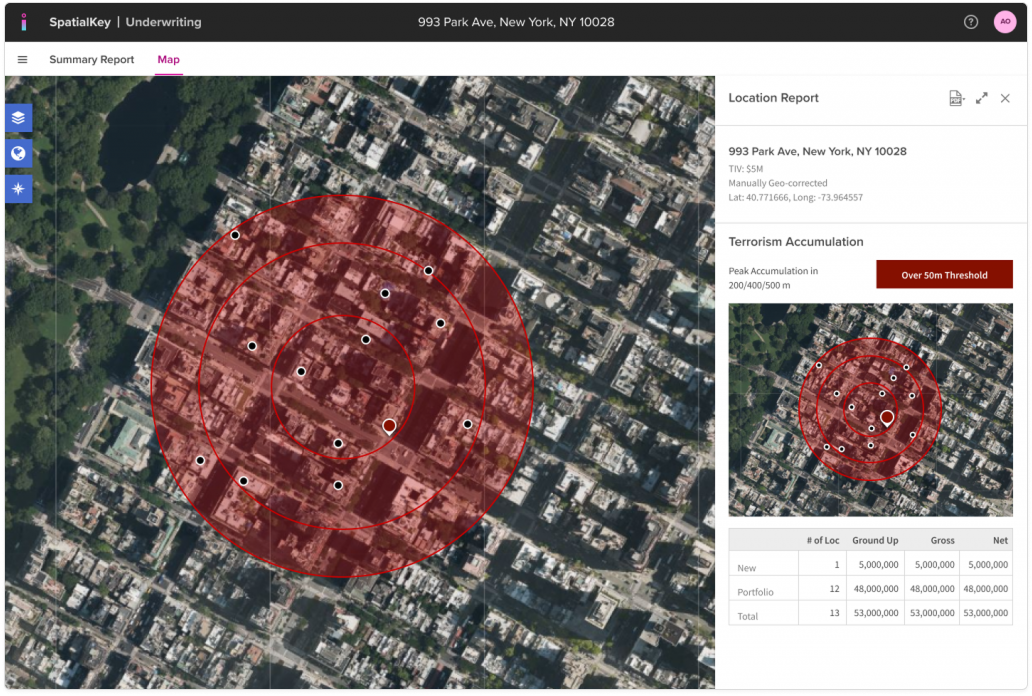
The Target analysis centers a ring (or concentric rings) on the schedule locations and returns your exposure from the schedule and portfolio locations that fall within it.
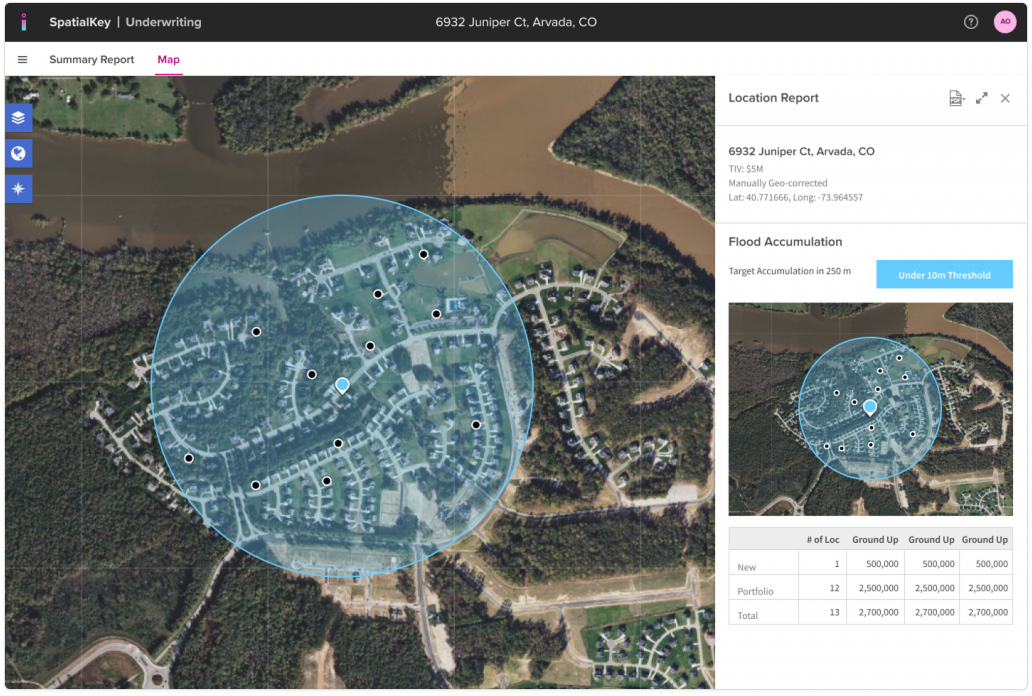
Ring Accumulations estimate exposure by calculating the total financial impact of all schedule and portfolio locations that fall within each ring generated by your chosen model (Magic Ring or Target). The analysis uses whatever financial inputs you supply—TIV, policy terms, or gross/net values—to determine accumulated exposure within that radius.
When assessing a submission, the model:
- Uses TIV or policy terms (if provided) for the new locations
- Uses policy terms, special conditions and facultative reinsurance for in‑force portfolio locations (when a portfolio is included)
- Calculates ground up, gross, and net for each zone using the best available data
- Compares the resulting totals against your capacity threshold to flag zones as over or under
If you have limited financial details, the model still returns the best exposure view possible, adapting its calculations based on the data you’ve supplied. In those cases, TIV or ground‑up values serve as a proxy for net exposure so you can still understand potential accumulation impact at bind time. See FAQs below for more detail on how the financial calculation works.
Configuration
These Underwriting Accumulation models are created and customized by the SpatialKey team for your organization using the following information:
- Peril/Title: Terrorism or Flood are the most common but can be anything you’d like
- Magic Ring and/or Target Analysis: The Magic Ring finds the highest‑exposure using overlapping rings, while the Target analysis uses a ring centered on the location
- % Ring Overlap: Specific to the the Magic Ring option, the ring overlap defaults to 12.5% but can be adjusted up to 25%
- Radius: Single or up to three concentric rings
- Damage factor: Applied per ring with a default of 100%
- Global Capacity Threshold: The exposed limit used to trigger an over/under indicator in the report (optional)
To request a new Underwriting accumulations model, please reach out to our team with your configuration preferences and we will create it for you.
How To Run A Ring Accumulation
As submissions come to your desk, use Underwriting Ring Accumulation to analyze whether adding them to your book of business will create adverse concentrations of risk.
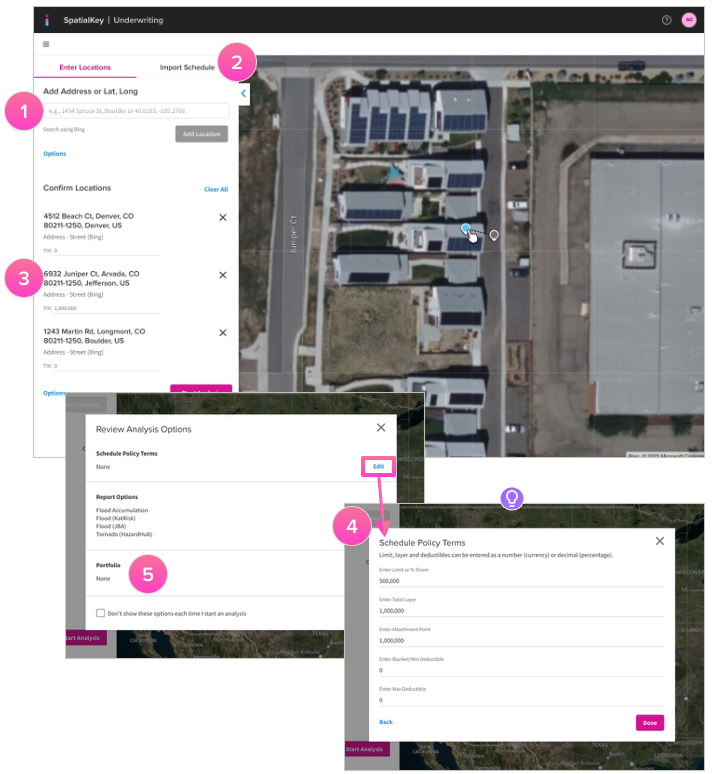
- Enter a single address or multiple addresses.
- Or upload a schedule of locations that has been prepared. To ensure optimal performance, schedules are limited to 5,000 records.
- Optional: Enter insured values (TIV) for the data you want to analyze. When uploading a schedule, you will be able to select a column that represents insured value.
- Optional: Enter policy terms for the prospective risk(s) you are evaluating.
- Optional: Select in-force portfolio to understand the impact of adding the new location(s) to existing concentrations. You’ll be required to either choose a policy peril or TIV column from your portfolio. For the most accurate results, we recommend selecting a policy peril for the analysis.
TIP! For the most complete insights, we recommend running the analysis against your entire in‑force portfolio along with your new risks. However, you also have the flexibility to run it on your prospective schedule by itself. When your portfolio is included, the model can factor in policy terms, special conditions and facultative reinsurance. The analysis will still run effectively and adapt based on the amount of information you provide.
Note: You can configure and run as many accumulation models as needed. However, when running an analysis, you can select only one portfolio and one policy peril for the exposure calculation, and this selection applies across all models.
Visualize And Understand Results
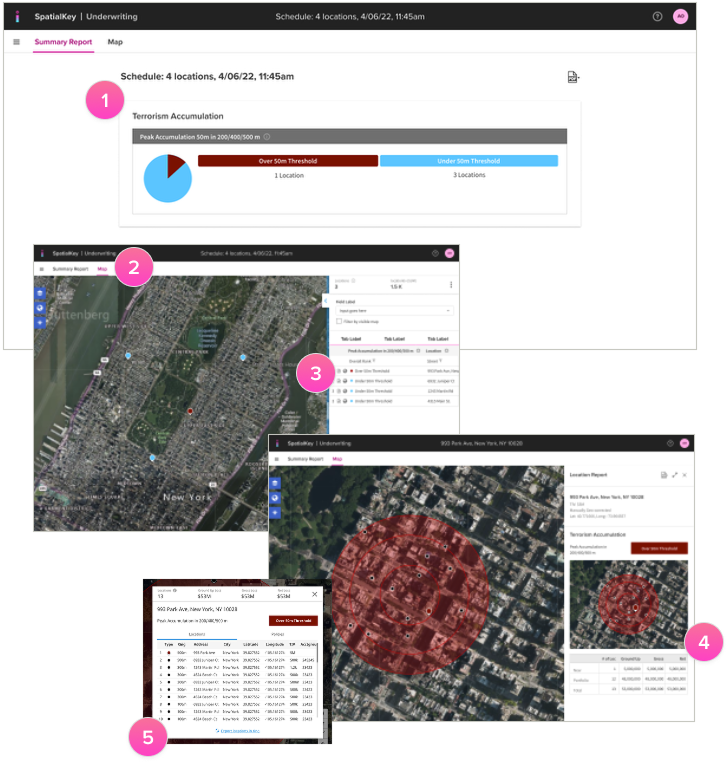
- If you ran more than 1 location in your analysis, you’ll initially see a summary of your schedule based on whether the new locations added enough exposure to existing concentrations to go over the threshold set for your organization. This view provides a high-level look at where to focus your analysis.
- Use the map to visualize schedule locations, colored by over/under your threshold.
- Click the report icon in each row or on the location point on the map to dive into each schedule location and see a zoomed in view of the accumulation along with a detailed list of all the locations, and your total exposure.
- Each schedule location will display a detailed table reporting total exposure for all locations that fell within the ring broken down by new schedule locations and in force portfolio locations.
- Export a CSV list of the locations that fell in the ring along with your total exposure.
TIP! Results can also be returned via API
FAQs
Understanding How Threshold Calculations Work
What factors does the calculation use when generating an Over/Under threshold assessment?
The Over/Under threshold assessment is based on the financial model’s calculated Gross or Net exposure. Learn more about SpatialKey’s financial model.
For the in‑force portfolio, this exposure is determined using any available:
- Location (site) terms such as site limits and site deductibles
- Special conditions like sublimits, subdeductibles, and policy restrictions
- Policy terms including limits, layers, attachment points, and deductibles
- Facultative reinsurance terms
Thresholds cannot be calculated using TIV alone.
Policy information for your in-force portfolio should be set up in advance so it’s ready to go each time your underwriters run an analysis. Learn how to join a policy file to your location file.
In underwriting, the calculation evaluates the impact of adding prospective risks to the in‑force portfolio. For these new locations, underwriters may optionally provide:
- Location values: TIV, Site Limit*, Site Deductible*, Location ID*, Primary Site ID*
- Policy terms: Limit (or % share), Total Layer, Attachment Point, Blanket/Min Deductible, Max Deductible
(Special conditions and facultative reinsurance are not considered for prospective risks.)
SpatialKey uses all information provided and gracefully degrades when optional inputs are missing. Because policy terms are often unknown for prospective risks, it is recommended to provide at least TIV.
- If only TIV is entered, it is used as a proxy for both Gross and Net exposure.
- If TIV is not entered, the system assumes 0, which flows through the calculation for ground‑up, gross, and net exposure.
*For single‑location lookups, these values can’t be entered in the UI but are available via the API or in batch lookups.
How does SpatialKey determine Net exposure?
Net exposure is determined by walking each location through the financial model tree, applying:
- Site‑level terms
- Special conditions*
- Policy terms
- Facultative reinsurance*
Each layer applies additional limits, deductibles, or reductions until the final Net exposure is calculated.
Learn more about SpatialKey’s financial model
*Special conditions and facultative reinsurance are not considered for prospective risks.
Can SpatialKey calculate thresholds using only Total Insured Value (TIV)?
No. SpatialKey cannot calculate an Over/Under threshold assessment using TIV alone.
For in‑force portfolios, the threshold calculation requires enough information to compute Gross or Net exposure, which depends on applying financial terms such as:
- Site limits and deductibles
- Special conditions
- Policy limits, layers, and attachment points
- Any applicable facultative reinsurance
Because TIV does not represent these financial terms, it is not sufficient for generating a threshold assessment on its own.
In underwriting, TIV can be helpful, but only as a proxy for gross and net exposure when evaluating the impact of adding prospective risks. If no TIV is provided, SpatialKey assumes 0, which also results in no meaningful threshold assessment.
So while TIV can support the prospective portion of the calculation, threshold assessments themselves cannot be determined from TIV alone.
In-Force Portfolio Requirements
Am I required to supply policy terms for my in-force portfolio?
No, you are not required to provide policy information for your in‑force portfolio in order to run an accumulations report, although it is highly recommended. You can even run a report without including a portfolio, although in most cases the analysis will be far more meaningful if you do.
When selecting a portfolio for your report, you will be required to choose either a policy peril or a TIV column from your data. For the most accurate results, we recommend setting up a policy for your portfolio and selecting a policy peril for the analysis.
If you don’t have a policy file set up, TIV can serve as a fallback, but it will be less precise and won’t provide enough detail for SpatialKey to generate an Over/Under threshold assessment. You will still be able to view a financial calculations table, with TIV used as a proxy for exposure.
What happens if I don’t include a policy file for my in‑force portfolio?
SpatialKey can still run the calculation, but the results will be less meaningful. Without policy terms, the model cannot compute Gross or Net exposure, and a threshold assessment cannot be completed. TIV alone is not sufficient for calculating Over/Under on the in‑force portfolio.
How do I know which policy peril or TIV column to choose when running an analysis?
When selecting a portfolio during analysis, you must choose either a policy peril column (preferred) or a TIV column. Selecting a policy peril allows full financial modeling. TIV is only a fallback option and will not support a full threshold assessment.
Can I run an analysis without including a portfolio?
Yes, but results will be far less meaningful. Portfolios provide the financial terms needed for calculating Gross and Net exposure. Without them, the analysis cannot determine Over/Under thresholds and may default to “Not Enough Info.”
Prospective Risk Requirements
Am I required to supply policy terms for my schedule?
No, you are not required to provide policy information for your prospective risks in order to run an accumulations report. However, if no financial data is entered, the calculation will assume a Total Insured Value (TIV) of 0, which will make the Over/Under threshold assessment significantly less meaningful. While policy terms are often unknown at this stage of the underwriting process, we recommend providing at least the TIV so the calculation can more accurately reflect the impact of adding new risks to your portfolio.
What information should I provide for prospective (underwriting) risks?
You may optionally provide:
- TIV
- Site Limit*
- Site Deductible*
- Location ID*
- Primary Site ID*
- Policy terms such as Limit (or % share), Total Layer, Attachment Point, and Deductibles
(Special conditions and facultative reinsurance are not considered for prospective risks.)
Providing at least TIV is recommended. If nothing is entered, SpatialKey assumes 0, which will result in no meaningful contribution to exposure.
*For single‑location lookups, these values can’t be entered in the UI but are available via the API or in batch lookups.
Why is TIV recommended when entering prospective risks?
Because policy terms are often unknown for new business, TIV provides the minimum needed to estimate the prospective risk’s impact. SpatialKey uses TIV as a proxy for both Gross and Net exposure. If TIV is omitted, a value of 0 is assumed and passed through the calculation.
Why are special conditions and facultative reinsurance not applied to prospective risks?
In underwriting, the prospective schedule only supports high‑level optional inputs like TIV, limits, layers, and deductibles. Special conditions and facultative reinsurance require structured policy and location files, which typically don’t exist for new risks. Therefore, these terms are not applied to prospective locations.
Troubleshooting Analysis Results
Why does my report say, “Not Enough Info”
‘Not Enough Info’ typically indicates that SpatialKey was able to run the calculation, but did not have sufficient inputs to determine whether your threshold assessment should be marked as ‘Over’ or ‘Under.’
SpatialKey can only calculate a threshold assessment when it has enough information to determine Gross or Net exposure for the portfolio. Thresholds cannot be assessed using Total Insured Value (TIV) alone.
This message most often appears when the portfolio used in the analysis does not have a policy file set up, or when a TIV column was selected instead of a policy peril during the analysis setup.
For your in‑force portfolio, policy terms should be provided to ensure you receive an accurate ‘Over’ or ‘Under’ result rather than a ‘Not Enough Info’ message.
Why is my threshold assessment showing “0 Gross” or “0 Net” for new risks?
This happens when a prospective location does not have TIV entered. SpatialKey assumes a value of 0 when TIV is missing and uses that value for ground‑up, gross, and net exposure.
What if my exposure goes over the threshold?
The app won’t judge you—but it will highlight it in a color that says, “This one’s not making it to bind.”
Was this helpful?