
SpatialKey supports a wide variety of data formats, making it easy to work with both tabular and geospatial datasets.
Common spreadsheet files (e.g., CSV and Excel) can be imported for datasets like insurance portfolios, policy and exposure data, claims data, or underwriting schedules, and are automatically converted to CSV during import.
SpatialKey also accepts an extensive range of vector file types, from standard Shapefiles to modern formats like GeoJSON, GeoPackage, KML and proprietary GIS formats. All vector data is converted to Shapefile on import, ensuring consistent handling across the platform. Raster files, however, are not supported. Read more for tips on preparing vector data for successful shapefile conversion.
Supported Spreadsheet File Types
e.g. a file containing lists of in‑force locations within an insurance portfolio, policy and exposure data, claims data, or underwriting schedules, etc.
| Description | File Extension |
|---|---|
| Comma Separated Value (SpatialKey native format) | .csv |
| Microsoft Excel format | .xls, .xlsx |
Supported Vector File Types
e.g. hail footprints, geopolitical boundaries, etc.
| Description | File Extension |
|---|---|
| 📍ESRI Shapefile (SpatialKey native format) | .shp |
| 📍ESRI FileGDB (common) | .gdb |
| 📍GeoJSON (common) | .geojson |
| 📍GeoPackage (common) | .gpkg |
| 📍Keyhole Markup Language (common) | .kml |
| Arc/Info E00 (ASCII Coverage | .e00 |
| AutoCAD DXF | .dxf |
| ESRI Personal GeoDatabase | .mdb |
| FlatGeobuf | .fgb |
| French EDIGEO exchange format | .thf |
| Geoconcept | .gxt |
| Geography Markup Language (GML) | .gml |
| GeoJSON Sequence | .geojsonl, .geojsons |
| GMT ASCII Vectors | .gmt |
| GPSBabel | .mps, .osm, .tcx, .igc |
| GPX | .gpx |
| Idrisi Vector | .vct |
| Interlis 1 | .itf, .ili |
| Interlis 2 | .xtf, .ili |
| Mapbox Vector Tiles | .mvt, .pbf |
| MapInfo File | .tab, .mif, .mid |
| MBTiles | .mbtiles |
| Microstation DGN | .dgn |
| MiraMon Vectors | .pol, .arc, .pnt |
| OpenJUMP JML | .jml |
| OpenStreetMap XML and PBF | .osm, .pbf |
| ProtoMap Tiles | .pmtiles |
| Scalable Vector Graphics | .svg |
| TopoJSON | .topojson |
| WAsP .map format | .map |
Point datasets (CSV/XLS/XLSX files)
Point datasets should be provided in CSV or XLS/XLSX format. If your data is in Excel format, it will be converted to CSV during import. If your file contains multiple sheets, you will be prompted to select a sheet during the import process.
If you want to see examples of properly formatted CSV files, check out our Sample CSV Data files.
Column Type Detection Behavior
SpatialKey samples rows to infer column types. When you upload a CSV directly, the system examines the first 10,000 rows. When you import other formats that are converted during upload, the system examines the first 200 rows. If your dataset has mixed or inconsistent values that appear only after these sample windows, normalize your data types or promote representative rows toward the top of the file before import.
Data Import API
If you are using a more advanced import method, like the Data Import API, you will need to provide an accompanying XML file. An XML file is simply a file that describes the information configurations that will be used. The spreadsheet and XML files should be provided together in a ZIP file.
How to generate an XML file? To generate an XML file, start by importing your dataset into SpatialKey – after your data is imported into SpatialKey, a complete XML file is just a few clicks away. Find your dataset in the Datasets list, click the gear icon to view data settings, and select Data Import API.
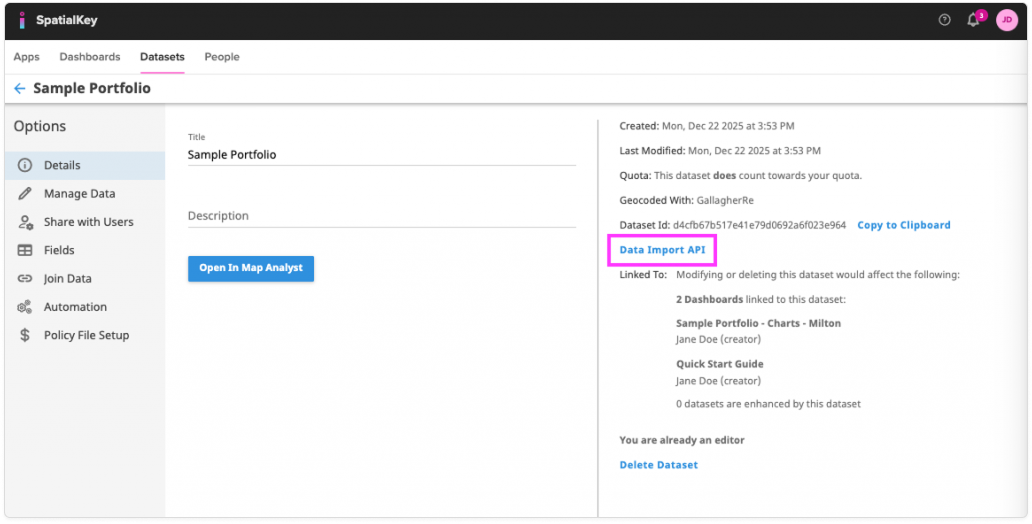
You will have the option to “generate API config” on the following screen.
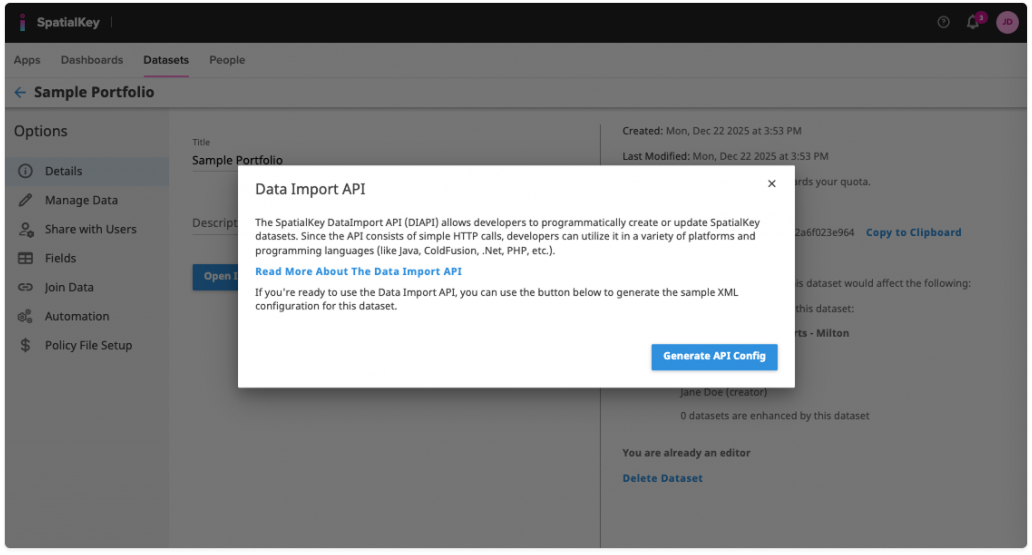
After the XML is generated, save the XML file to the same location as your spreadsheet file and then zip the files together. Note: when saving the XML file, save it directly from the browser page that it appears in – do not copy and paste into another file.
Vector Data (e.g., Shapefiles, GeoJSON, GeoPackage, KML, etc.)
SpatialKey supports a broad range of vector file formats, including Shapefile, GeoJSON, GeoPackage, KML, CAD formats, and many others. Regardless of which format you upload, SpatialKey automatically converts all vector data to a Shapefile during import. This ensures consistent handling across the platform and provides a reliable foundation for map rendering and analysis.
If you are preparing a dataset for upload, we recommend reviewing our guide on preparing vector data for Shapefile conversion, which covers projection requirements, attribute formatting, geometry considerations, and CAD-specific cleanup steps.
Working with Shapefiles
If you are uploading a Shapefile directly, it must include the following required components:
- .shp — the main geometry file
- .shx — the index file
- .dbf — the attribute table
These files must be zipped together before uploading. You may also include optional files such as:
- .prj — projection information
- .cpg — character encoding information
While most projections are supported, some uncommon projections may not render correctly (e.g., Mercator Auxilary Sphere). When in doubt, reproject your data to WGS84, which is guaranteed to work in SpatialKey.
For step‑by‑step instructions, see our article on importing Shapefiles into SpatialKey.
File Size
Now that you understand the supported data formats, let’s talk about how big the files can be. File size is very important when considering what to load into SpatialKey. It is important to also consider if the provided point dataset or vector file meet your organizations limits as well as whether it will perform optimally in SpatialKey. Here are some additional things to look for in point datasets and vector files.
File Size for Point Datasets (CSV/XLS/XLSX files)
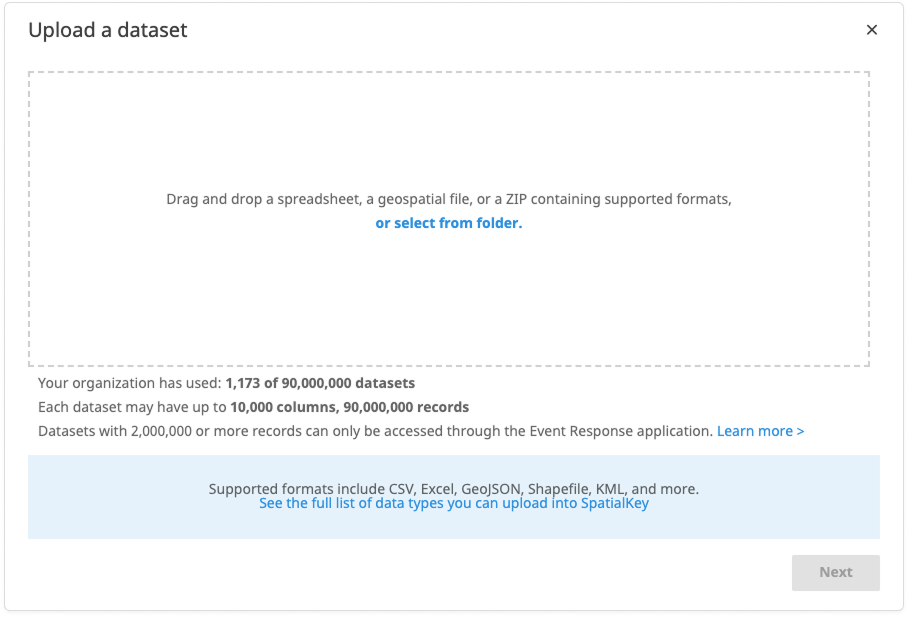
How many records and columns does your point dataset contain? If a point dataset contains more records or columns than your SpatialKey limit allows, you will not be able to import it into SpatialKey. If you don’t know your organization’s limits, you can quickly find them in the Data Upload Wizard.
File Size for Vector Data (e.g., Shapefiles, GeoJSON, GeoPackage, KML, etc.)
The actual “size” of a vector file is a little harder to assess than that of a point dataset. As a general rule, vector files that are geographically distributed and the shapes themselves are not complex (not many vertices), will work great in SpatialKey. Here are a couple of examples to help you get an idea of what will work well in SpatialKey and what will not.
| ZIP size | Number of shapes |
Avg number of vertices |
Geographical distribution |
Work well in SpatialKey? |
|---|---|---|---|---|
| 2MB | 5 | 10 | Distributed | YES |
| 5MB | 5 | 100,000 | Concentrated | NO |
| 100MB | 10,000 | 100 | Distributed | YES |
| 100MB | 10,000 | 10 | Concentrated | YES |
| 50MB | 1,000 | 100 | Concentrated | NO |
In the 2nd example above, SpatialKey would have trouble rendering the vector file on a map because the shapes are highly concentrated and the vector file is complex (large number of vertices). In the 4th example, although the shapes are concentrated, the complexity is low, therefore SpatialKey could render this file well. Note that this table provides some guidance but each shape is unique and should be evaluated based on its components.
What is the size of the ZIP file itself?
Note that a small ZIP file doesn’t always mean that the vector file is small and will work well within SpatialKey – the number of vertices and geographic distribution are the most significant contributing factors.
How many shapes and vertices are included in the vector file?
While the number of shapes is important to understand, the number of vertices that each shape contains has a larger impact on whether the data will work well in SpatialKey. Sometimes taking an effort to reduce some of the vertices (smooth out the shapes) will help a vector file work better in SpatialKey.
How many attributes are provided for the shapes?
Large DBF files work great in SpatialKey so quantifying the number of records and columns here isn’t necessary but note that the size of the DBF file contributes to the overall size of the ZIP file.
Was this helpful?