
Because SpatialKey runs in all modern web browsers, it isn’t tied to a specific operating system. You can use it on almost any desktop or laptop computer with an Internet connection.
Supported Browsers
- Microsoft Edge
- Google Chrome
Additional Requirements
- Pop‑up Blockers: Disable pop‑up blocking for your SpatialKey site to allow exports
- PDF Reader: Required for generating and viewing PDF files
Important: Older Internet Explorer Versions Not Supported
Microsoft ended support for Internet Explorer 8, 9, and 10 on January 12, 2016, and IE 11 support ended on June 15, 2022. These unsupported versions no longer receive security updates and are not compatible with SpatialKey. If your organization is still using an older version of Internet Explorer, please contact your IT team to upgrade as soon as possible.
Which SpatialKey applications are supported on mobile devices?
SpatialKey’s Event Response is the only SpatialKey application that can be accessed on a mobile device. Mobile access requires using a browser in desktop mode to view the full application. Event Response is uniquely optimized for this type of desktop‑mode mobile use, enabling effective operation in field‑based and time‑sensitive scenarios. This is especially valuable when datasets are configured with automation: email alerts can be opened directly on a phone, allowing immediate access to dashboards from the alert. Other SpatialKey applications are designed for desktop and standard browser use only and do not support mobile access, even in desktop mode.
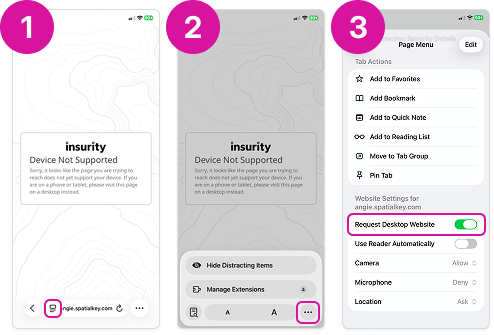
To view on a mobile browser in desktop mode using an iPhone, follow these steps in your Safari browser:
- Tap the Reader button (rectangle with 2 horizontal lines under it) to access page settings
- Tap the More button (…) to access additional settings
- Scroll near the bottom of the options and toggle on “Request Desktop Website“
Was this helpful?