
The SpatialKey Home Interface is your central hub in SpatialKey, providing quick access to apps, dashboards, datasets, and user management. It also includes global tools for help and support, notifications, and account settings—so you can navigate, manage, and collaborate with ease.
Homepage (Apps Tab)
The Apps tab in the top horizontal navigation bar is your homepage and launchpad for all SpatialKey applications. From here, you can quickly open core applications—Event Response, Underwriting, Accumulations, and Analyst—each designed for a different type of analysis.
To open an application and create a dashboard, just click on one of the tiles to get started.
On the lower left, the Resources section provides access to the Data Marketplace, where you can browse available hazard and property data providers.
On the right, the Favorite Dashboards panel lists dashboards you’ve starred, giving you one‑click access to the analyses you use most often.

Dashboards
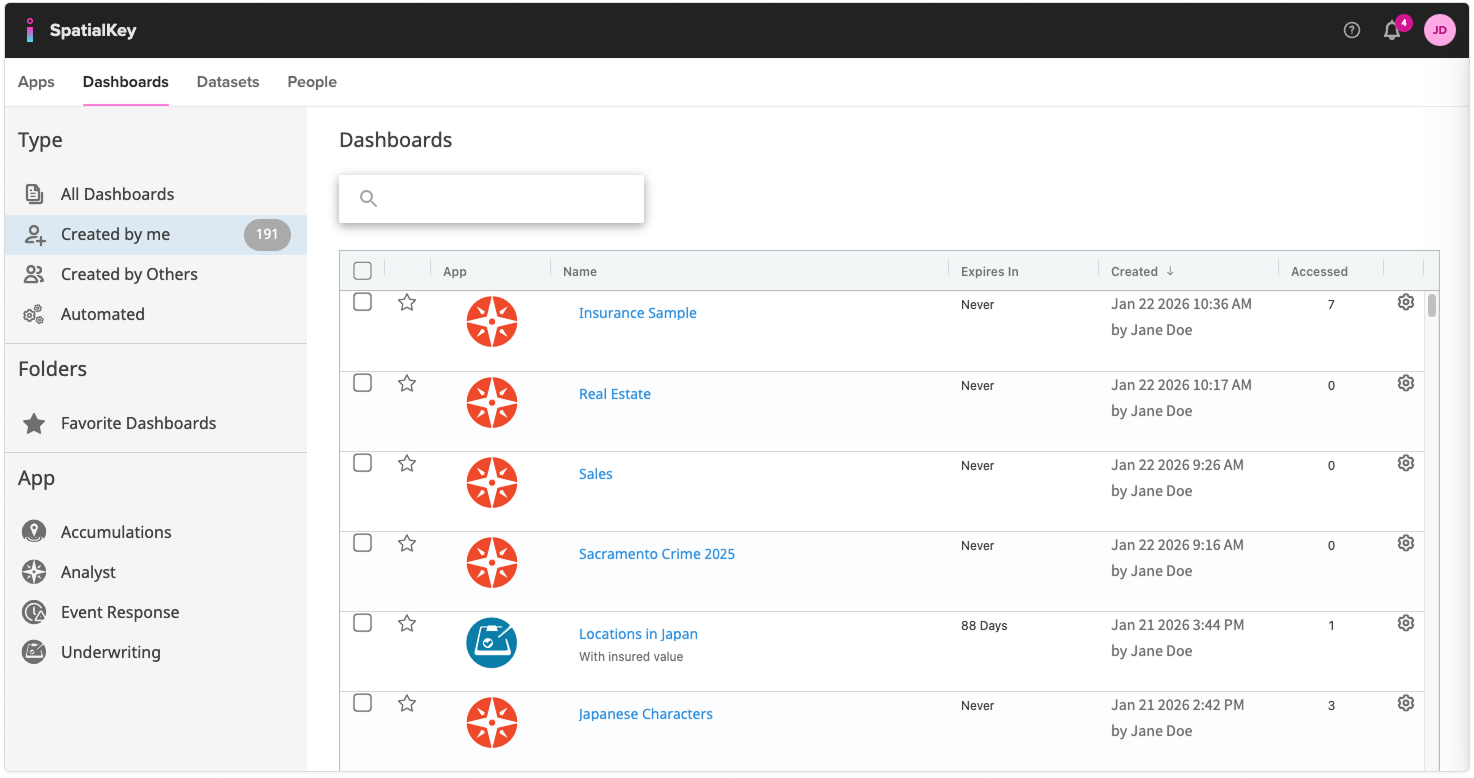
The Dashboards tab in the top horizontal navigation bar is where you can view, organize, and manage all dashboards available to you—whether you created them or they were shared with you.
Use the filters on the left side of the Dashboard tab to switch between dashboards you created, dashboards shared with you, automated dashboards, your favorite dashboards, or dashboards grouped by application type.
The main panel lists each dashboard along with key details such as the app it was created from, expiration date (if any), creator, and last accessed time. You can sort, search, or open dashboards directly from this list.
This tab makes it easy to keep track of active work, revisit important analyses, and stay organized across all SpatialKey applications. Learn more about dashboards.
Datasets
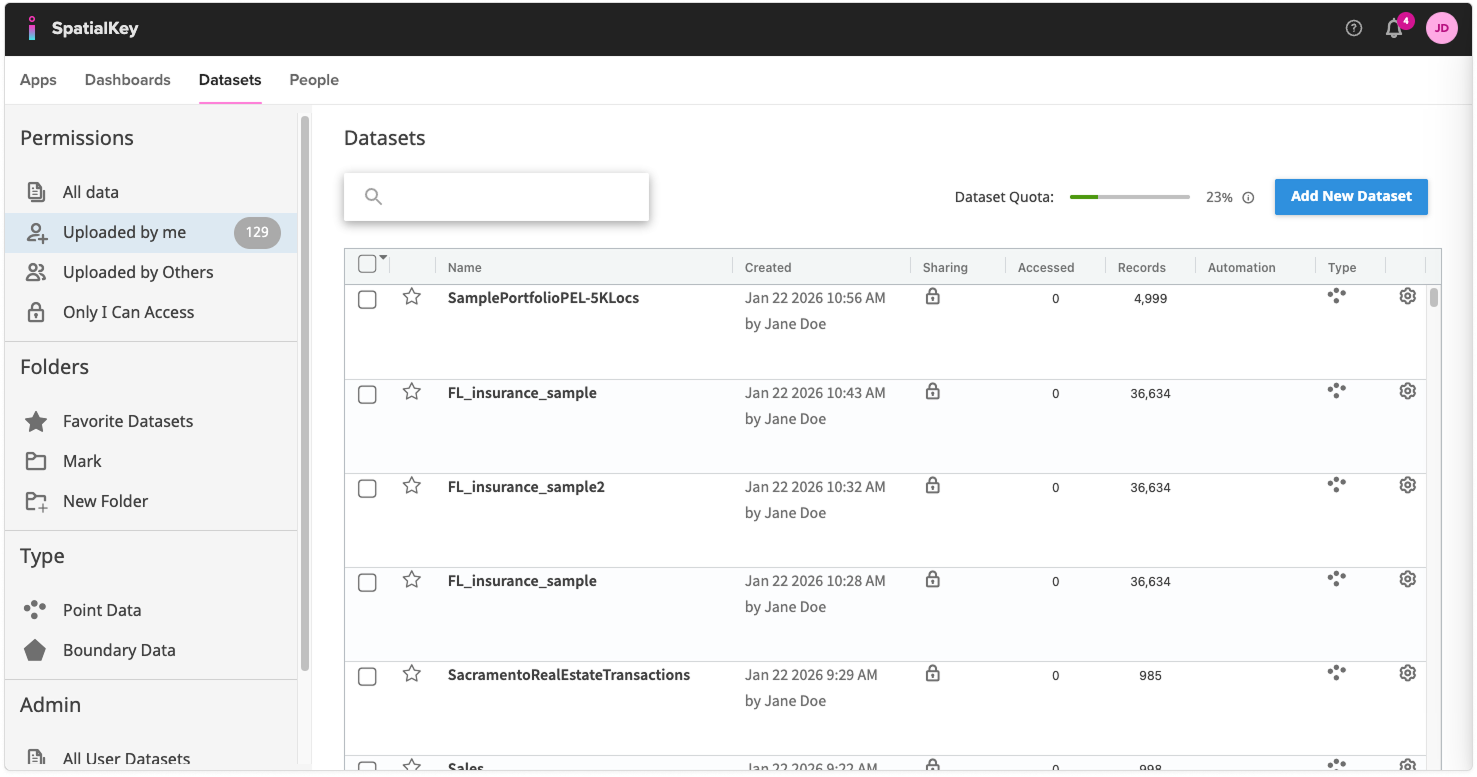
The Datasets tab in the top horizontal navigation bar is where you import, organize, and manage all data available to you in SpatialKey. This includes datasets you’ve uploaded yourself as well as any datasets shared with you by others. Use the filters on the left to quickly switch between data you uploaded, data uploaded by others, or data restricted to your access.
The main panel displays each dataset along with details such as when it was created, whether it’s shared, how many records it contains, and whether automation is enabled. You can search for datasets, mark favorites, organize them into folders, or upload new data using the Add New Dataset button.
This tab provides a centralized place to keep your data organized and easily accessible across all SpatialKey applications. Learn more about importing data.
People
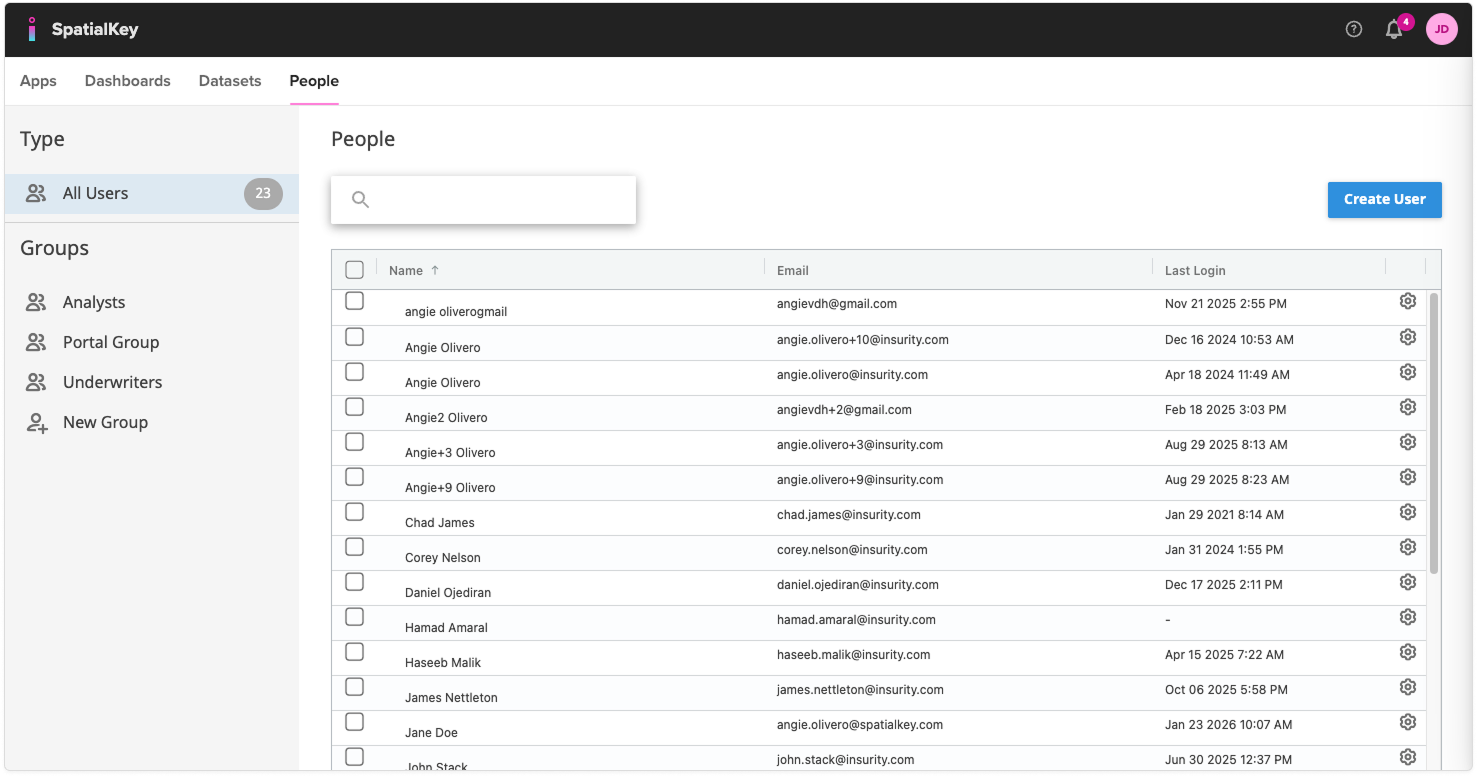
The People tab in the top horizontal navigation bar is where User Admins manage access to SpatialKey. From this page, admins can add new users, update permissions for existing users, and organize users into groups for easier access control. Use the filters on the left to view all users or specific groups, and use the search bar to quickly find any individual. The main panel lists each user along with their email and last login date, and the Create User button makes it simple to onboard new team members.
This tab centralizes user administration, helping you keep your organization’s access clean, secure, and well‑organized. Learn more about users & permissions.
Help
Click on the “?” icon in the top right of the header to find support documentation and submit a support request. This menu has links to view Quick Start guides specific to each application, SpatialKey API documentation and release notes.

Notifications
From the bell icon in the top right of the header, you will receive in-app notifications when processes complete, like when a dataset has finished importing.

Profile
Access your profile information, account quotas, API keys, and log out from the profile icon in the top right of the header.


Was this helpful?