
This quick start guide walks you through how SpatialKey’s financial model works so you can confidently analyze exposure across locations, policies, and facultative reinsurance. You’ll learn how data flows through the financial model tree—from site terms up through policy terms and special conditions—to calculate ground-up, gross, and net exposure by peril. The guide also shows you how to load data using the API, Bridge, or the SpatialKey interface, and explains the required structure for policy, location, reinsurance, and special conditions files so your results calculate as expected. Download a PDF version of this Quick Start Guide.
Check out this article to learn how to Set Up a Policy File in SpatialKey.
What our financial model supports
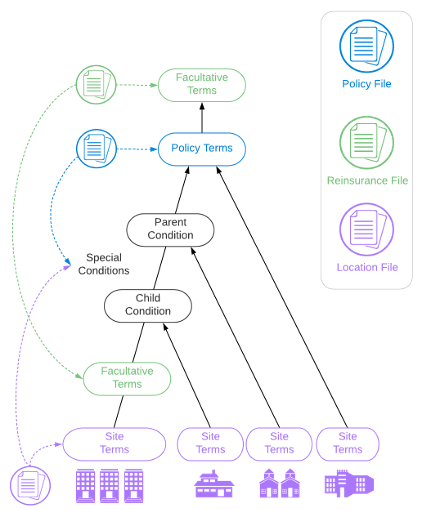
We gather information for the calculations from up to 3 files provided by you: a location file, a policy file, and a reinsurance file.
Our financial model can be thought of as a tree, where locations are grouped by various different financial terms leading up to the policy that covers them. The result is calculated ground up, gross, and net exposure by policy for any peril you choose.
Site Terms
Peril-specific site limits and deductibles can be included for each location.
Special Conditions
Sublimits, deductibles, and policy restrictions can be specified for locations within a policy.
Policy Terms
Policy limit, layer, attachment point, blanket deductible, and maximum deductibles can be specified for each policy.
Facultative Reinsurance
Percent reinsurance, layer, attachment point, and inuring priority can be specified for facultative reinsurance associated with locations and/or policies.
How we perform financial calculations
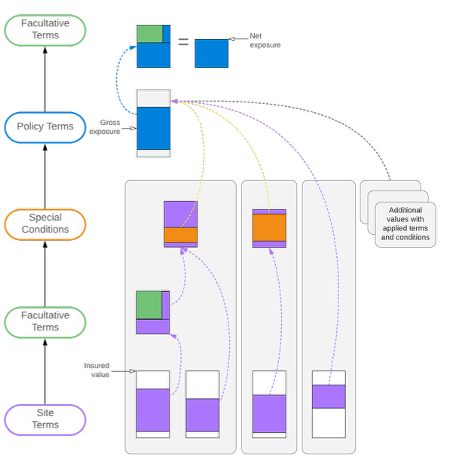
For each financial calculation that occurs in SpatialKey, we build a tree of terms and conditions that the insured locations flow through. We walk up the tree starting at the site level, running financial calculations at each level along the way.
Important things to consider
Exclusions
Locations flagged with special conditions indicating exclusions don’t enter the financial model tree and are ignored for all calculations.
Percentages and zeros
- SpatialKey handles percentages and zeros by converting them into a value amount. Percentages are recognized when the imported value is <= 1 and > 0.
- Policy limit and policy layer: percentages and zeros are converted to a value using policy limit and layer (if known), site limits, and insured value.
- Policy blanket deductible, policy maximum deductible, site deductible, sublimit, and subdeductibles: percentages are converted to a value using insured value.
Policy maximum deductible
At this time, we are not capping deductibles applied throughout the levels of the tree to the policy maximum deductible.
Reinsurance
Facultative reinsurance works to the benefit of the insurer. The result that carries forward to the next node in the tree, is the result net of the facultative reinsurance limit rather than what is subject to the limit itself.
Loading data into SpatialKey
In the chart below, you’ll find multiple options for uploading data into SpatialKey. It’s important to consider which method you will use based on your financial modeling needs.
| Portfolio Data | Insured Value | Site | Special Conditions | Policies | Facultative Reinsurance |
|---|---|---|---|---|---|
| Uploading portfolios using SpatialKey’s APIs The Data Import API allows you to automate uploading entire portfolios and associated policy information into SpatialKey. |
Yes | Yes | Yes | Yes | Yes |
| Uploading portfolios using the Bridge desktop application If you store data in databases (e.g. RiskLink EDMs), you can use the Bridge application to easily upload data into SpatialKey. Bridge will automatically extract financial information and load it into your site. |
Yes | Yes | Yes | Yes | Yes |
| Uploading portfolios through SpatialKey’s interface After uploading your location data via the cloud application, you can upload associated policies in the Dataset Settings > Policy File Setup page. You’ll be taken through a wizard to identify key columns that are required for financial modeling. |
Yes | Yes | Yes¹ | Yes | No |
| Underwriting Data | Insured Value | Site | Special Conditions | Policies | Facultative Reinsurance |
|---|---|---|---|---|---|
| Uploading underwriting locations using SpatialKey’s APIs Our API lets you bypass the manual input or upload step and return results into your own system. You can also programmatically launch into the underwriting report in SpatialKey. |
Yes | Yes | No | Yes | No |
| Manually inputting or uploading locations for underwriting Our underwriting solution allows you to manually enter addresses, latitude/longitude coordinates, and upload schedules of locations to evaluate. |
Yes | No | No | Yes | No |
How to Prepare Your Insurance Files for SpatialKey

About policy files
Policies are required for financial modeling to occur in SpatialKey. Policies can be uploaded manually through the data upload wizard, or through more automated methods like the Bridge desktop application or the SpatialKey API. Because policy terms determine how insured values roll up and how limits, deductibles, and layers are applied, the policy file is essential for accurately representing the insurance provider’s exposure. Without it, SpatialKey cannot calculate ground‑up, gross, or net exposure for your portfolio.
- The policy file can have multiple records for a given policy ID if there are multiple perils covered by a policy. The policy file should contain unique records if you look at the combination of the policy ID and peril fields.
- SpatialKey requires the following fields in the policy file: policy ID and/or policy number,policy limit, layer, and attachment point. Optional fields include: blanket deductible and maximum deductible.
- When using the data upload wizard to set up your location and policy files, you will be asked to identify policy IDs or policy numbers, not both. What you select will be used for grouping financial modeling results in SpatialKey. When using the Bridge desktop application or the API, you can identify both policy IDs and policy numbers. This allows for support of special conditions and facultative reinsurance linkages as well as a meaningful grouping mechanism when viewing financial modeling results in SpatialKey.

About location files
Locations are the most critical element of visualization in SpatialKey. Locations can be uploaded manually through the interface or programmatically through the Bridge desktop application or the API.
- The location file should have a single record for each location. If you have more than one record, you will end up duplicating the insured values and location visualizations in SpatialKey.
- SpatialKey requires the following fields in the location file: location ID and insured value. Optional fields include: site ID, peril-specific site limits, and peril-specific site deductibles.
- Sites are identified by a site ID column in the location file. A “primary site” will be identified for a record where location ID = site ID. Site limits and deductibles should be identified on this “primary site” record.

About reinsurance files
Facultative reinsurance can be defined in a separate reinsurance file that accompanies the location and policy files. Facultative reinsurance can be uploaded through the Bridge desktop application or the API. At this time, facultative reinsurance cannot be configured through the UI.
- Facultative reinsurance is the only type of reinsurance supported at this time.
- The reinsurance file should contain one record per facultative reinsurance policy. Both location and policy level facultative reinsurance are supported.
- SpatialKey requires the following fields in the reinsurance file: reinsurance ID, exposure ID, exposure type, reinsurance type, priority, percent reinsurance, layer amount, and excess amount.
- Priority is required for facultative reinsurance layers. If multiple facultative reinsurance layers fall in the same branch of the tree, priority will be taken into consideration with 1 being the highest priority.
- Facultative reinsurance will apply to an entire site if any of the locations within the site are covered by the reinsurance policy.
LINKING FILES TOGETHER: Locations and policies are joined through a common account ID in both files. The reinsurance file contains an exposure ID that links to either policy IDs or location IDs in the respective tables.
Download sample policy, location and reinsurance files
IMPORTANT: When using the Bridge desktop application, only fields where isvalid = 1 will be extracted and imported into SpatialKey.
About special conditions
Special conditions, including sublimits, subdeductibles, and policy restrictions, are supported in SpatialKey via additional columns in the policy and location files. Special conditions can be uploaded through the Bridge desktop application or the API.
- SpatialKey expects the following special conditions fields in the policy file: condition type, condition name, parent condition name, condition limit, and condition deductible.
- SpatialKey expects the following special conditions fields in the location file: condition name and condition policy ID.
- SpatialKey will automatically detect an unlimited number of special conditions in your location and policy files if your column names use the format outlined below.
Special conditions fields in the policy file
- Condition type: COND1TYPE, COND2TYPE, etc.
- Condition name: COND1NAME, COND2NAME, etc.
- Parent condition name: PARENTCOND1NAME, PARENTCOND2NAME, etc.
- Condition limit: COND1LIMIT, COND2LIMIT, etc.
- Condition deductible: COND1DEDUCTIBLE, COND2DEDUCTIBLE, etc.
Special conditions fields in the location file
- Condition name: COND1NAME, COND2NAME, etc.
- Condition policy ID: COND1POLICYID, COND2POLICYID, etc.
IMPORTANT: If your data doesn’t follow the naming structure above, your special conditions will not be considered.
Types of conditions
The condition type field indicates either a policy restriction (condition type = 1) or sublimit (condition type = 2).
- A policy restriction limits the policy’s coverage to locations with condition names that match the policy condition name. Other locations under the policy are excluded from coverage and ignored by the financial model.
- A sublimit applies to locations with condition names that match the policy condition name. Other locations under the policy are covered without limitation by the given sublimit. A sublimit can be defined by limits and/or deductibles.
- Subconditions are identified when the parent condition name is populated with values equaling another condition name. This allows SpatialKey to determine the hierarchy in order to properly set up the subconditions. SpatialKey supports an unlimited hierarchy of parent and child conditions.
- If a hierarchy cannot be determined, parent-child relationship will not be considered (e.g. parent condition name is provided but doesn’t match a condition name).
- Sublimits will apply to an entire site if any of the locations within the site are covered by a sublimit.
Field types
- Condition types, condition names, and parent condition names must be type = string. Condition limits and condition deductibles must be type = number, and format = decimal if you have percentage values in your data. If the type isn’t specified correctly, the columns will not be auto detected and used in the exposed limit calculation.
Was this helpful?