
To run an Underwriting analysis, start by adding the locations you want to evaluate—either by typing in an address, entering multiple addresses, or uploading a schedule you’ve already prepared. You can fine-tune any typed address using geo-correction, simply dragging the marker to the exact spot you want analyzed. From there, add insured values (TIV), choose the hazards you want to run, and, if it’s helpful, include an in-force portfolio to see how these locations fit into your existing risk. If you usually run the same setup, you can skip these options next time and jump straight into your analysis.
Run an Analysis
As submissions come to your desk, use Insurity Geospatial to enter locations you want to analyze. You can also select a previously run analysis listed under “Recent Dashboards” or run a new analysis:
1. Manually enter one or more addresses
2. Or import a schedule of locations (.csv) that has been prepared.
Schedule import field mapping options
Used for geocoding:
- Latitude
- Longitude
- Street
- City
- Postal Code
- County
- State
- Country
- Geocoder
- Note: Fields mapped for geocoding are optional BUT you must either have lat/long or the right combination of fields to plot locations at postal code level or better (which is required for analysis).
Location Exposure (optional) – If applicable, these field(s) will be used to help calculate exposure:
- TIV (always available)
- Site Limit*
- Site Deductible*
- Location ID*
- Primary Site ID*
- *available only when an organization has an accumulation scenario enabled.
Field type is auto-detected (i.e., string, integer, decimal, date), but you can review and fix these before import. There is currently no way to change column type after import for underwriting schedules.
Note: Datasets imported through the Underwriting application do not appear in the Datasets tab on the Home screen and cannot be shared individually. However, the underwriting dashboard can be shared like any other dashboard, and sharing it will grant users access to the underlying data.
3. For addresses that you type in manually, use geo-correction to adjust the position of the point before analysis. Simply drag the marker to the correct location (e.g., move the marker from the alley to the rooftop). Geo-correction is currently only available in the Underwriting application and is not currently available for imported schedules or locations entered via the API.
4. If your organization manages accumulations, enter insured values (TIV) for the location(s) you want to analyze. When uploading a schedule, you’ll be able to select a column that represents insured value.
Note: Only locations without latitude and longitude will be geocoded. Geocoding accuracy of postal code or better is required for analysis. E.g., You won’t be able to run analysis on locations where you’ve only mapped the “State” field because that will be considered too poorly geocoded to run an analysis against.
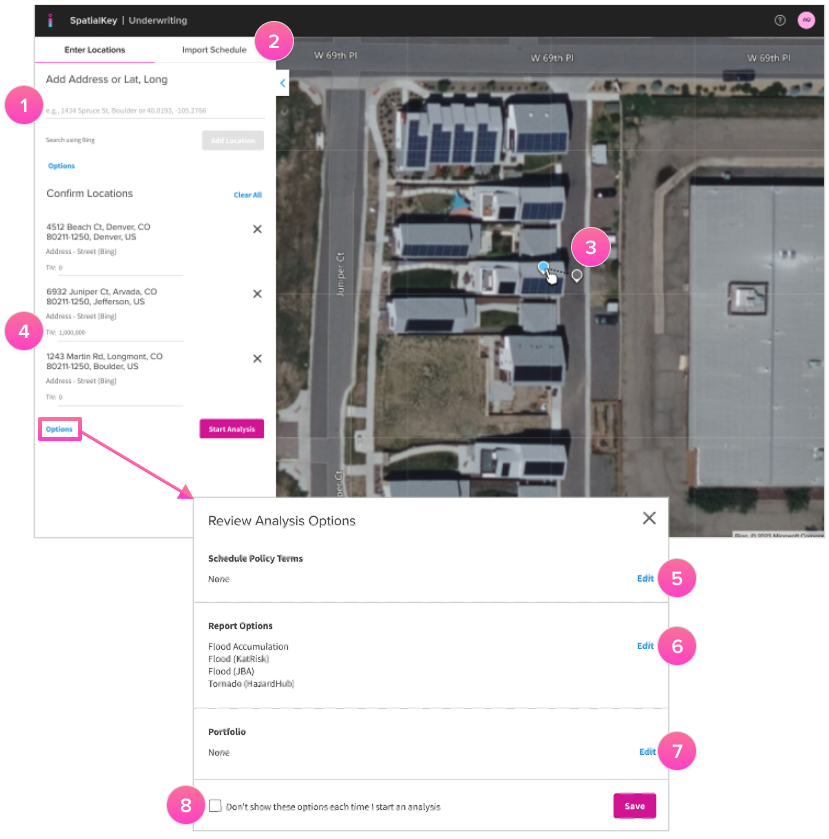
Customization Options Pre-Analysis
5. If relevant for your analysis, enter policy terms for the risk(s) you are evaluating.
- Policy term entry will only be visible if you have an accumulation analysis licensed for your org AND the accumulation analysis is enabled in the “Report Options” section.
- This section allows you to set up:
- Limit or % Share
- Total Layer
- Attachment Point
- Blanket/Min Deductible
- Max Deductible
- Limit, layer and deductibles can be entered as a number (currency) or decimal (percentage).
6. Select hazard reports to run for your analysis. If only one report type is assigned to your organization, this option will not be visible.
7. Select an in-force portfolio to visualize locations already on the books or understand the impact of adding the new location(s) to existing concentrations. This is especially important if you are running an Accumulations analysis. Learn more about the Accumulations report.
8. Bypass this screen by selecting “Don’t show these options each time I start an analysis” if you don’t often need to configure hazards and/or your in-force portfolio
TIP! Build a complete view of risk, spanning multiple hazards—like flood, wildfire, hurricane, and more—with data from dozens of providers. View all providers here
Run Analysis
Finally click Run Analysis and SpatialKey automatically analyzes the risk of your prospective locations.
Next let’s visualize and understand your Underwriting results.
Was this helpful?