
Attaching a policy dataset to a location dataset (that is already imported into SpatialKey) will allow you to use the dataset to calculate exposed limits or gain perspective and answer targeted questions about exposures in your portfolio. If you don’t have a dataset ready for this but still want to follow along with an example, you can download sample date here (Download Sample Datasets – Locations + Policy Files).
To learn more about how the financial model works inside SpatialKey, check out our Financial Modeling Quick Start Guide.
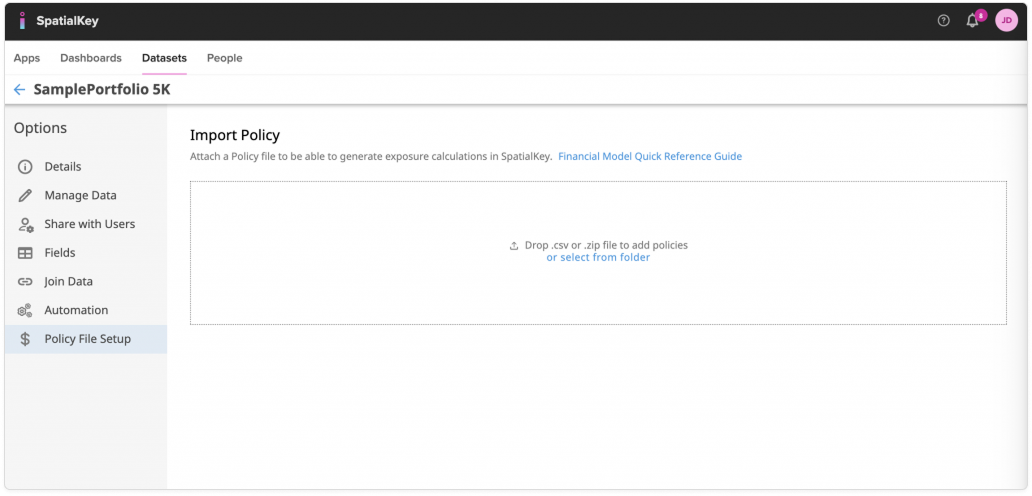
To begin, select the Datasets tab and find your dataset. Click on the gear icon to view data settings and select the “Policy File Setup” option on the left side of the screen.
Drag your policy file in or click “select from folder” to select and import your policy dataset. Note that only dataset Creators/Editors can attach a policy file.
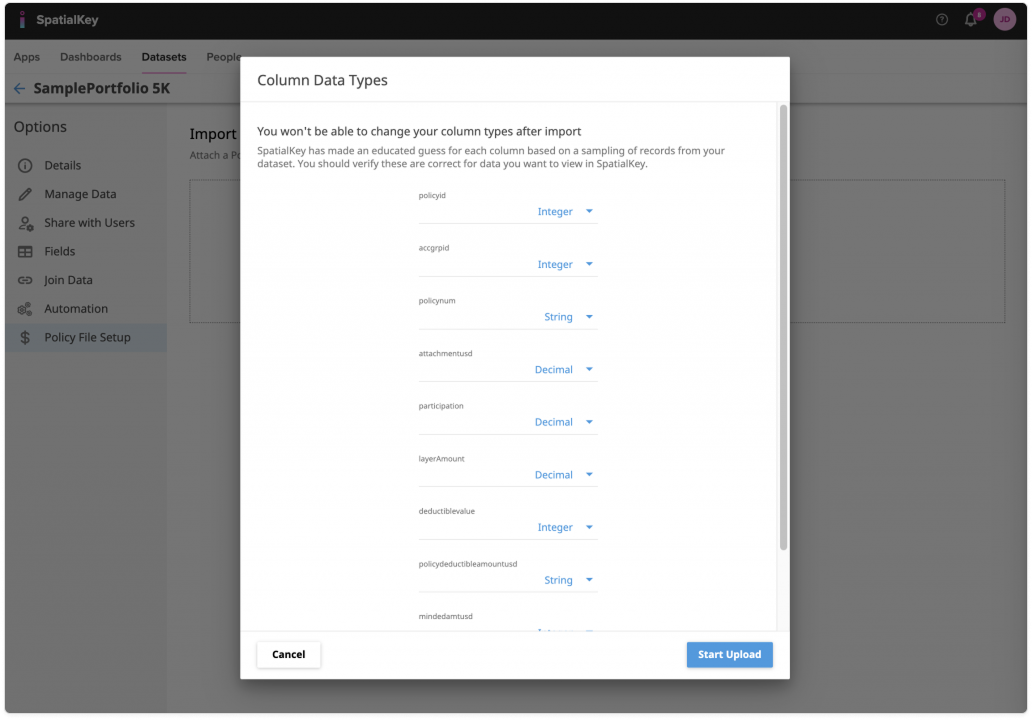
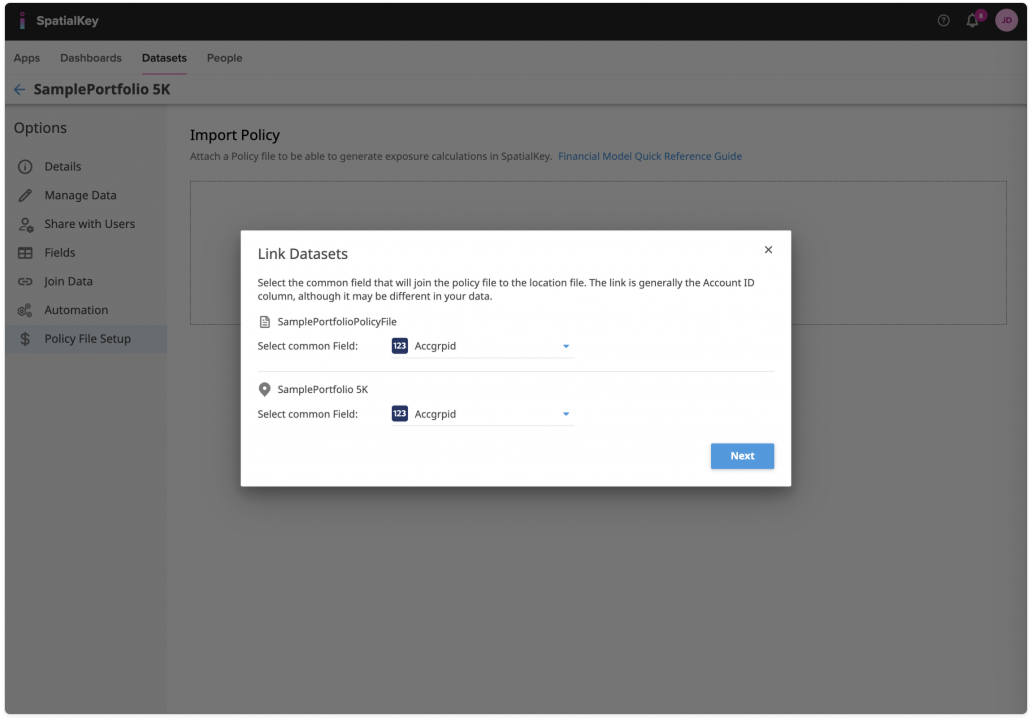
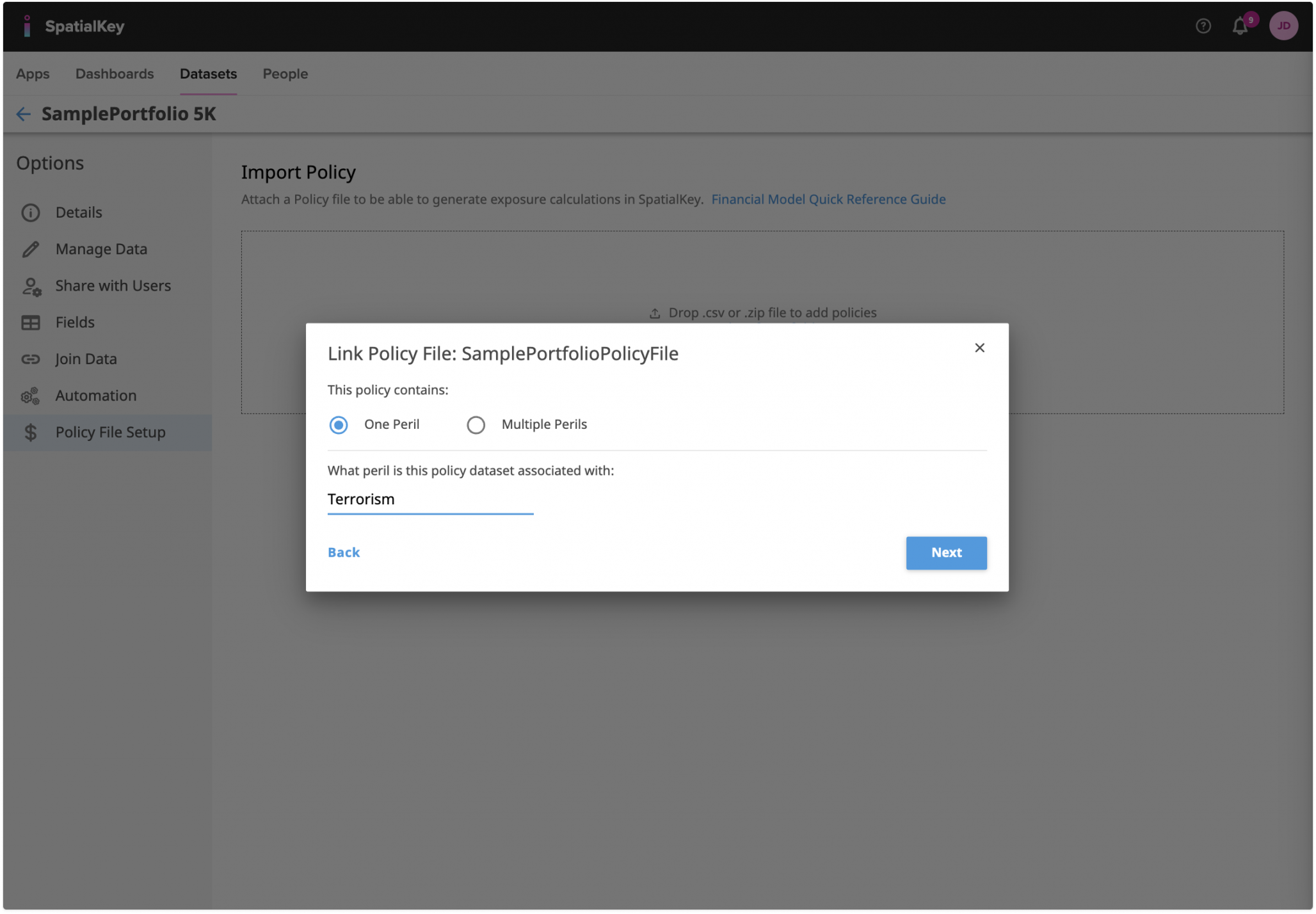
You will be guided through a setup wizard that will allow you to preview the policy data and link it to your locations, and then map important fields to enable policy exposed limit calculations.
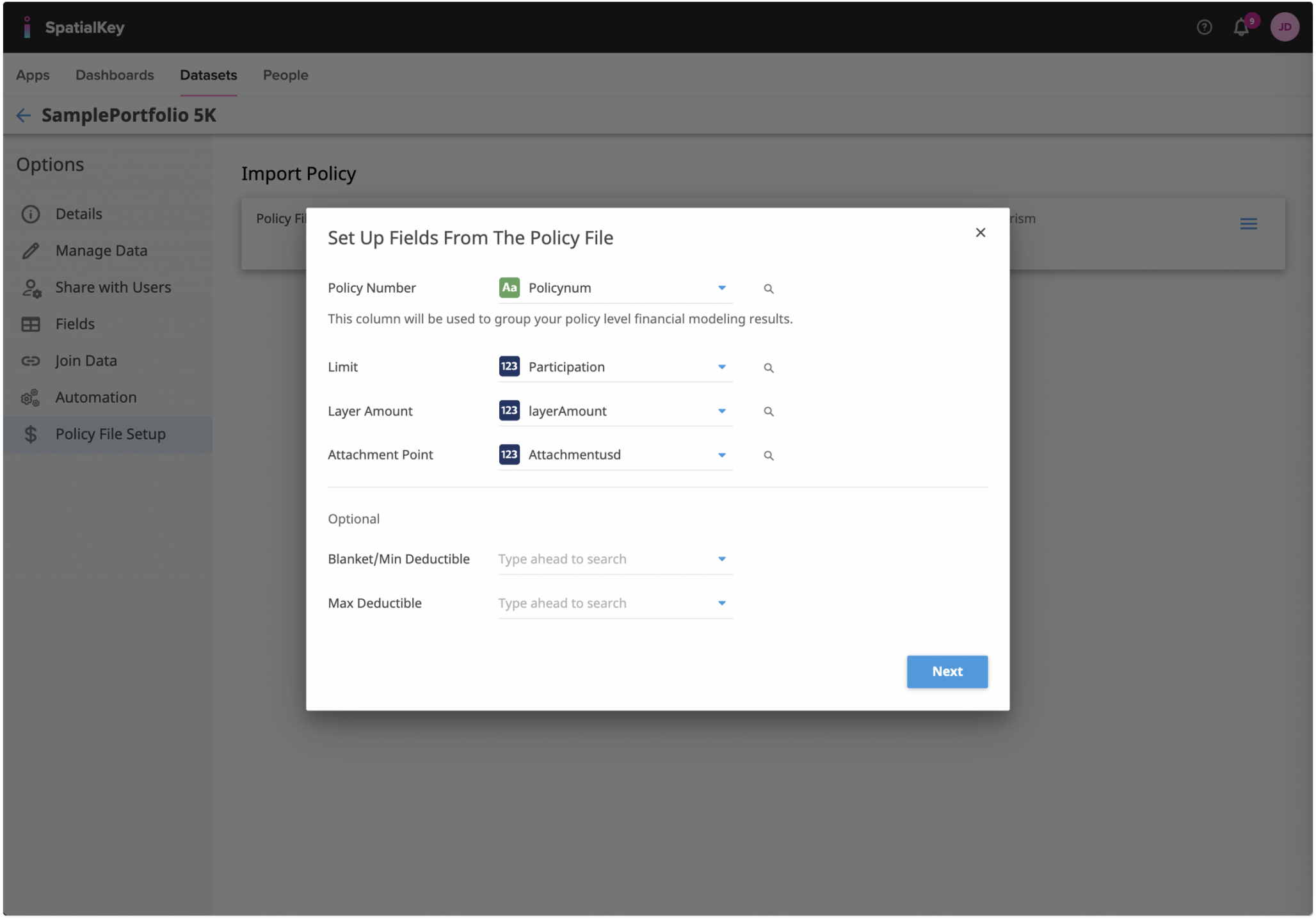
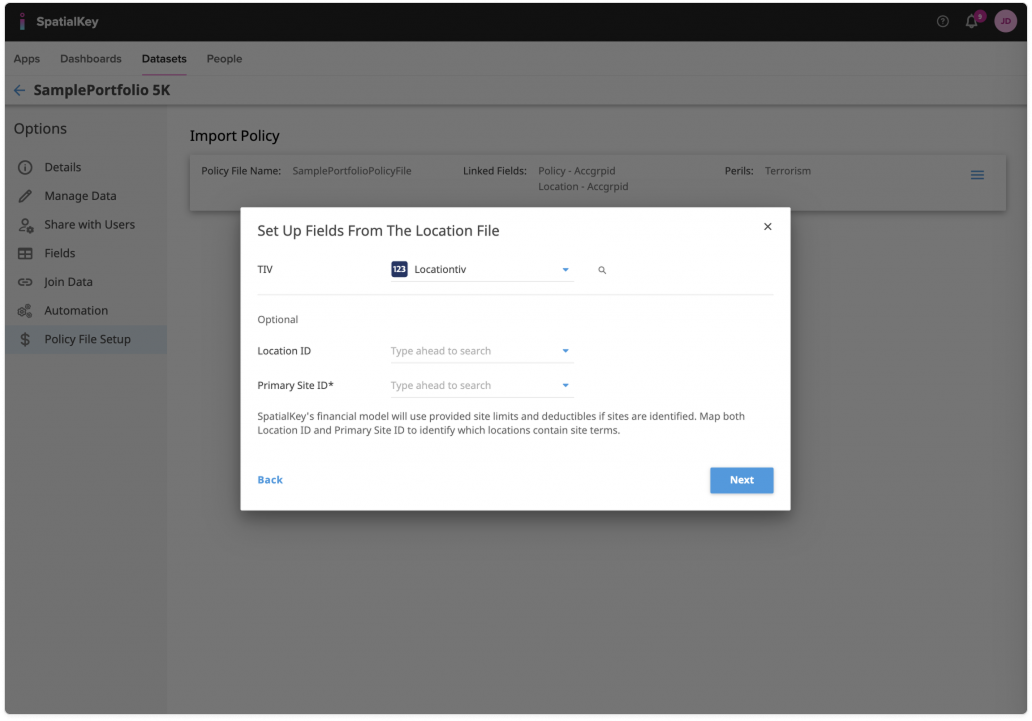
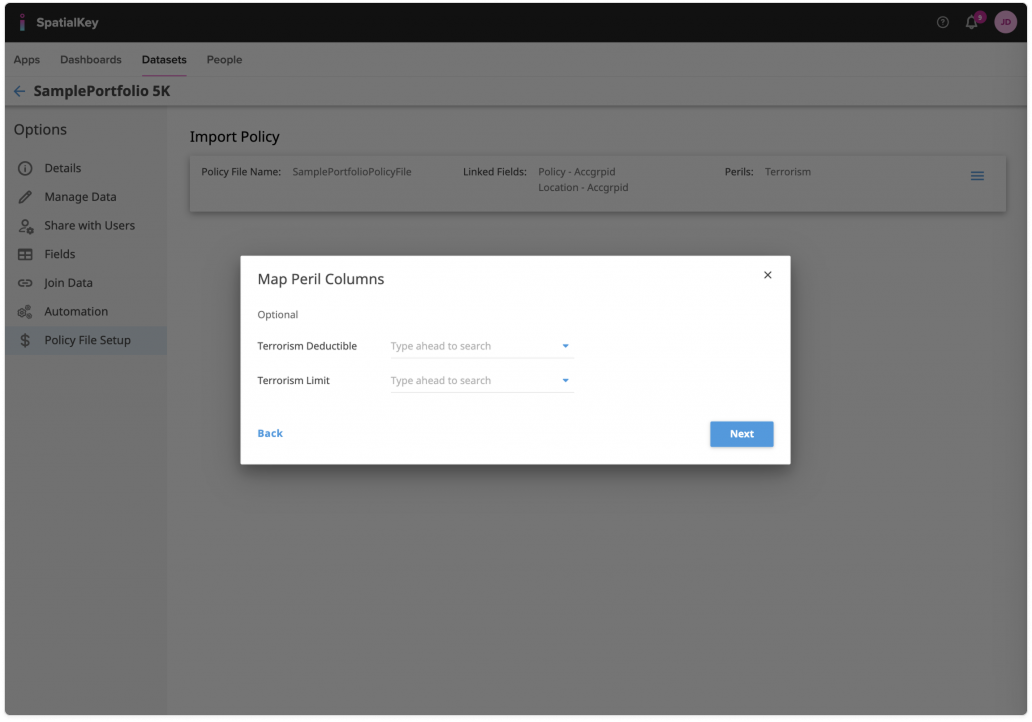
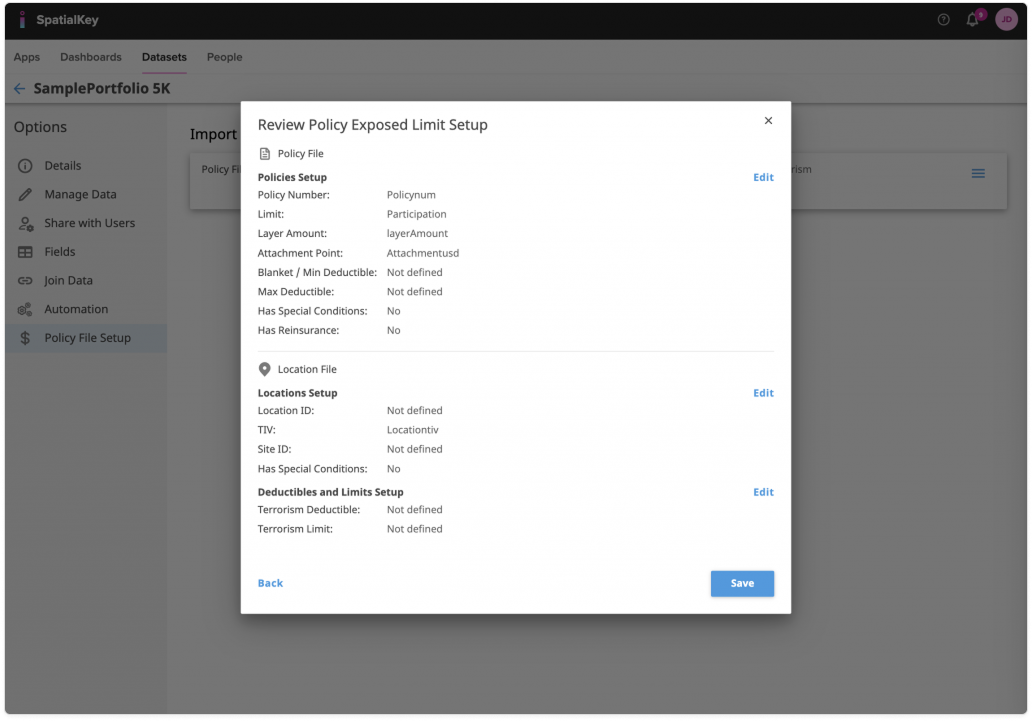
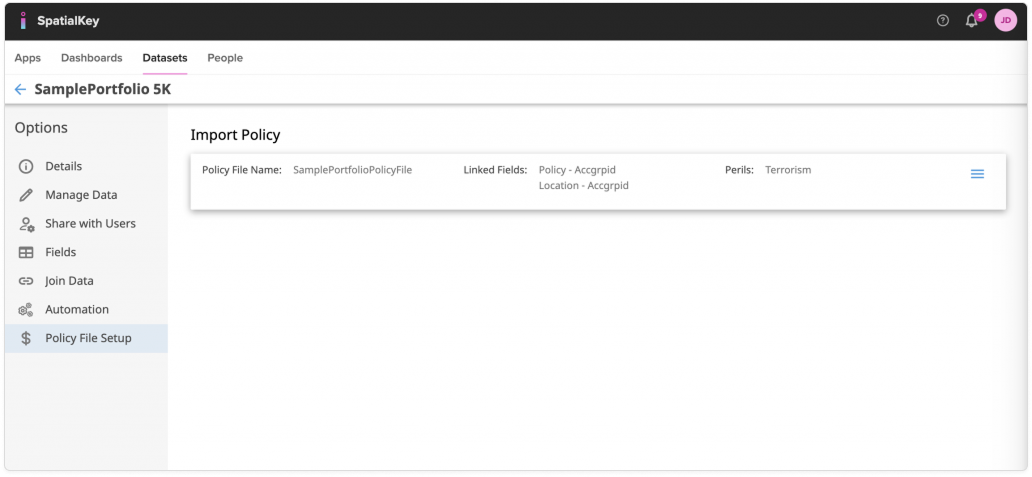
When the setup is complete, the screen will update to show information from the policy file and provide you with the option to manage the policy file or policy exposed limit setup.
Was this helpful?