
Use the Distance tool to quickly measure the distance between locations and view an elevation profile along the path. The Elevation tool lets you click anywhere on the map to instantly see the elevation at that point.
Map tools in SpatialKey:
Distance Tool & Elevation Profile
To start using the distance tool, click on the Line Tool in the toolbar. You can also access this tool by right-clicking anywhere on the map.
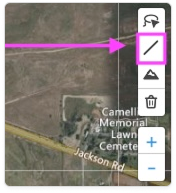
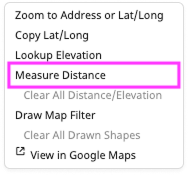
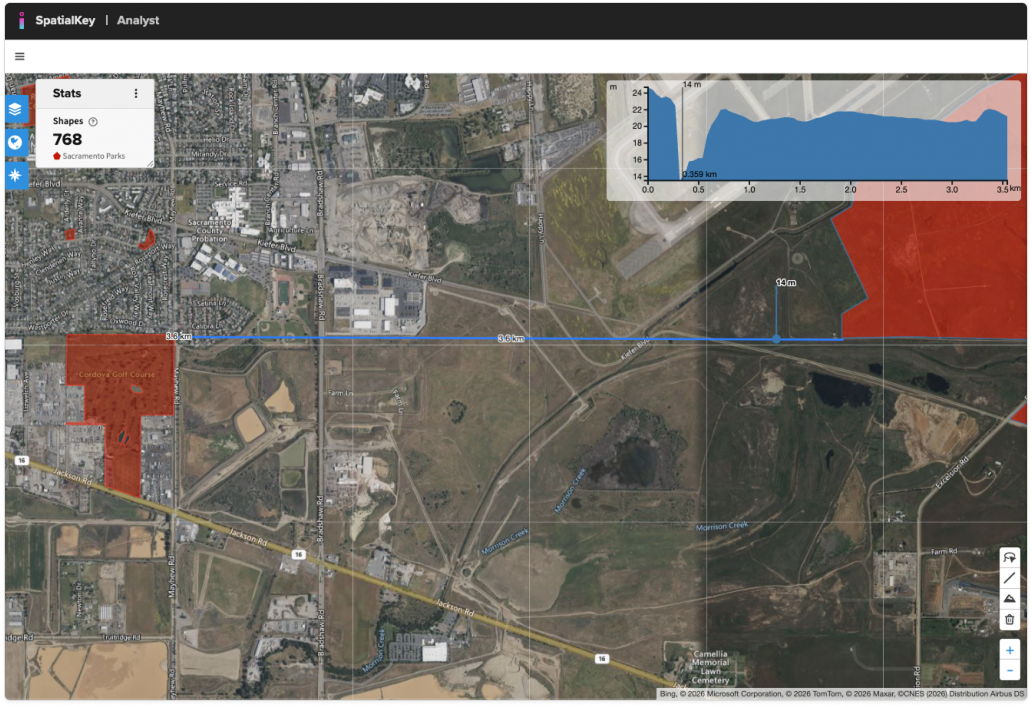
With the Distance tool, you can draw a line—or multiple connected segments—by clicking on the map. Click to start, move your mouse and click to add each segment, then double-click to finish. The total distance is calculated automatically for the whole line and each segment. This tool is ideal for measuring between two points or tracing the perimeter of rooftops and other objects on the map. The example below shows the distance between two city parks.
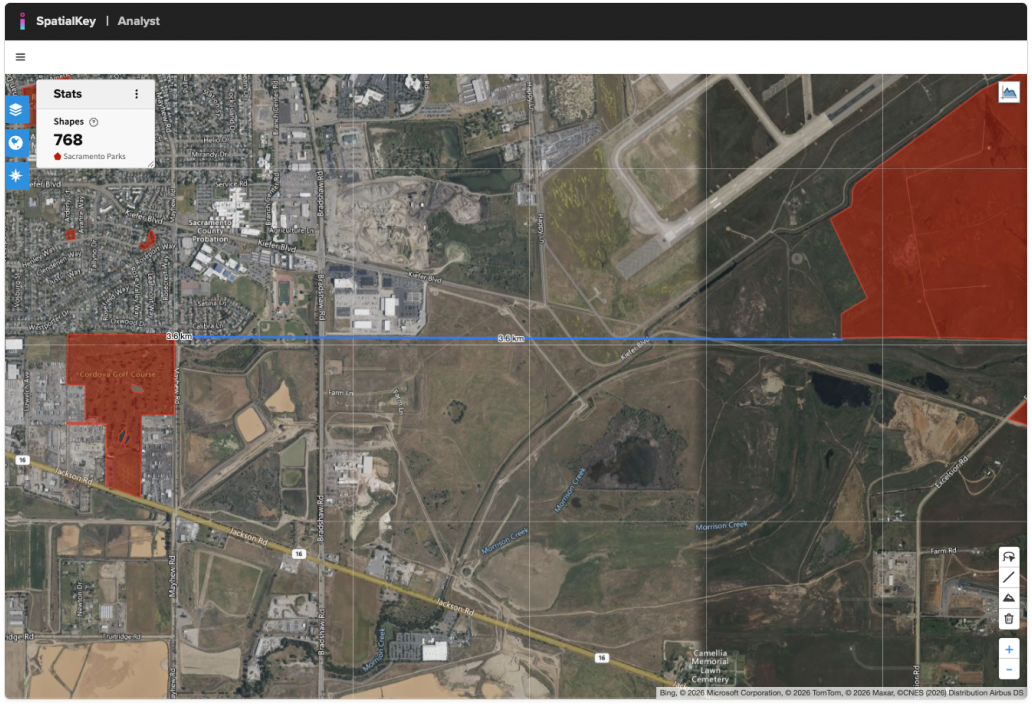
Click on the drawn line or the Elevation Profile icon (in the top right corner of the map) to view the elevation along the line.
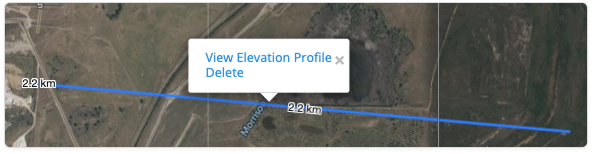

When the elevation profile is visible, you can hover over any point along the distance line to highlight that location’s elevation on the profile chart. This is especially useful when evaluating nearby flood risk, as it helps you understand whether the area surrounding a property has been mitigated.
Elevation Tool
To start using the elevation tool, click on the Line Tool in the toolbar. You can also access this tool by right-clicking anywhere on the map.
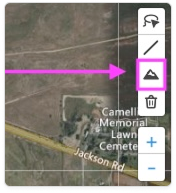
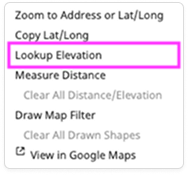
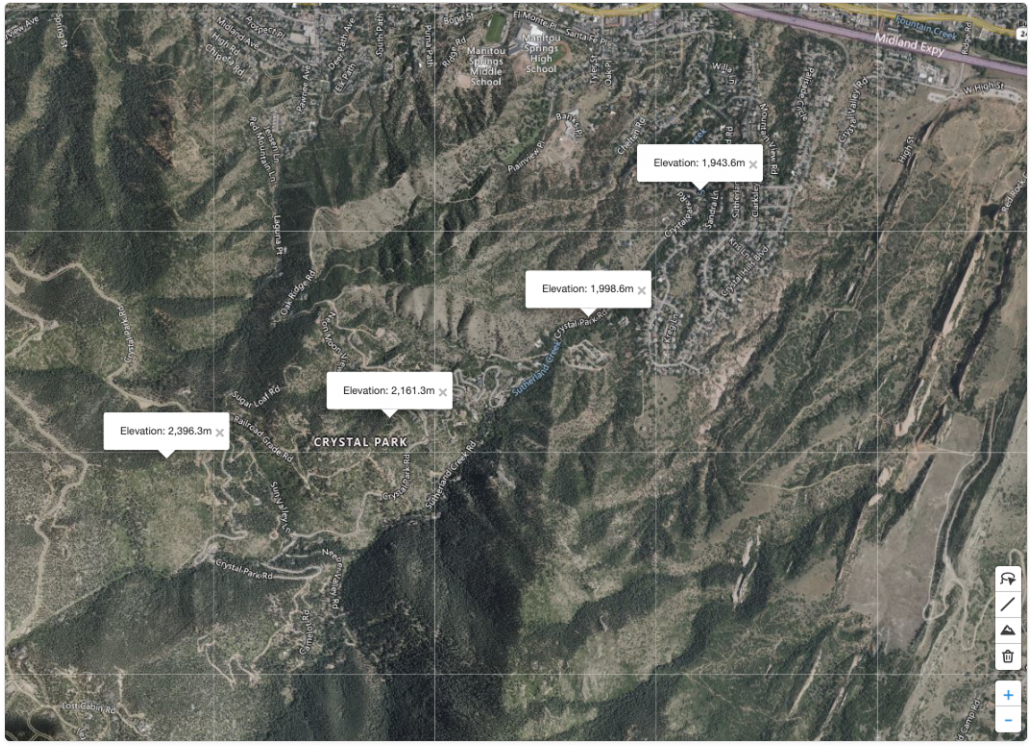
Select the Elevation icon and click anywhere on the map to view the elevation at that location. You can place multiple markers to quickly understand the surrounding terrain.
Remove measurements and markers
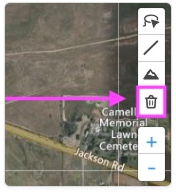
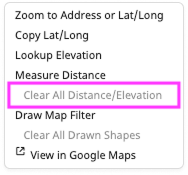
Use the trash can to remove all drawn distance or elevation markers. You can also delete the markers by right-clicking on the map.
Was this helpful?