
Let’s start with the question, what is geocoding? A geocoder translates address information into latitude and longitude coordinates, which can be used for spatial and other geographic analysis. Generally, the quality of a geocoding solution is measured by its precision and accuracy. These are influenced directly by the completeness and resolution of a geocoder’s underlying source data and its ability to interpret input address information.
What are my geocoding options?
You can either geocode in SpatialKey using one of our geocoding options, or geocode outside of SpatialKey using your preferred geocoding solution and import data that contains latitude and longitude coordinates.
Import Wizard vs. API Import
When using the SpatialKey Import Wizard, only locations that are missing valid latitude and longitude values (blank or zero) will be geocoded. This lets you import files that are already fully or partially geocoded—SpatialKey will automatically geocode only the locations that need it.
When you import latitude and longitude coordinates into SpatialKey, you can optionally define the geocoding resolution of those coordinates by including this as a column on your dataset – see below for details on resolution levels.
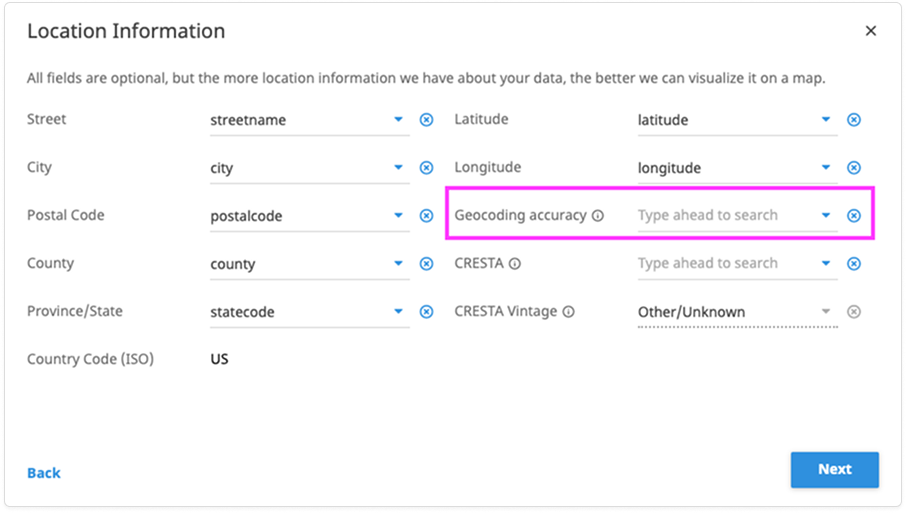
When importing locations through the Import API, you can choose from several geocoding options that control how—or if—your data is geocoded during import. These options are defined in the XML descriptor file included with your dataset. Access our technical documentation for more on how the Import API works.
Geocoding in SpatialKey
Let’s look at the different options for geocoding within SpatialKey. We provide premium geocoding offerings from MapQuest, Bing and AddressCloud. Here is a table that breaks down these options:
| MapQuest Premium | Bing | AddressCloud | |
|---|---|---|---|
| Street vs. Parcel Precision | Street and Limited Parcel | Street and Limited Parcel | Street and Limited Parcel |
| Supported Countries | US & CA Only | Global | Great Britain, Ireland, Northern Ireland and the Channel Islands |
| Is the export of Geocodes Allowed? | Yes | Yes | Yes |
| Price | Based on the number of geocodes | Based on the number of geocodes | Based on the number of geocodes |
| Supported Basemaps | All | Bing Only | All |
Note that Premium geocodes are cached so if you geocode the same dataset twice, you only pay for those geocodes once. The cache is cleared on an annual basis.
It is possible that your organization has multiple geocoders available and it will be up to you to decide which to use for your dataset.
Understanding the difference between Interpolated Street and Parcel geocoding precision
Street level geocoding means that the geocoder knows that there’s a particular segment of a street that begins and ends with certain addresses. So the geocoder might know that a certain block of Main St begins with 1200 and ends with 1300. If we’re geocoding the address 1250 Main St then the geocoder will put that address exactly in the middle. If you geocode 1210 Main St then it will be about 10% from the beginning of the block. Parcel geocoding, on the other hand, knows the exact lat/lng for that particular address. Street level geocoding can be quite accurate for city streets that follow logical numbering schemes, where the buildings are equally spaced along the block. But in the case of rural locations that can get tricky, since you might have a long road segment that’s nearly all empty except for sporadic buildings. In that case it might not be accurate to say that an address in the middle of the number range should fall in the middle of the street segment. There’s also the case where the street numbers might not follow a logical ordering. Not all streets have addresses that are in order, you can find streets throughout the world with incredibly strange ordering schemes. So in general, parcel-level is always going to be the most accurate, but for urban, logically-numbered streets the street-level match might be extremely close as well.
How can I access geocoding results?
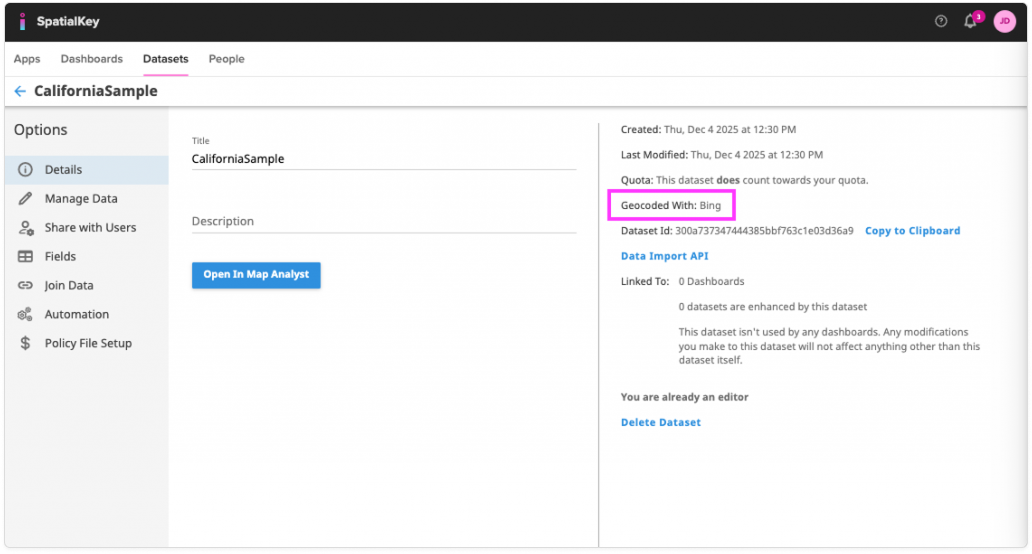
When you have multiple geocoding options, it is important to be able to recall which geocoder was used for a dataset. Within the details tab for a dataset, you can view the geocoder used or whether existing lat/lng coordinates were included in the original dataset.
In the Datasets tab, locate your dataset and click the gear icon to open the dataset details. On the right side of the screen, look for the Geocoded With section to see which geocoder was used.
It is also important to understand how well your locations geocoded. When you import records and geocode with SpatialKey, a column is added to your data describing the resolution of geocoding results for each record.
Dashboard Unique Value List Pod
For a nice summary of how well your locations geocoded, you can add a Unique Value List pod using the “Geocoding Accuracy” field.
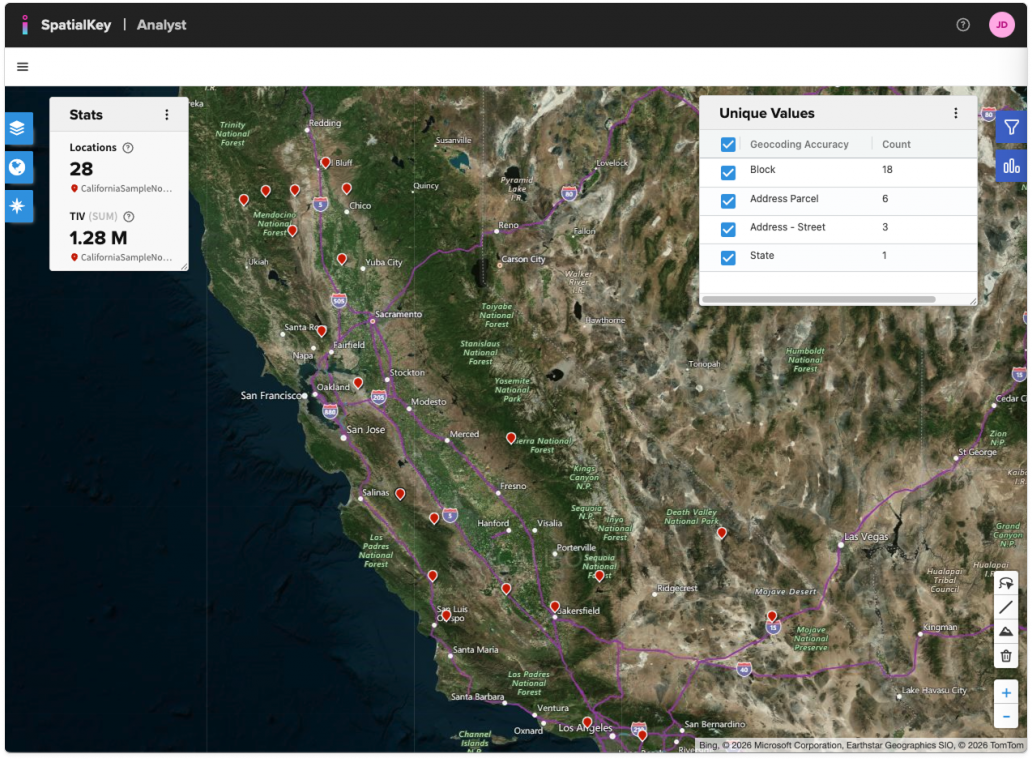
Use this pod to filter out poorly geocoded locations. In the example above, you may want to remove locations geocoded at the State level, as these are placed at the state centroid and can skew your analysis.
Export
When exporting a file that had been geocoded in SpatialKey, a column containing the latitude and longitude coordinates and geocoding accuracy will be included. Having the geocoding resolution upon export can help you manage your data for your additional downstream analytics.
What else do I need to know?
Understanding inputs and geocoding
- Complete and accurate input address data results in more accurate geocodes. Each geocoder applies assumptions and methods of interpretation on the input data, which results in discrepancies when comparing results of multiple geocoding solutions.
- Precision in underlying source data differs. Some geocoding solutions provide parcel and building level geocodes, which results in differences when comparing to interpolated street address geocodes.
- For street addresses, interpolation logic may be different between different geocoding providers. Interpolation determines where to place a geocode within a street segment as well as the side of the street where it’s placed.
- Input address requirements differ between geocoding providers. Some geocoders require street address and postcode to obtain high resolution geocodes; others may require street address, city, state, and postcode. For low resolution geocoding, some support all geo‐political administrative units (like state, county, district, postcode); others may only support the most common geo‐political units (like state, postcode).
Geocoding resolutions
When you import latitude and longitude coordinates into SpatialKey, you can optionally define the geocoding resolution of those coordinates. This will help you better understand the quality of geocoding results when working with the data in SpatialKey. In order for SpatialKey to understand the geocoding resolutions, you must use the following resolution levels.
| Geocoding resolution | SpatialKey resolution code |
|---|---|
| Supplied Lat/Lng | -1 |
| Address – Parcel | -10 |
| Address – Street | 1 |
| Intersection | 2 |
| Block | 3 |
| Postal Code – High Res | 31 |
| Postal Code – Medium Res | 35 |
| Postal Code | 4 |
| City | 5 |
| County | 6 |
| State | 7 |
| Region | 8 |
| Country | 9 |
| Very Poor Geocoding | 10 |
| Manual | 11 |
| Unknown | -80 |
| Geocoding Failed | 0 |
Feel free to contact us to discuss which geocoding option best suits your organizations needs.
Was this helpful?