As easy as it is to import data into SpatialKey, exporting data is even easier! SpatialKey allows filtering and exporting data in multiple ways. You can export records from your dataset or export aggregated data from the visualization pods.

Export records

There are a few global places where you can export records from a dataset

And a few application-specific places you can export records or reports:

Home Interface

Records from datasets can be exported from the Datasets tab. First, select the Datasets tab and find your dataset. Click on the gear icon to view data settings and select the “Manage Data” option on the left side of the screen. Before preparing and downloading your file, you can select which columns you want to include in the export.
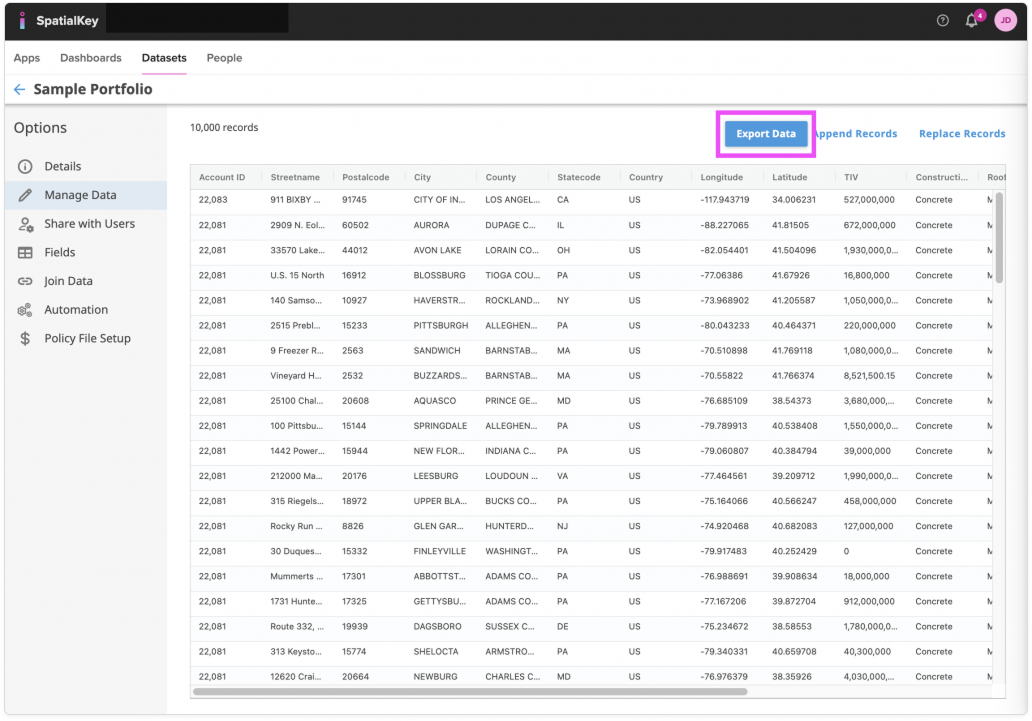
Image of the SpatialKey dataset Manage Data page showing a tabular list of location records, with the ‘Export Data’ button prominently highlighted at the top of the table. The table displays columns such as account ID, street name, postal code, city, county, state, country, longitude, latitude, and TIV, illustrating where users can export the dataset after viewing or managing records. The left navigation highlights Manage Data, and additional actions like Append Records and Replace Records appear next to the export option.

Dashboards

Export records directly from the Location List panel on the right side of the dashboard. If your dashboard includes multiple datasets, use the dropdown next to the download icon to choose which one to export. Before downloading, you can filter the data and select which columns to include and how they’re ordered.
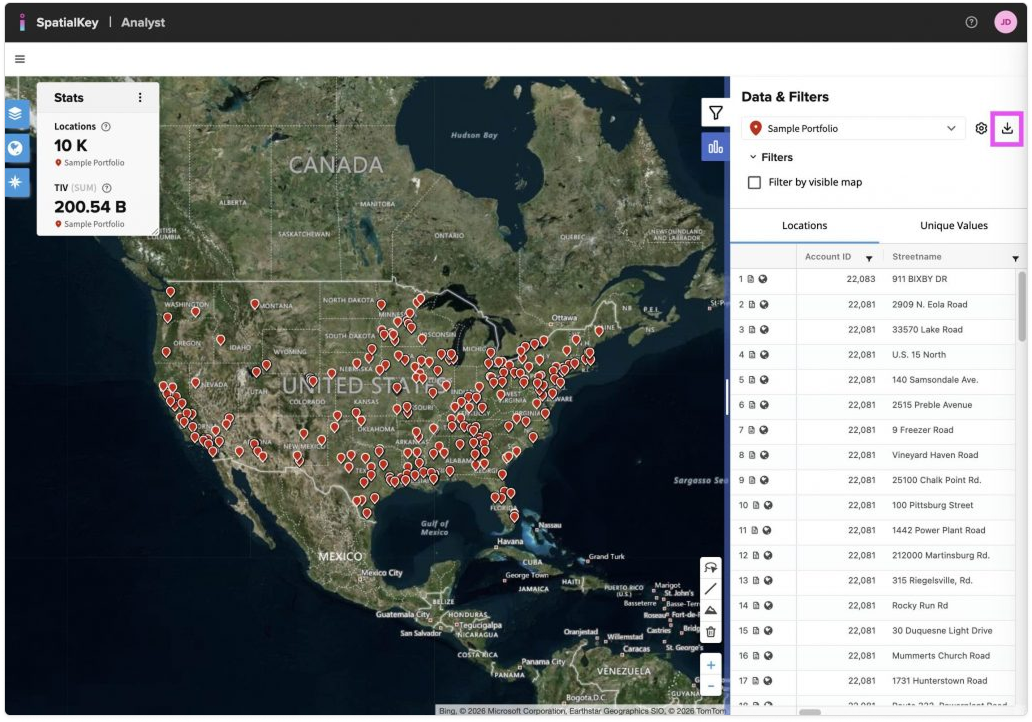
Image of the SpatialKey Analyst map view displaying the Sample Portfolio with thousands of red location points spread across the United States. A Data & Filters panel is open on the right, showing the portfolio selected and a filter toggle, with the download/export icon highlighted in the upper-right corner to indicate where users can export or download filtered dataset results. A stats panel on the left summarizes total locations and aggregate TIV, while a data table on the right lists individual location records synced with the map.

Dashboard Unique Value Lists

Records can be exported from the Unique Value List pod in a dashboard. When working in a dashboard in SpatialKey, you have many opportunities to filter that data you are viewing. This record list pod will contain a list of all records subject to the filters applied in the dashboard. You don’t have the option to select which columns to include in the export when exporting from this pod, all columns will be included.
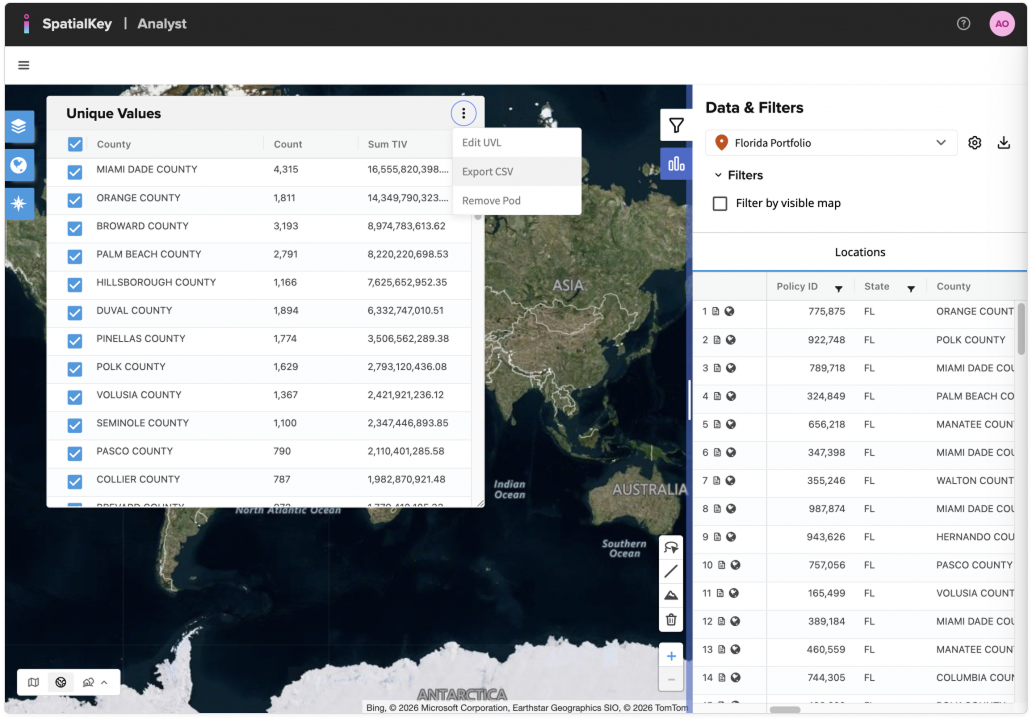
Image of the SpatialKey Analyst interface with a contextual menu open on a “Unique Values” table. The menu displays options including “Edit UVL,” “Export CSV,” and “Remove Prod,” indicating data export functionality for a selected unique value list.

Application-Specific Exports

Accumulations App Advanced Export

In addition to the exports options mentioned above, the Accumulations app has an Advanced Export that will allow you to download a .zip file of the list of accumulation areas, list of impacted locations per area and the list of impacted policies per area. You can select to download one or all of these options. Just click the download icon in the top right corner of the dashboard.
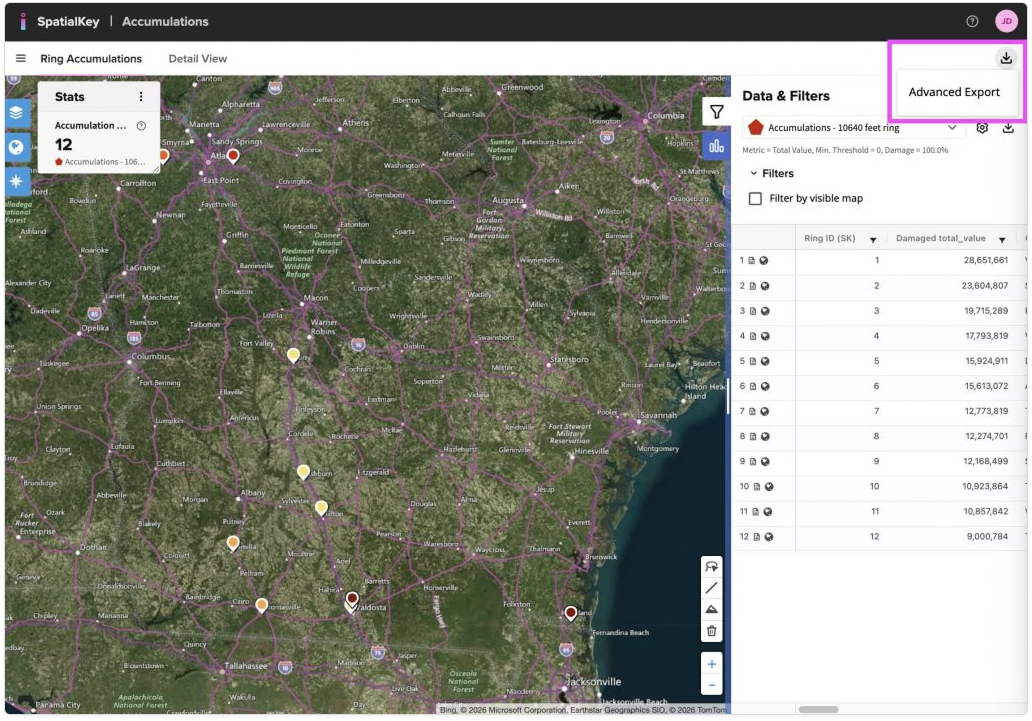
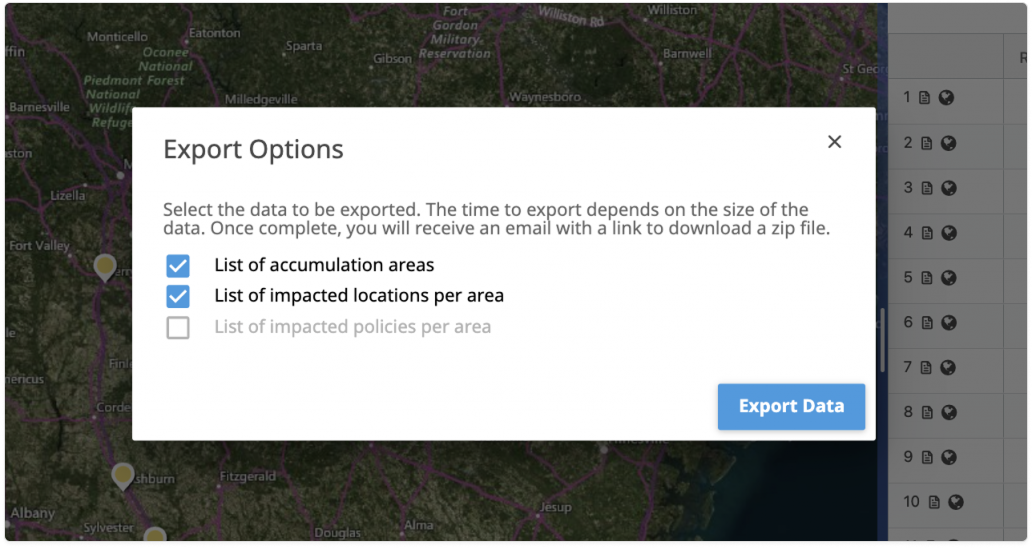
Image of the SpatialKey Accumulations interface showing a map with ring accumulation markers and a statistics panel on the left. On the right, the Data & Filters panel is open, with an Advanced Export option highlighted at the top, above a table listing ring IDs and associated damaged total values, indicating export options for accumulation data.
Accumulations Advanced Export
Image of an Export Options modal dialog displayed over a map interface. The dialog includes checkboxes for exporting a list of accumulation areas and a list of impacted locations per area, with an inactive option for impacted policies. An Export Data button appears in the lower-right corner, indicating the action to download selected data.
Accumulations Advanced Export

Event Response App Export

The Event Response app has an export that allows you to download a list of all Affected Locations (those impacted by the event) and the Event Shapefile. Just click the download icon in the top right corner of the dashboard.
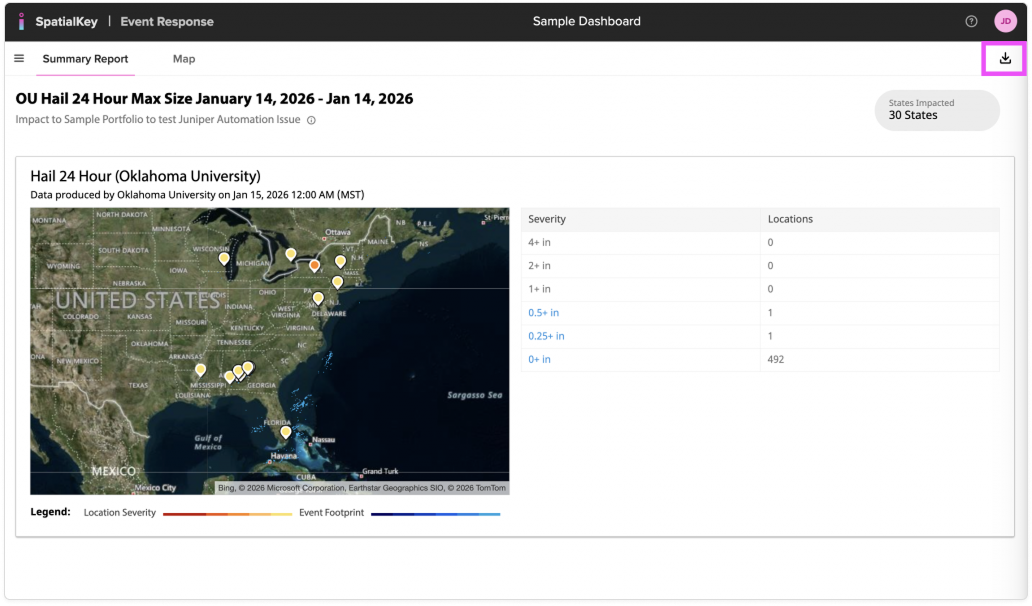
Image of the SpatialKey Event Response dashboard showing a summary report for a U.S. hail event with a map of affected locations and a severity table. In the top-right corner, a highlighted download icon indicates the option to export or download the event report data.

Underwriting App Export

The Underwriting app additionally allows you to download the report views as a PDF. You can download the Summary Report, List Report and each individual Location Report.
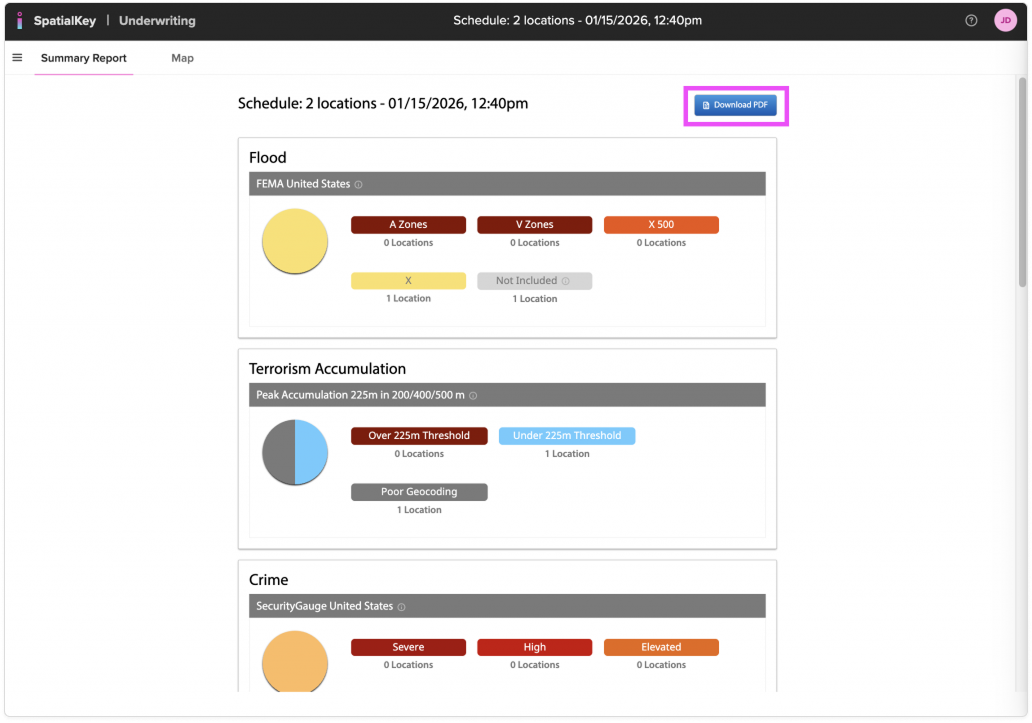
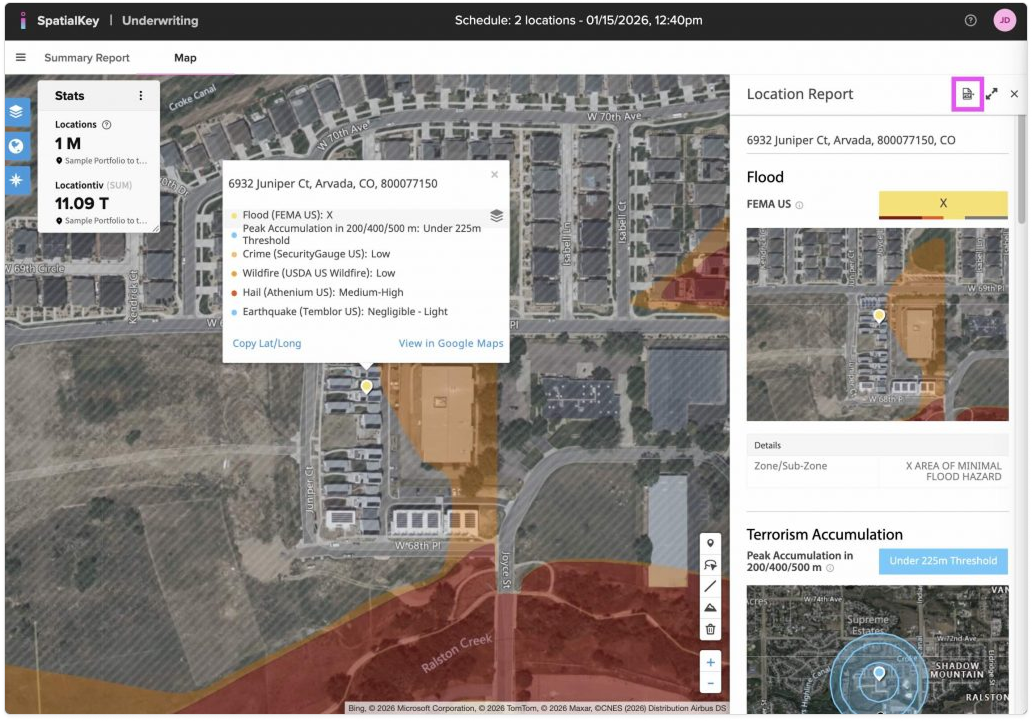
Image of the SpatialKey Underwriting summary report showing risk panels for flood, terrorism accumulation, and crime for a scheduled set of locations. At the top right, a highlighted Download PDF button indicates the option to export the underwriting summary as a PDF document.
Summary Report
Image of the SpatialKey Underwriting map view showing a detailed location report over a satellite map. A location information popup and a right-side report panel display flood, terrorism accumulation, crime, hail, and earthquake data for a specific address. In the upper-right corner of the report panel, a highlighted export icon indicates the option to download or export the location report.
Individual Location Report

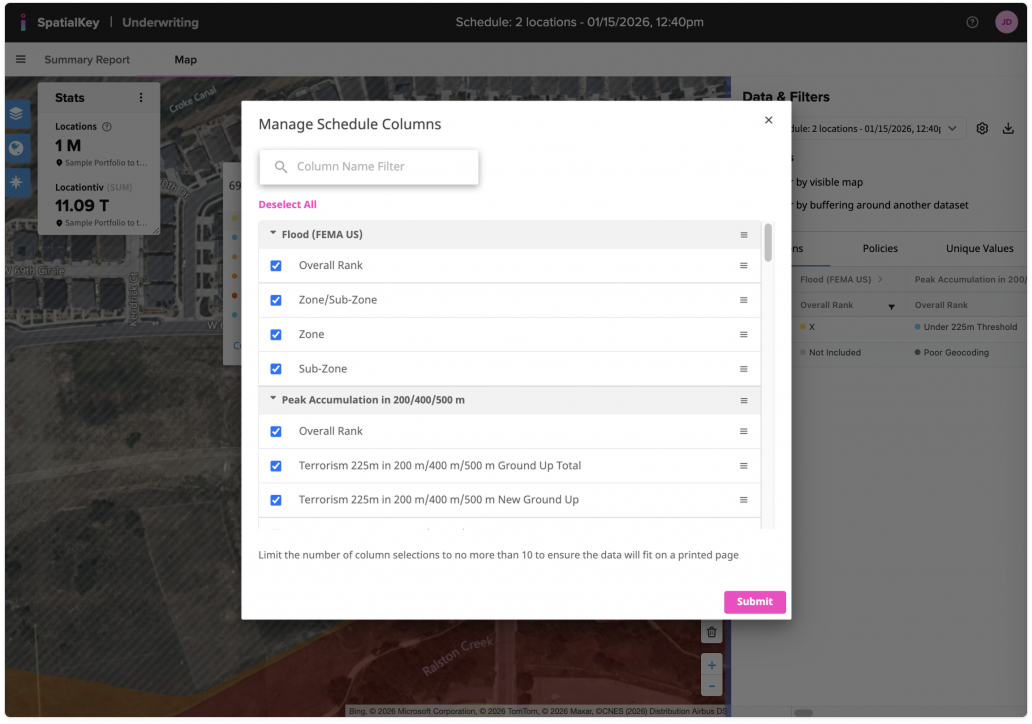
The List Report has 2 options: Quick PDF and Customize PDF. Quick PDF will export the first 10 columns of your data and all the rows. The Customize PDF allows you to edit the title, subtitle and # of rows that display on the PDF as well as which columns you’d like to show.
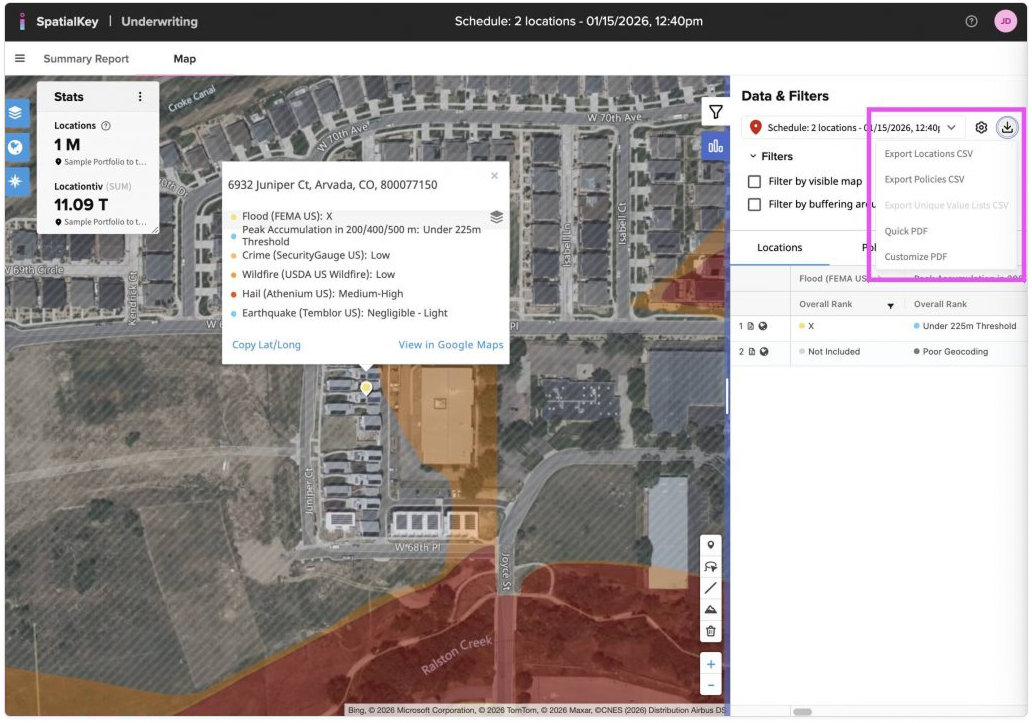
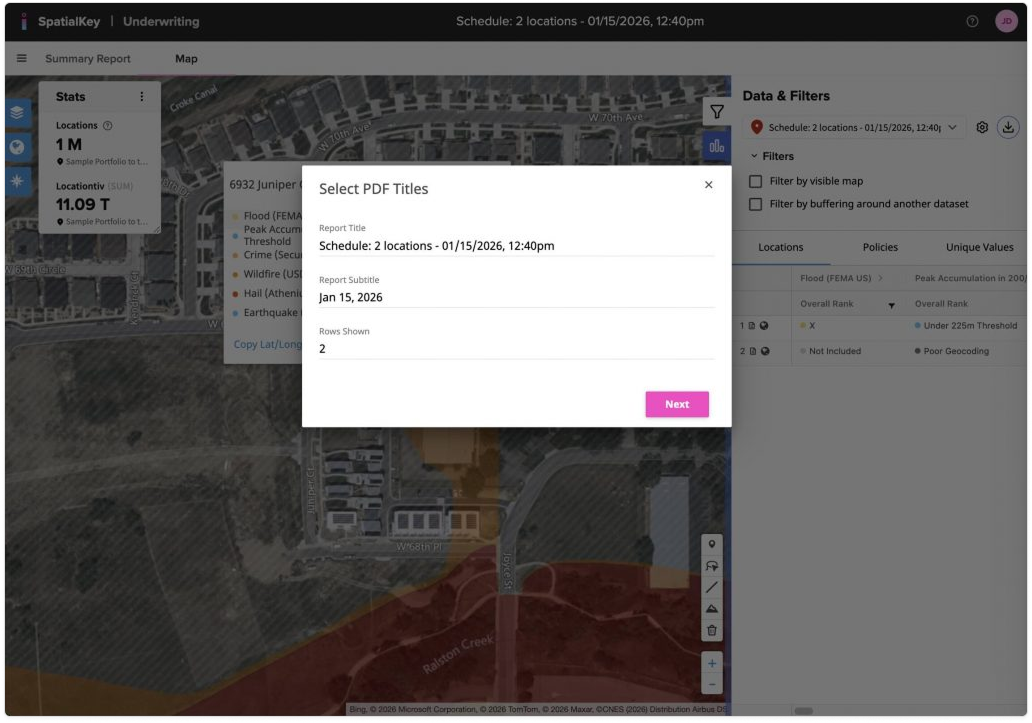
Image of the SpatialKey Underwriting map view with a location details popup over a satellite map. On the right, the Data & Filters panel is open with an export menu expanded, showing options such as Export Locations CSV, Export Policies CSV, Quick PDF, and Customized PDF, indicating multiple ways to export underwriting data for the selected schedule.
List Report

Image of the SpatialKey Underwriting map view with a modal window titled “Select PDF Titles” open in the center of the screen. The dialog displays editable report title and subtitle fields, a field showing the number of rows included, and a Next button, indicating a step in the customized PDF export process.
List Report: Customize PDF, title, subtitle and # of row selection
Image of the SpatialKey Underwriting interface with a Manage Schedule Columns modal dialog open. The dialog shows a searchable list of selectable columns—such as flood zones, overall rank, and terrorism accumulation metrics—with checkboxes enabled and a Submit button at the bottom, indicating configuration of which data columns will be included in an exported report.
List Report: Customize PDF, column selection and order.

Was this helpful?

Yes

No


Thanks for your feedback!

Tagged: