
Stay instantly informed with automated event alerts that work for you
When a hurricane, wildfire, flood, or any active catastrophe event intersects with your portfolio, SpatialKey sends a timely email notification—only when it truly matters. Your organization’s custom thresholds ensure alerts are triggered for the impacts that warrant attention, keeping noise to a minimum.
Once enabled, SpatialKey continuously monitors your portfolio in the background, delivering proactive insight so you can focus on response—not on tracking every emerging event.
Notifications come directly into your inbox with details about the event and the impacted portfolio with a link to a dashboard where you can dive deeper into analysis.
Let’s review how to set up automation:
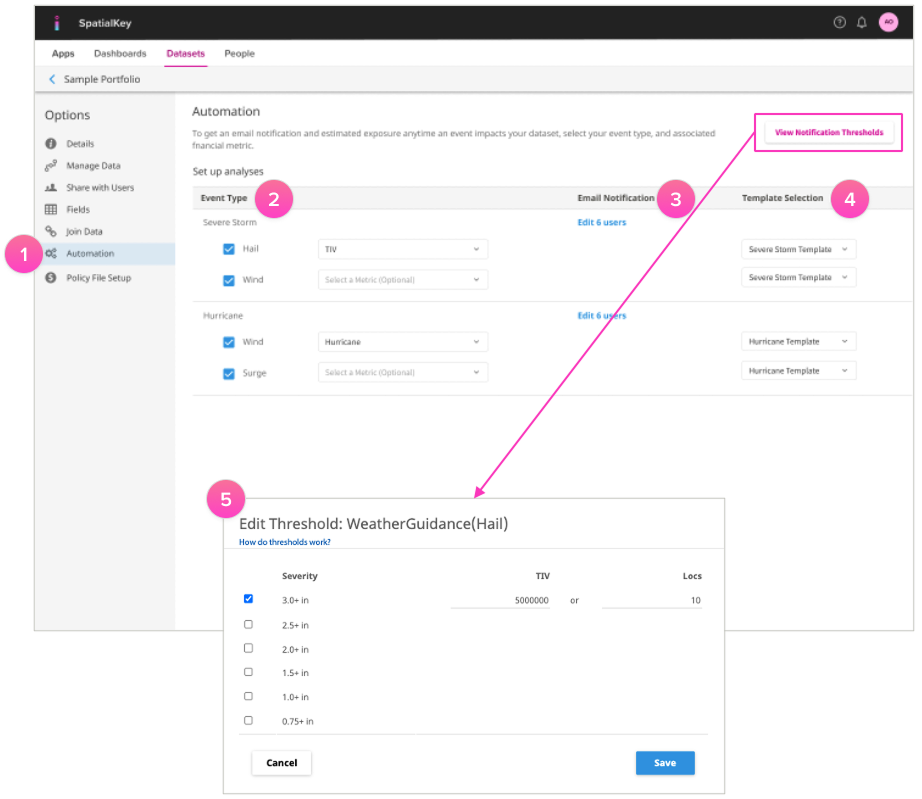
1. Go to the Dataset tab, find your dataset, and navigate to its settings. In the left‑hand menu, select “Automation.” From there, dataset creators or editors can enable automation.
2. Choose the event types you want this dataset to subscribe to, then select the metric you’d like SpatialKey to use for exposure calculations. This metric determines how your financial impact is estimated during an event. If your portfolio includes a policy file, SpatialKey will automatically apply your policy terms to generate a more accurate, policy‑aware exposure calculation.
3. Subscribe users (or groups) for each event type. Users must have at least viewer-level permission to the dataset to receive automated notifications.
4. Select a dashboard template so automated dashboards look just the way you need them to without any fuss. Learn more about how to set up a dashboard template.
5. Custom thresholds can be set to alert you if a defined number of locations and/or total insured value is exceeded in a specified severity band. For example, you can set notifications for when either 10 locations or $5M in total insured value is impacted by 3+ inch hail; and, this continues for as many severity bands and hazards as you wish to specify.
By defining custom thresholds, you can ensure you’re always informed, but never inundated—enabling you to act immediately and proactively serve customers. Learn how to set up thresholds.
Event response reports can be viewed on iPhones, and detailed analyses can be completed on iPads or desktop computers. Android devices are also supported.
TIP! Analysis results are only as good as the inputs. Use SpatialKey’s data import API so you always have the latest portfolio snapshot available for automated event response analyses and notifications.
FAQs
Who can enable automation?
A user must be a dataset creator or editor to enable automation for a dataset.
What event types are available to subscribe to?
This will depend on what event types and providers are licensed for your organization. SpatialKey has many types available including:
- Hurricane / Tropical Cyclone
- Storm Surge
- Earthquake
- Flood
- Hail
- Tornado
- Wind (Straight Line)
- Windstorm
- Wildfire
Within each of these event types there may be multiple perils for you to select from, e.g., hurricane has several perils like wind, surge, inland flood, etc. See All Event Response Data Available
Will I receive multiple notifications during the same event, or only one?
You may receive multiple notifications during the same event. The number of alerts you receive depends on several factors, including how frequently the data provider updates the event footprint, how long the event remains active, and the thresholds you have configured.
Use the data grid to access links to each provider, where you can find information about how often their event data is updated.
Can different metrics be used for different event types within the same dataset?
Yes. You can select a different metric for each event type and for each peril within that event type. For example, a hurricane event may include wind, storm surge, and inland flood, and you can assign a unique financial metric to each. This allows SpatialKey to calculate exposure using the correct policy terms for every peril.
What happens if my portfolio doesn’t have a policy file—will exposure estimates still work?
If your portfolio doesn’t include a policy file, we recommend using Total Insured Value (TIV) as your metric. While this won’t provide the same level of accuracy as a policy‑aware calculation, it will still give you a useful estimate of potential exposure.
If TIV isn’t available, you won’t receive an exposure calculation. However, you will still be able to see the number of locations that may be impacted by an event.
What specific policy terms does SpatialKey account for?
Net exposure is determined by walking each location through the financial model tree, applying:
- Site‑level terms
- Special conditions*
- Policy terms
- Facultative reinsurance*
Each layer applies additional limits, deductibles, or reductions until the final Net exposure is calculated.
What happens if I don’t choose a dashboard template?
SpatialKey will use a default template that matches the output you’d get from running a manual analysis.
Do thresholds apply per peril, or across all perils?
Thresholds can (and should) be set up per event type (by peril) and per provider. Different emails go out for each event type, so different thresholds will apply to each.
For example, you’ll want to consider setting a threshold on wind speed and surge for an event type like Hurricane and a completely different threshold for wind speed, hail size, and tornado for an event type like Severe Storm. Earthquake and Wildfire will each have their own as well.
Learn more about Event Notification Thresholds
Was this helpful?