
Sharing data with others in your organization has never been easier. This article explains how to share datasets and manage access across your organization. Learn how to add users or groups to a dataset, assign Viewer, Contributor, or Editor permissions, and control who can view, edit, export, or manage your data.
Dataset Sharing
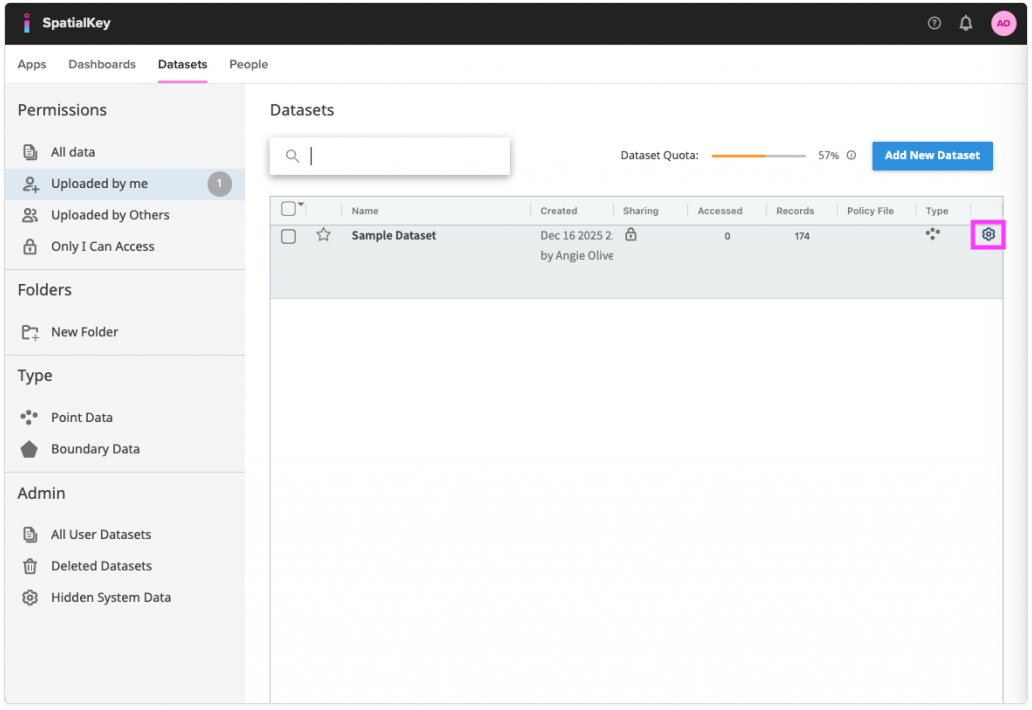
1. Select the Datasets tab and find your dataset. Click on the gear icon to view data settings and select the “Share with Users” option in the left navigation.
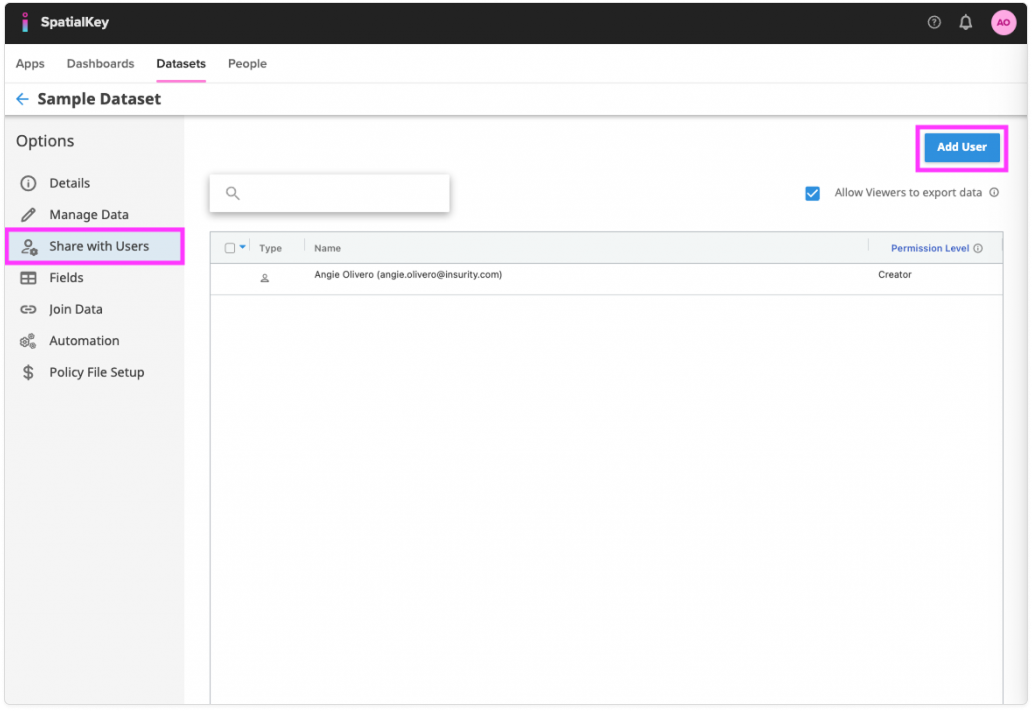
2. Click the “Add User” button to get a full list of users that can be added.
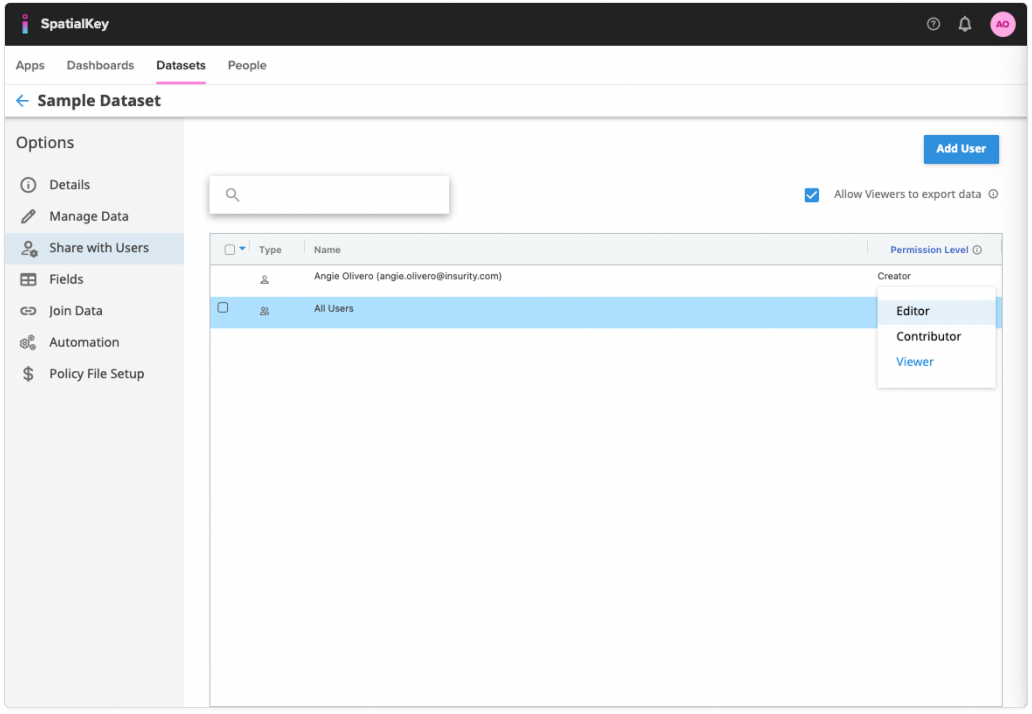
3. Once the users are added to the dataset, you can manage their permissions levels.
You can give individual users or groups permission to datasets – either Viewer, Contributor or Editor. Users who imported the data are set as Creators.
Dataset Permissions
Viewers can do just that… view the data. They cannot take any action that would impact that data. They can only view it as-is. Viewers cannot share with users, edit column labels, join data, set up automation, set up a policy file, append, replace or delete.
Contributors have all Viewer permissions plus the following:
- Option to “allow viewers to export as CSV”
- Edit title & description
- Share & export data
- Edit column labels
- Join data
- Manage permissions for Viewers & Contributors
Creator/Editors have the same permission level, there’s just the added distinction on who created the dataset. Creators and Editors have all Contributor permissions plus the following:
- Set up automation
- Join policy files
- Append, replace & delete
- Manage permissions for all users
| Dataset Permissions | Viewer | Contributor | Editor |
|---|---|---|---|
| Edit Title / Description | Read-only | ✅ | ✅ |
| Share with Users | – | ✅ | ✅ |
| Export | If enabled* | ✅ | ✅ |
| Edit Column Labels | – | ✅ | ✅ |
| Join Data | Read-only | ✅ | ✅ |
| Set up Automation | – | – | ✅ |
| Policy File Setup | Read-only | Read-only | ✅ |
| Append & Replace | – | – | ✅ |
| Delete | – | – | ✅ |
*If the option for “Allow viewers to export as CSV” is disabled, viewers will not be able to export a dataset. Note that they will still be able to view dashboards, capture screenshots and export analytic pods, except for the record list.
Was this helpful?