
Do you have another dataset that could be used to enhance your existing dataset? Do you want to create thematic maps by a shapefile of your choice? Is your shapefile too complex for simple “filter my data by shape” actions in your dashboard?
… if you answered yes to any of these questions, creating data joins may be right for you!
Joining datasets together is very easy with SpatialKey and can be done if you are the Creator/Editor or Contributor of a dataset. This page will walk you through the types of joins that you can create and the various ways in which you can set them up. Once you have joins setup, you can use them in your dashboard to further enhance your analytics.
Types of joins
Joining two point datasets
Two datasets can be joined to allow data from a secondary dataset to be displayed along with data from the first as if the secondary data was part of the primary. When joining the datasets you select a field from each dataset to be used to align and merge the datasets – these two fields must be the same data type (i.e. text, number, date). For the join to work successfully, the selected field must contain only unique values in each dataset to avoid a many-to-many join relationship. Neither dataset is permanently altered after a join is setup, but it will be possible to perform analysis using the correlated data.
Joining a point dataset with a boundary file (shapefile)
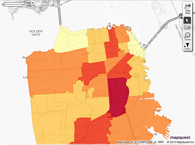
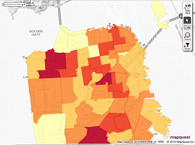
A boundary file contains boundaries like states, counties, postcodes, storm tracks, or even custom polygon shapes. Here are a few examples of boundaries.
 |
 |
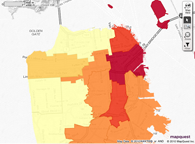 |
| Zip Codes | Police Districts | Supervisor Districts |
You can join a dataset to a boundary file using matches between point locations in the dataset and boundary file. The join will allow you to view your dataset thematically within the shapes of the boundary file. This allows you to visualize the data within the shapes of the boundary file – for example, to show the total amount of sales in each sales territory or the insured value of properties within a storm footprint.
Setting up the join
Through dataset settings
To begin, select the Datasets tab and find your dataset. Click on the gear icon to view data settings and select the “Join a Dataset” option on the left side of the screen. Note: you will only see this option if you are the Creator/Editor or Contributor of the dataset.
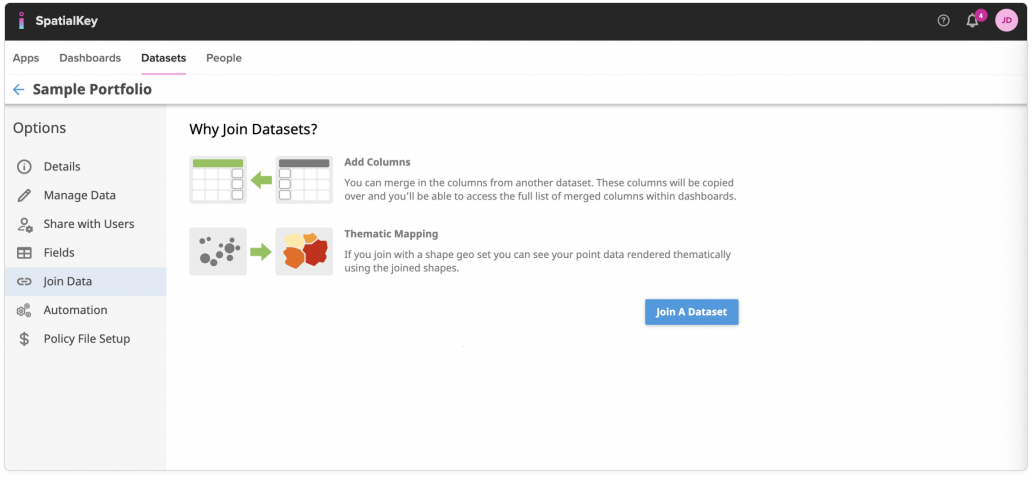
You’ll be walked through a couple of screens where you will select which data you want to join to your dataset and select how to join them together.
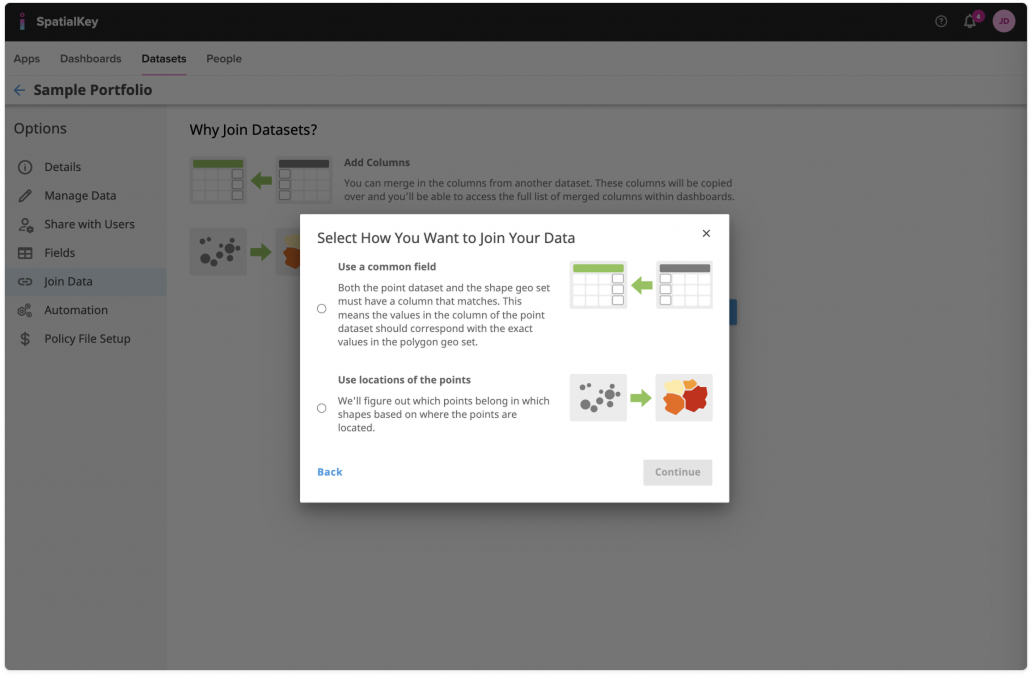
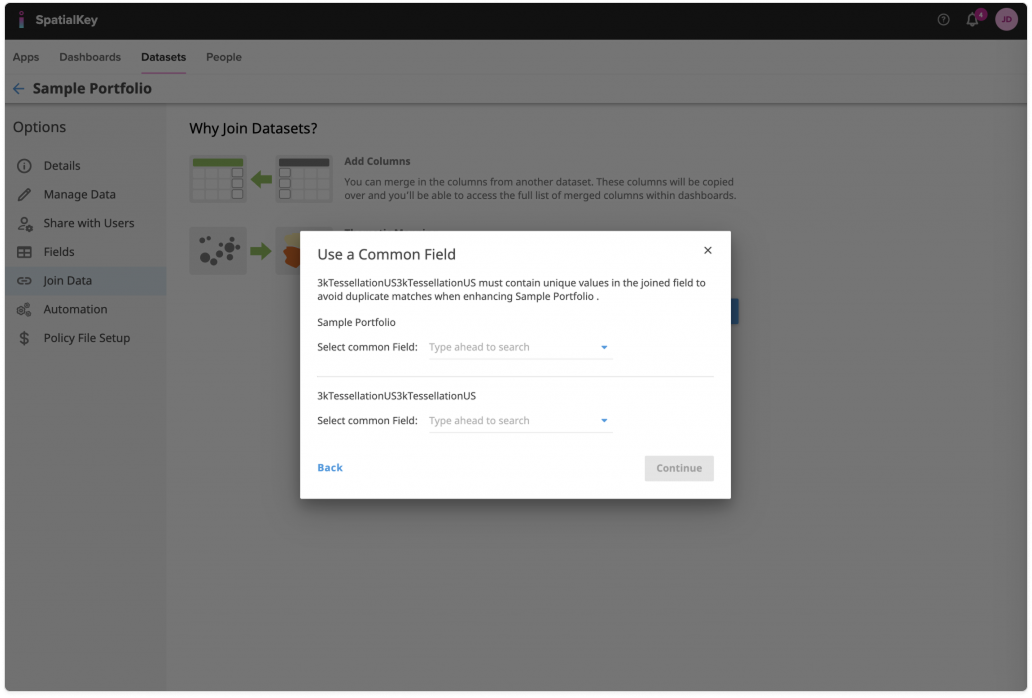
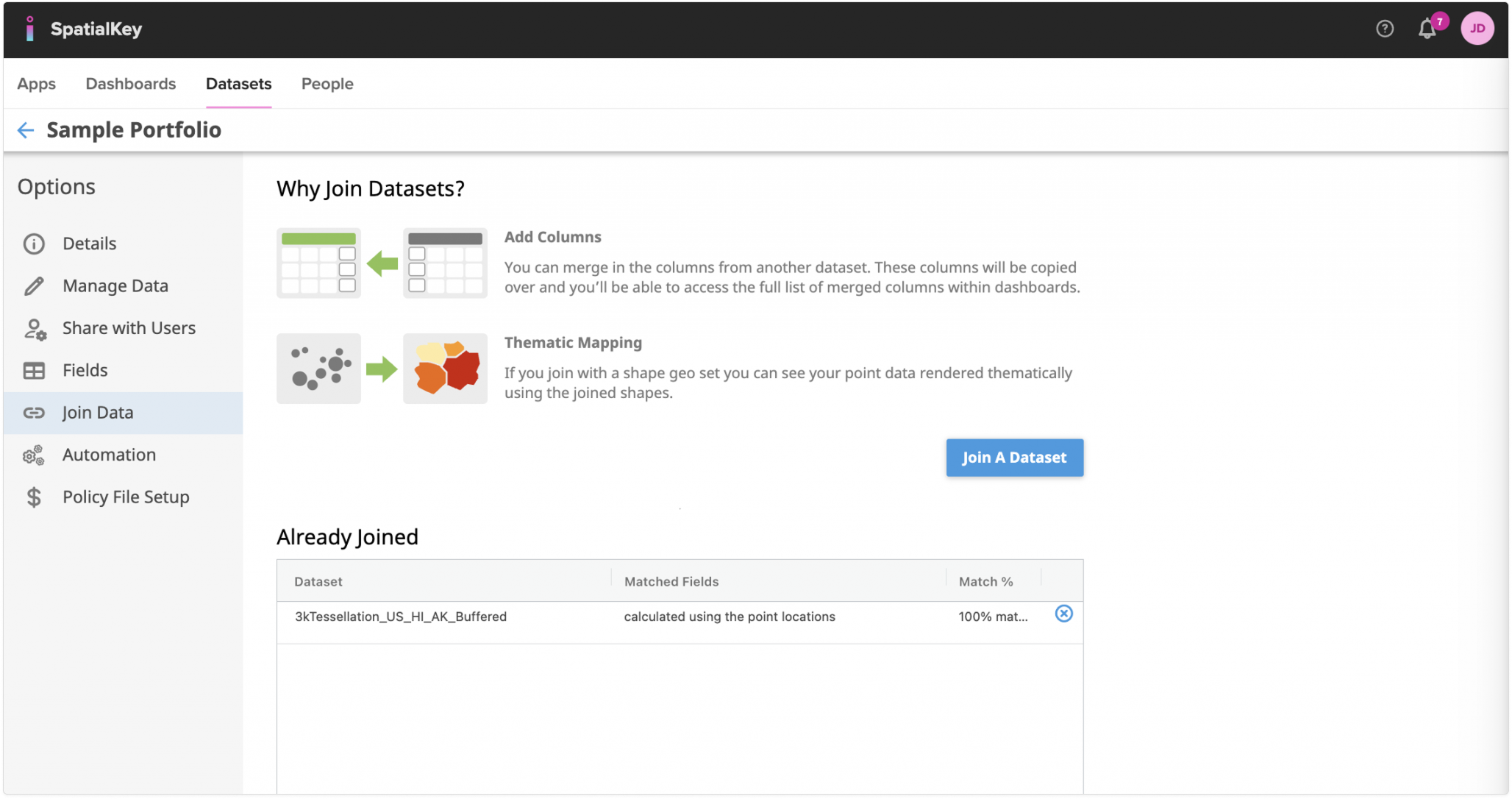
Once a join has been made with your dataset, it will appear in an “already joined” section of the screen.
From within a Dashboard
What happens if you are already working with a dataset in a dashboard and you realize that you forgot to set up your joins? Don’t worry, SpatialKey has made it easy to set up joins to a boundary file from within a Dashboard. Simply expand the Layer Manager panel on the left side of the map. Find the layer you’d like to join and click “Advanced Options”.
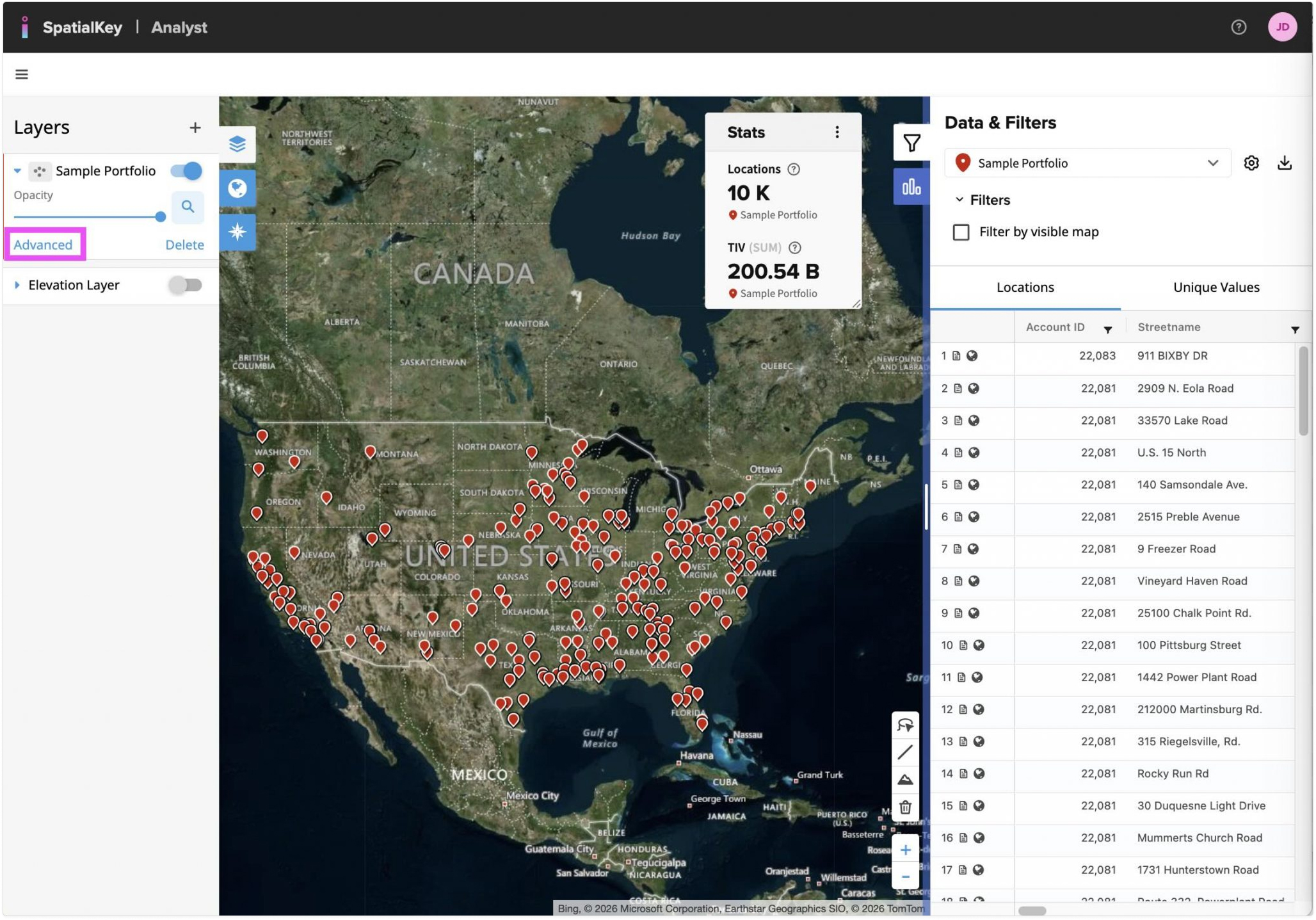
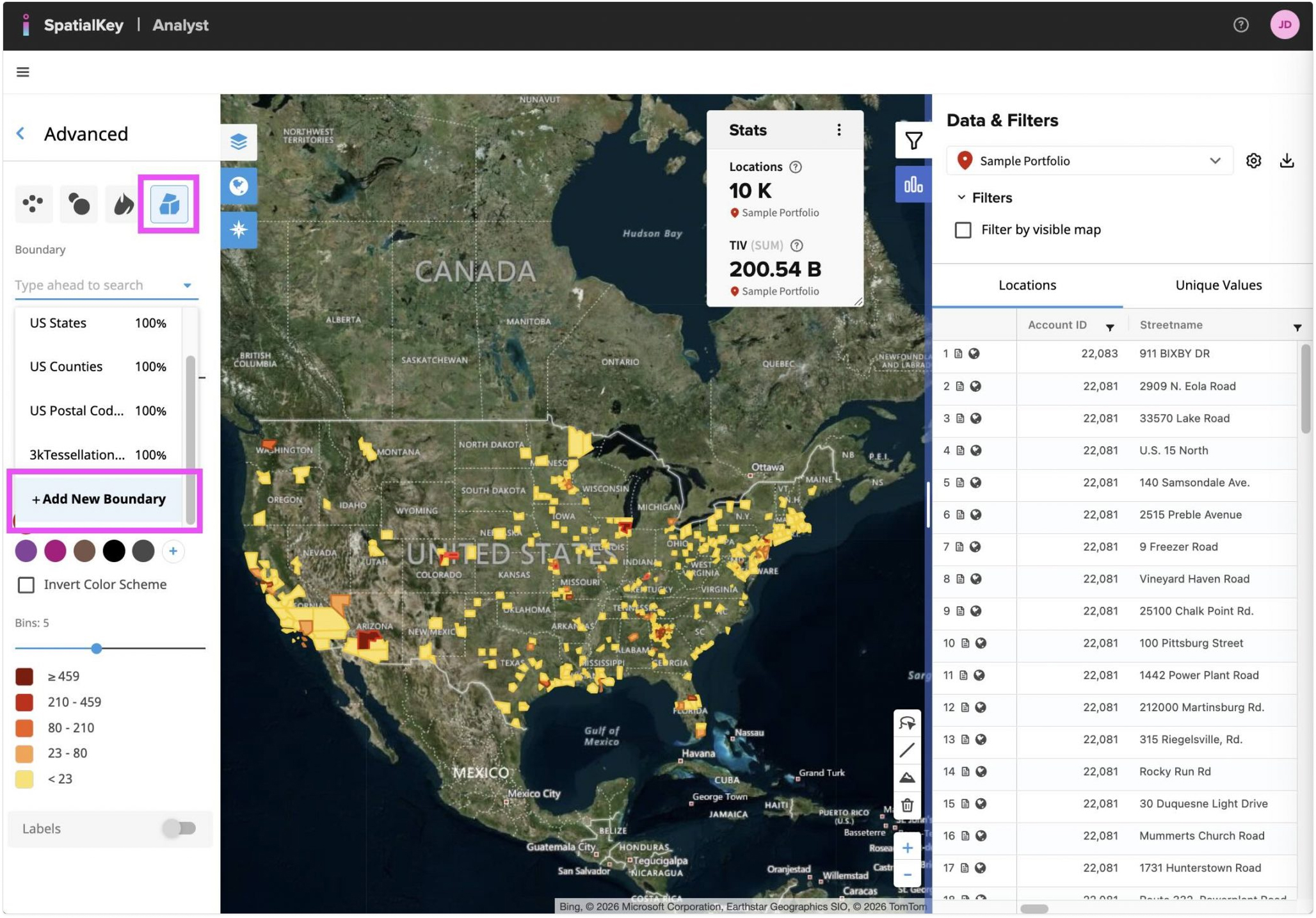
Next click on the “Thematic Shapes” visualization option. If you already have a shapefile joined to this dataset, SpatialKey will automatically select the first one in the list. To join another file, click the “Boundary” dropdown and select, “Add New Boundary” at the bottom of the list.
Note: you will only see this option if you are the Creator/Editor or Contributor of the dataset.
You’ll be walked through a couple of screens where you will select which data you want to join to your dataset and select how to join them together.
Was this helpful?