
Ad Hoc Lookup

Use the Ad Hoc Lookup in the Underwriting application to quickly run a new analysis for a location that wasn’t included in your original analysis. This is commonly used to geo-correct a location that doesn’t fall precisely on the building being insured. It can also be helpful when a property is close to a more severe hazard zone—running an analysis nearby may reveal a higher risk profile that supports a different premium.

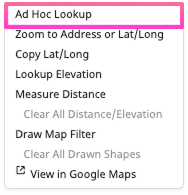
There are 2 ways to access the Ad Hoc tool: The first is by clicking the POI icon in the map toolbar. The second is by right-clicking anywhere on the map.
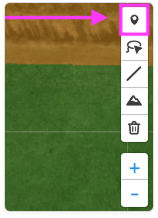
Map toolbar highlighting the Ad Hoc Lookup tool, which lets underwriters quickly run a new, one‑off analysis by clicking the POI icon or right‑clicking on the map to geo‑correct a location or assess risk at a nearby point for comparison against more severe hazard zones.
Ad Hoc Lookup is accessed by clicking the POI icon in the map toolbar
Right‑click context menu on the map showing the Ad Hoc Lookup option, along with tools to zoom to an address or coordinates, copy latitude and longitude, look up elevation, measure distance, draw map filters, and open the location in Google Maps—allowing underwriters to quickly run a one‑off analysis at a selected map point.
Ad Hoc Lookup is only available on right-click in the Underwriting app

Once the Ad Hoc tool is selected, click anywhere on the map and choose Run Analysis. You’ll receive a full report for that new location with the same reports generated by your original analysis.
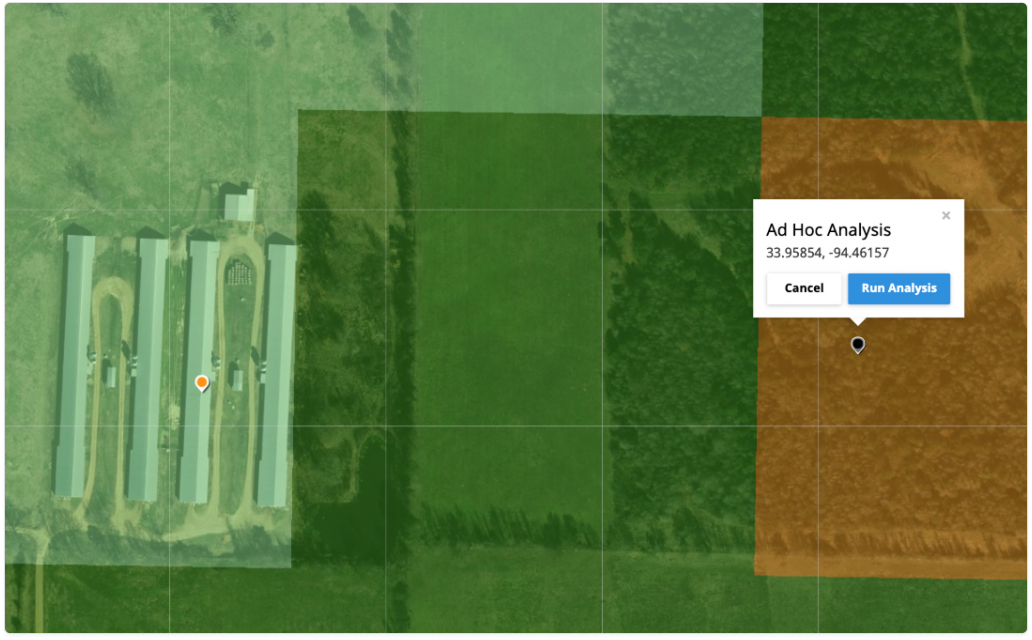
Ad Hoc Analysis overlay on the map showing a selected point with an “Ad Hoc Analysis” dialog displaying latitude and longitude, and options to cancel or run a one‑off analysis, allowing underwriters to quickly assess risk at a manually chosen location.

Was this helpful?

Yes

No


Thanks for your feedback!

Tagged: