
Dashboard templates in Event Response let you configure a dashboard with the exact view you need to analyze an event and reuse that setup for future dashboards. Dashboard templates are currently only available in the Event Response application.
To create a template, set up the dashboard as desired and select Save as Template from the menu. Give the template a memorable name so it’s easy to find and apply to another dashboard later.
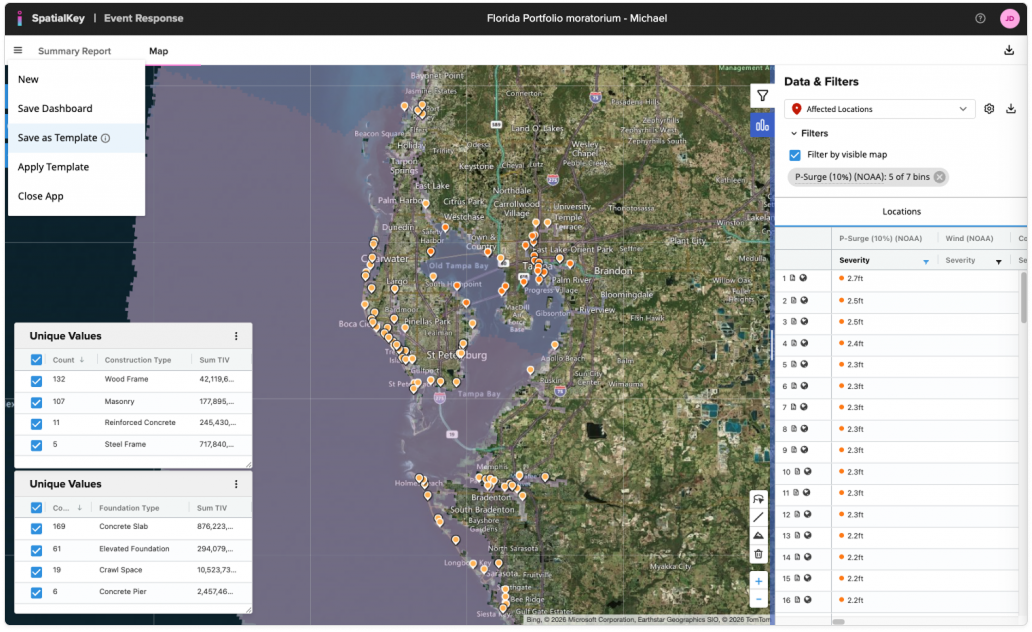
The next time you run a dashboard and want to use this same view, simply open the hamburger menu and select Apply Template and find that template in the list.
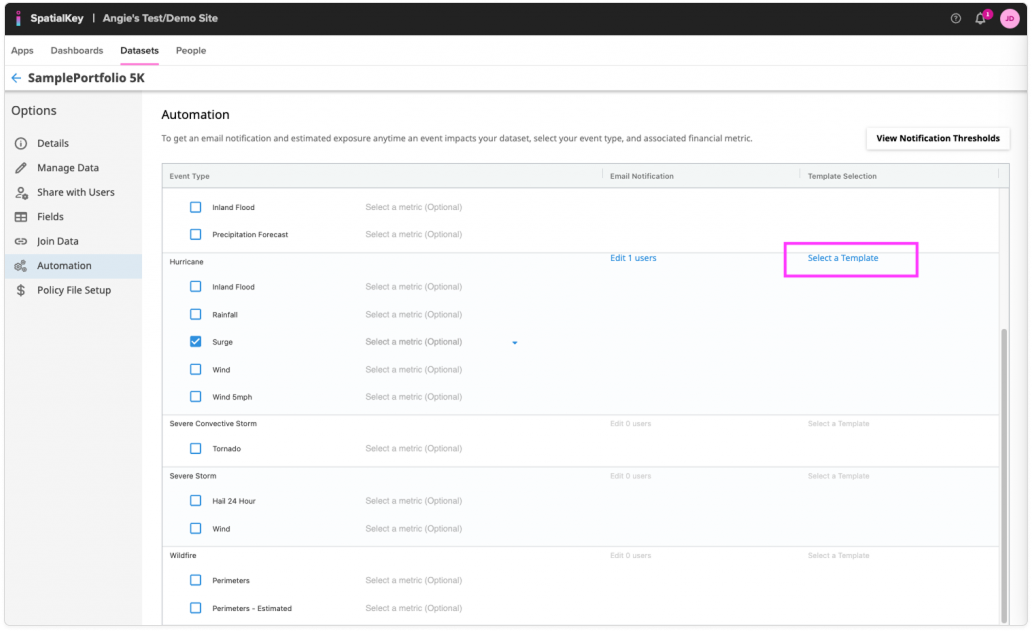
Templates can also be used with automated analyses, ensuring your dashboard filters and views are already in place when new updates arrive. Find the dataset you want to automate, click Automation in the left sidebar, and click Select a Template, then choose your template. All future automated analyses for that peril will use the selected setup. Learn more about Automated Event Notifications.
Was this helpful?