
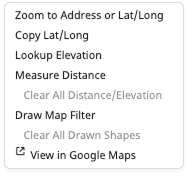
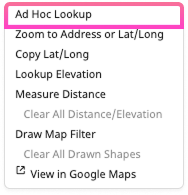
Right-click anywhere on the map to get a menu of helpful tools relevant to that location.
Options include:
- Ad Hoc Lookup (only available in Underwriting)
- Zoom to Address or Lat/Long
- Copy Lat/Long
- Lookup Elevation
- Measure Distance
- Clear All Distance/Elevation
- Draw Map Filter
- Clear All Drawn Shapes
- View in Google Maps
Ad Hoc Lookup
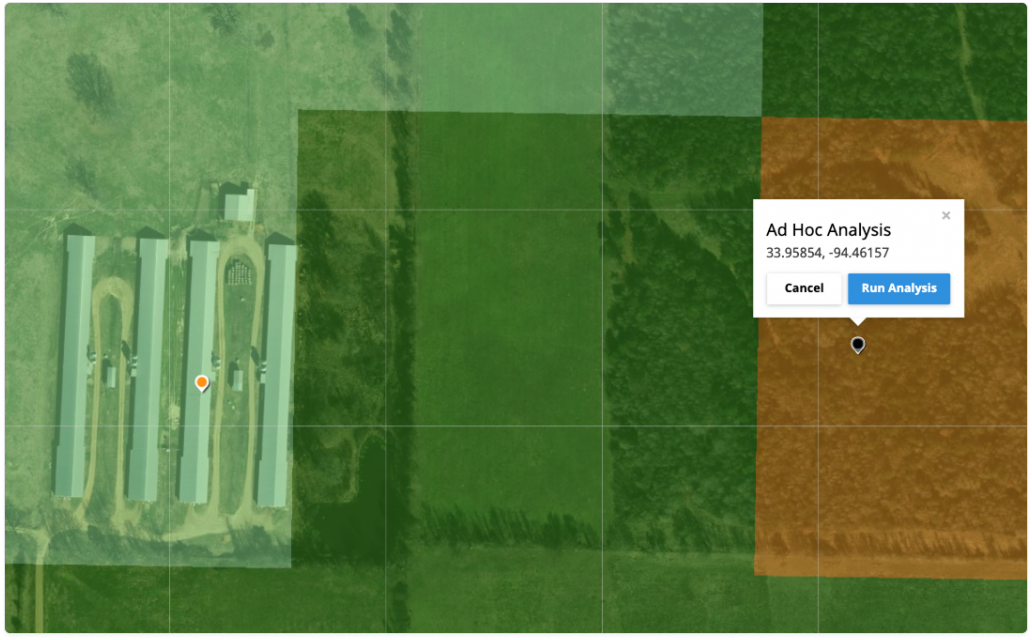
Use the Ad Hoc Lookup in the Underwriting application to quickly run a new analysis for a location that wasn’t included in your original analysis. This is commonly used to geocorrect a location that doesn’t fall precisely on the building being insured. It can also be helpful when a property is close to a more severe hazard zone—running an analysis nearby may reveal a higher risk profile that supports a different premium.
Zoom to Address or Lat/Long
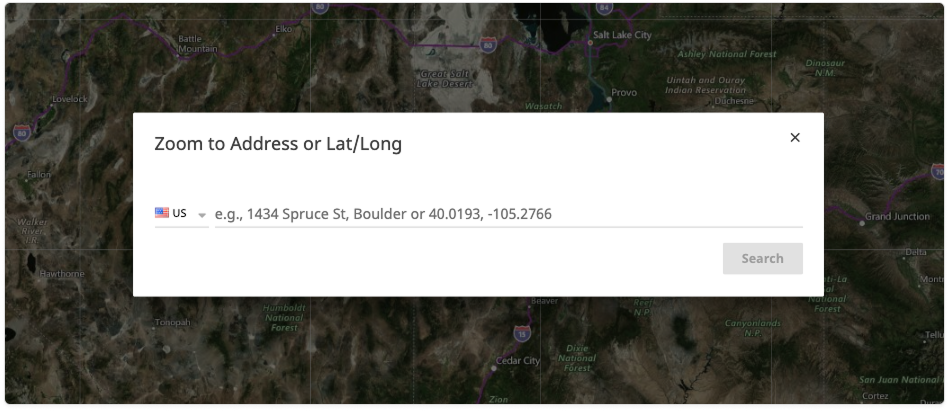
This option lets you quickly enter an address or latitude/longitude and automatically centers the map on that location. It’s a convenient way to move between locations without extensive panning or zooming.
Copy Lat/Long
Copy Lat/Long copies the coordinates to your clipboard, making it easy to paste them into another application or document.
Lookup Elevation
This activates the tool that lets you place markers anywhere on the map to quickly view elevation details. See the Map Tools article for more information.
Measure Distance
This activates the tool that lets you measure the distance between two or more locations. See the Map Tools article for more information.
Draw Map Filter
This activates a panel of drawing tools so you can quickly filter your data geographically by adding shapes to your map. You can add simple circles and rectangles as well as more complex polygons. See the Custom Shapes article for more information.
View in Google Maps
Click View in Google Maps to open the location in a new browser window, where you can explore additional views such as Street View.
Was this helpful?