
Use the Distance tool to quickly measure the distance between locations and view an elevation profile along the path. The Elevation tool lets you click anywhere on the map to instantly see the elevation at that point.

Map tools in SpatialKey:

Distance Tool & Elevation Profile

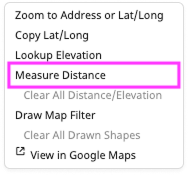
To start using the distance tool, click on the Line Tool in the toolbar. You can also access this tool by right-clicking anywhere on the map.
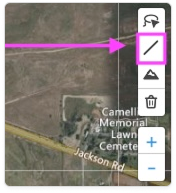
Close‑up of the map toolbar with a pink arrow pointing to the distance measurement tool, which allows users to measure distances directly on the map.
Distance Tool
Right‑click context menu displayed on the map, showing a list of map tools. The “Measure Distance” option is highlighted with a pink outline, indicating the tool used to measure distances directly on the map.
Right-click to access distance tool

With the Distance tool, you can draw a line—or multiple connected segments—by clicking on the map. Click to start, move your mouse and click to add each segment, then double-click to finish. The total distance is calculated automatically for the whole line and each segment. This tool is ideal for measuring between two points or tracing the perimeter of rooftops and other objects on the map. The example below shows the distance between two city parks.
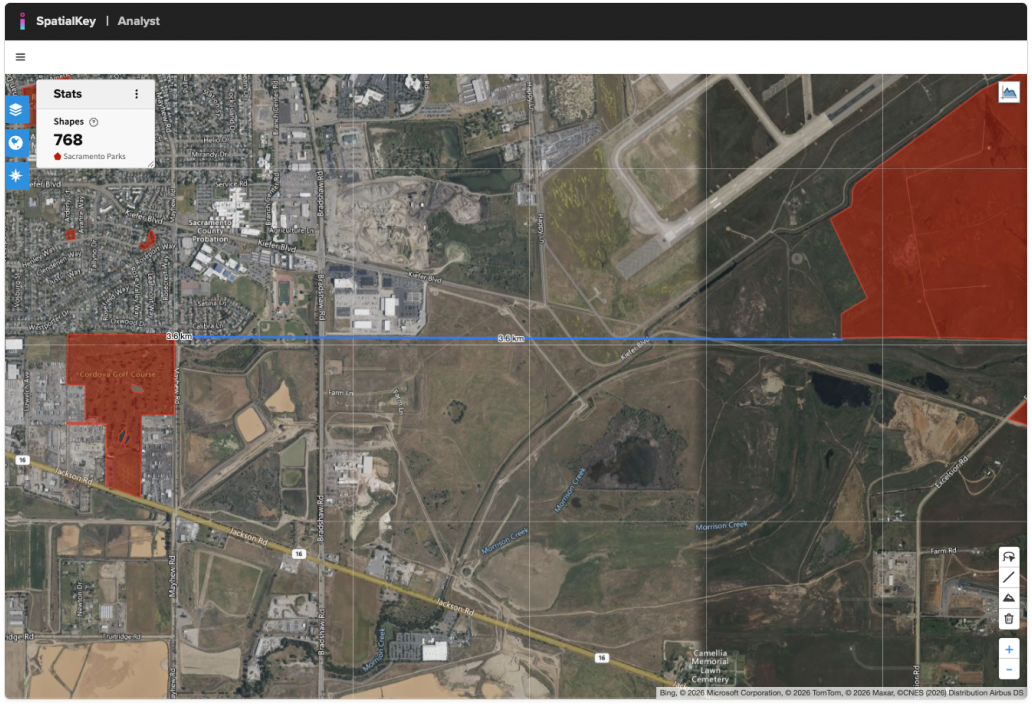
Screenshot of the SpatialKey Analyst web map showing a satellite view with a distance measurement line drawn horizontally across the map. The blue line represents a measured distance between two points, with the line extending across urban and rural areas. Red shaded polygons appear in parts of the map as reference layers. A stats panel on the left lists 768 shapes, indicating additional spatial data present during the measurement.

Click on the drawn line or the Elevation Profile icon (in the top right corner of the map) to view the elevation along the line.
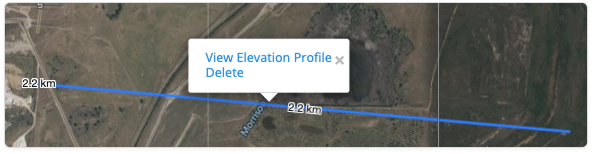
Map view showing a blue distance measurement line labeled 2.2 km drawn across the terrain. A pop‑up menu appears above the line with options to “View Elevation Profile” or “Delete,” indicating that the measured distance can be used to view elevation changes along the selected path.
After clicking on the line, options to view elevation profile or delete appear
Elevation Profile icon

When the elevation profile is visible, you can hover over any point along the distance line to highlight that location’s elevation on the profile chart. This is especially useful when evaluating nearby flood risk, as it helps you understand whether the area surrounding a property has been mitigated.
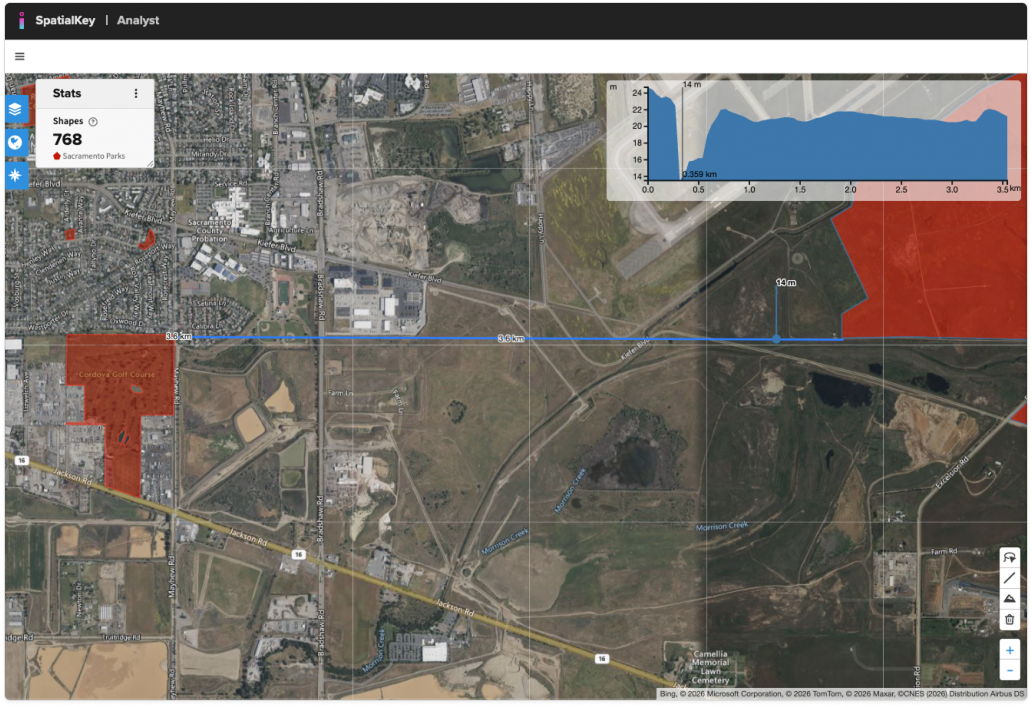
Image of the SpatialKey Analyst map with a blue distance measurement line drawn across the terrain. In the upper-right corner, an elevation profile chart displays changes in elevation along the measured path, shown as a blue area graph that rises and falls to indicate terrain elevation over distance. The chart corresponds to the measured line on the map, allowing the user to visualize elevation gain and loss across the selected route.
Distance tool measuring between two parks and showing the elevation profile.

Elevation Tool

To start using the elevation tool, click on the Line Tool in the toolbar. You can also access this tool by right-clicking anywhere on the map.
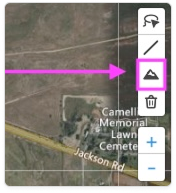
Close‑up of the map toolbar with a pink arrow pointing to the elevation marker icon, which allows users to view elevation of any point on the map
Elevation Tool
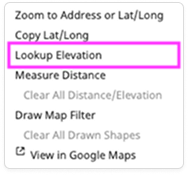
Right‑click context menu displayed on the map, with the **“Lookup Elevation”** option highlighted by a pink outline, indicating the tool used to retrieve elevation information for the selected map location.
Right-click to access elevation tool

Select the Elevation icon and click anywhere on the map to view the elevation at that location. You can place multiple markers to quickly understand the surrounding terrain.
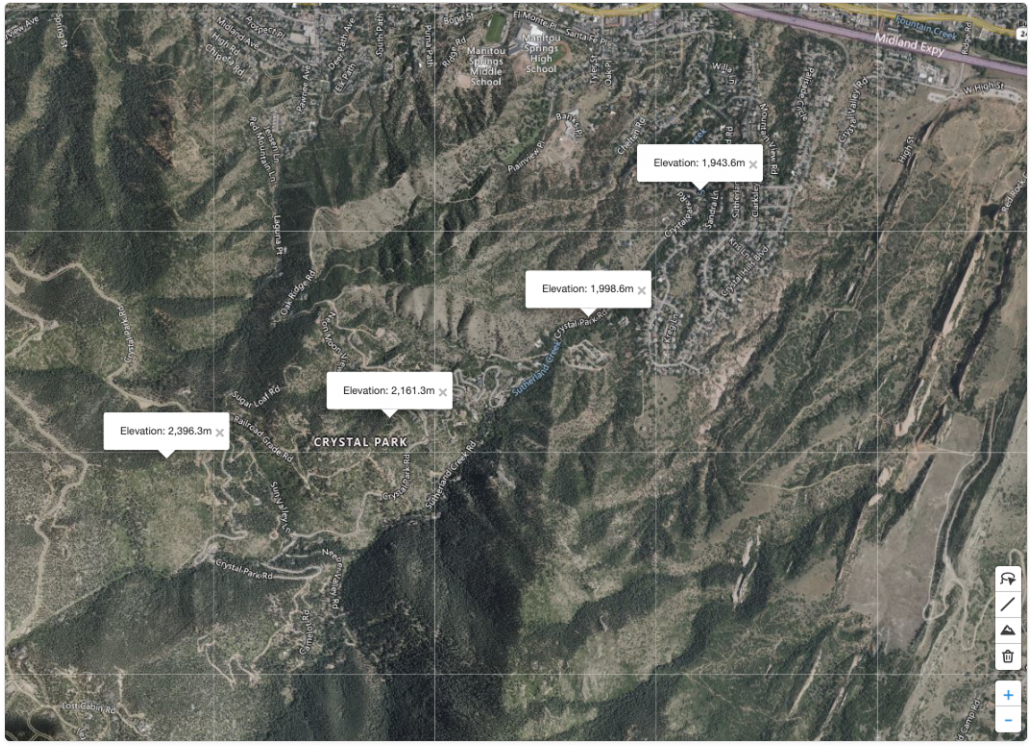
Satellite map view showing multiple elevation callouts placed across a mountainous area. Each label displays the elevation value for its selected point on the map, demonstrating the results of using the lookup elevation tool to identify terrain height at different locations.

Remove measurements and markers

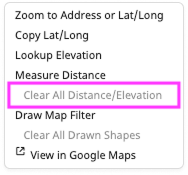
Use the trash can to remove all drawn distance or elevation markers. You can also delete the markers by right-clicking on the map.
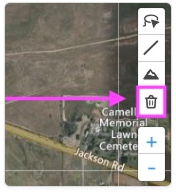
Map toolbar shown with a pink arrow pointing to the **trash/delete icon**, indicating the control used to clear or remove drawn measurements or elevation results from the map.
Delete distance or elevation markers with the trash icon
Right‑click context menu displayed on the map with the **“Clear All Distance/Elevation”** option highlighted in pink, indicating the control used to remove all distance measurements and elevation results from the map.
Delete distance or elevation markers with the “Clear All” option on right-click of the map

Was this helpful?

Yes

No


Thanks for your feedback!

Tagged: