
As easy as it is to import data into SpatialKey, exporting data is even easier! SpatialKey allows filtering and exporting data in multiple ways. You can export records from your dataset or export aggregated data from the visualization pods.
Export records
There are a few global places where you can export records from a dataset
And a few application-specific places you can export records or reports:
- Accumulations App: Advanced Export
- Event Response App: Export Affected Locations & Event Footprint
- Underwriting App: Export Summary, List and individual Location Reports (as a PDF)
Home Interface
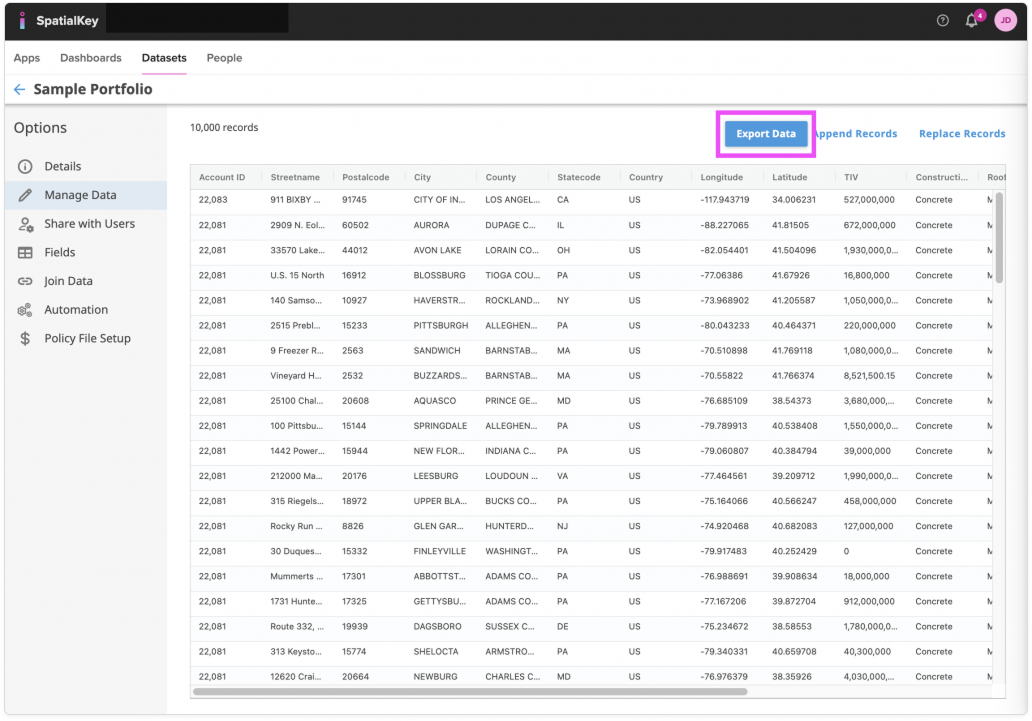
Records from datasets can be exported from the Datasets tab. First, select the Datasets tab and find your dataset. Click on the gear icon to view data settings and select the “Manage Data” option on the left side of the screen. Before preparing and downloading your file, you can select which columns you want to include in the export.
Dashboards
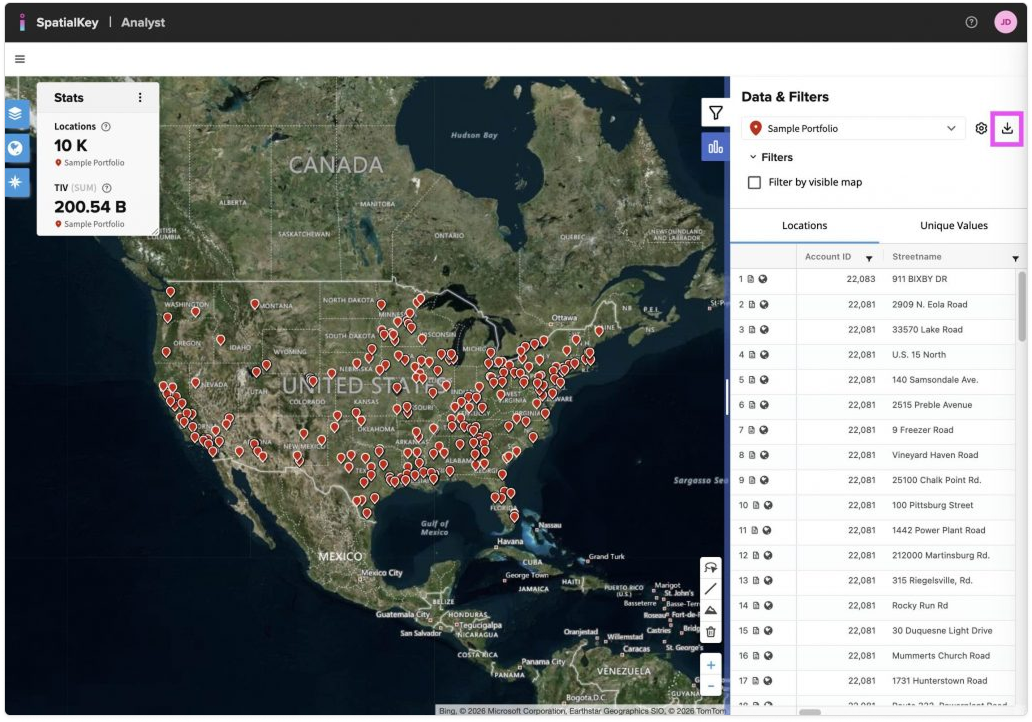
Export records directly from the Location List panel on the right side of the dashboard. If your dashboard includes multiple datasets, use the dropdown next to the download icon to choose which one to export. Before downloading, you can filter the data and select which columns to include and how they’re ordered.
Dashboard Unique Value Lists
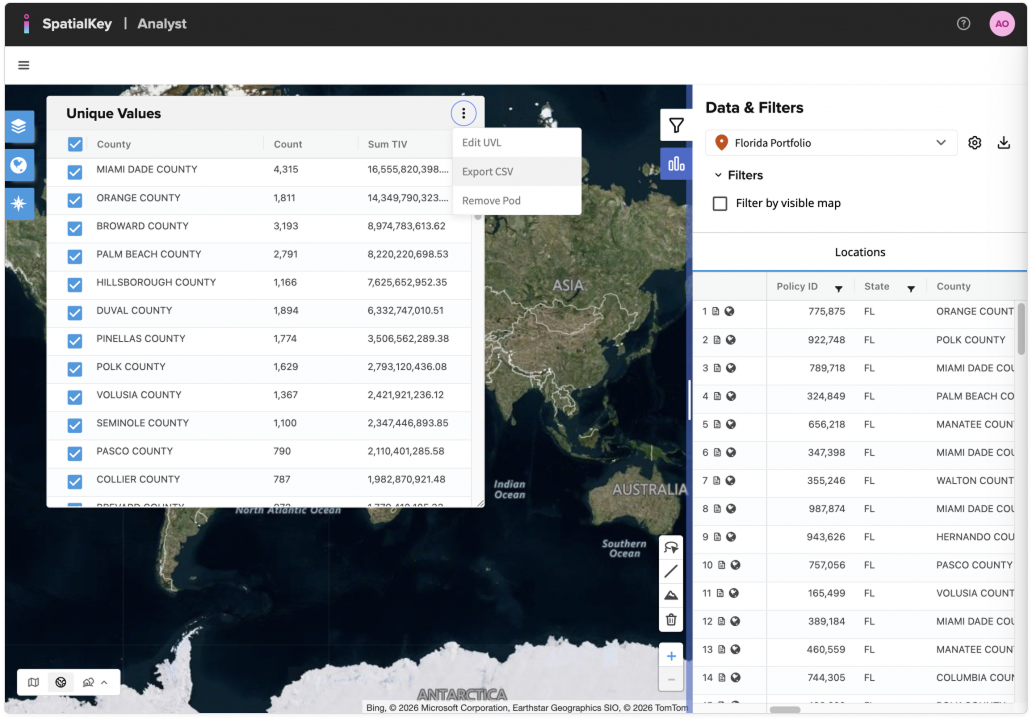
Records can be exported from the Unique Value List pod in a dashboard. When working in a dashboard in SpatialKey, you have many opportunities to filter that data you are viewing. This record list pod will contain a list of all records subject to the filters applied in the dashboard. You don’t have the option to select which columns to include in the export when exporting from this pod, all columns will be included.
Application-Specific Exports
Accumulations App Advanced Export
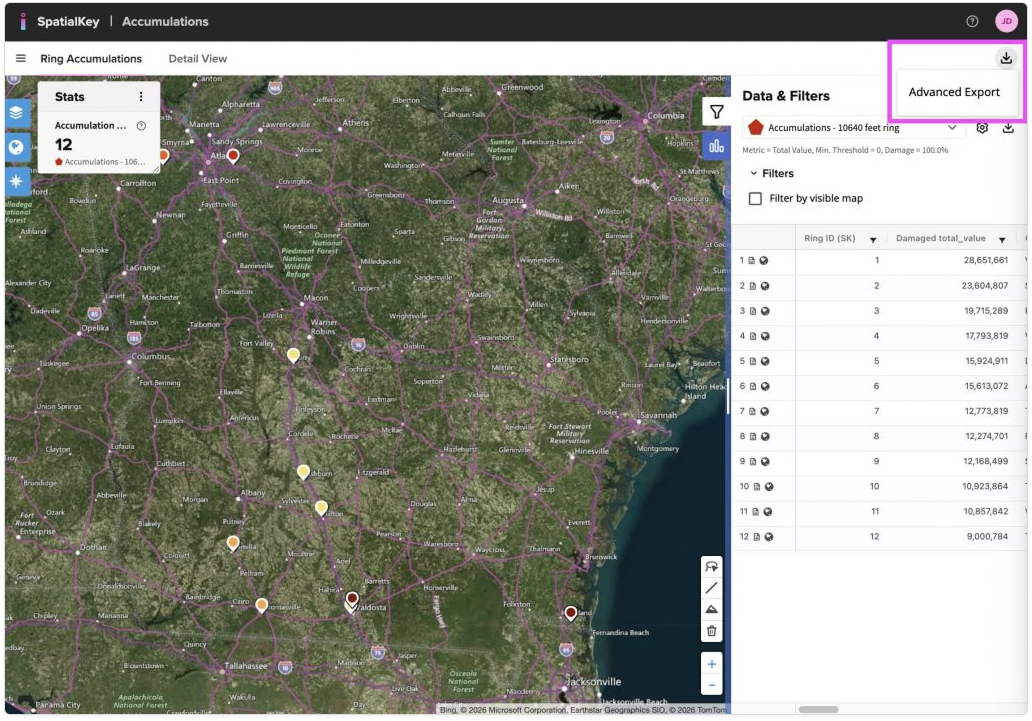
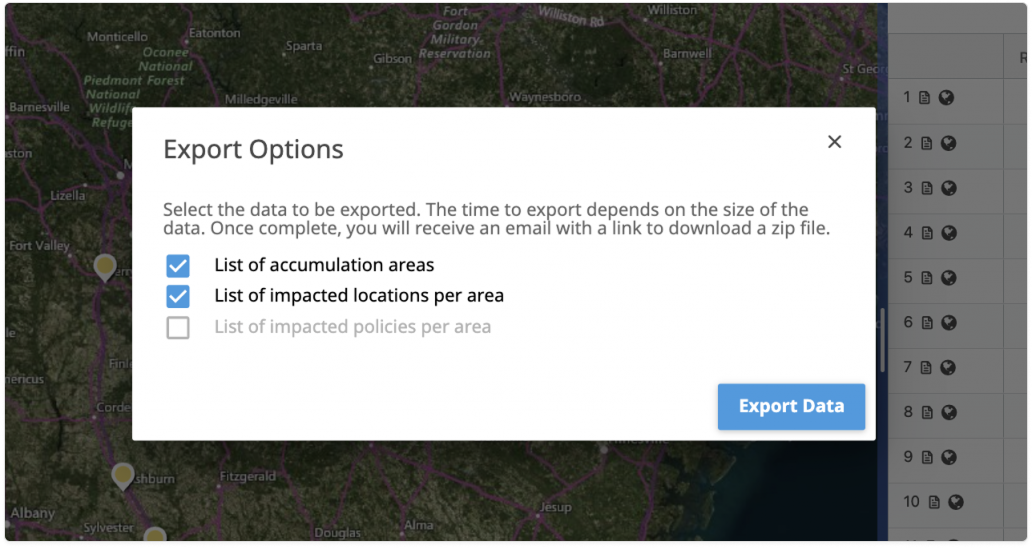
In addition to the exports options mentioned above, the Accumulations app has an Advanced Export that will allow you to download a .zip file of the list of accumulation areas, list of impacted locations per area and the list of impacted policies per area. You can select to download one or all of these options. Just click the download icon in the top right corner of the dashboard.
Event Response App Export
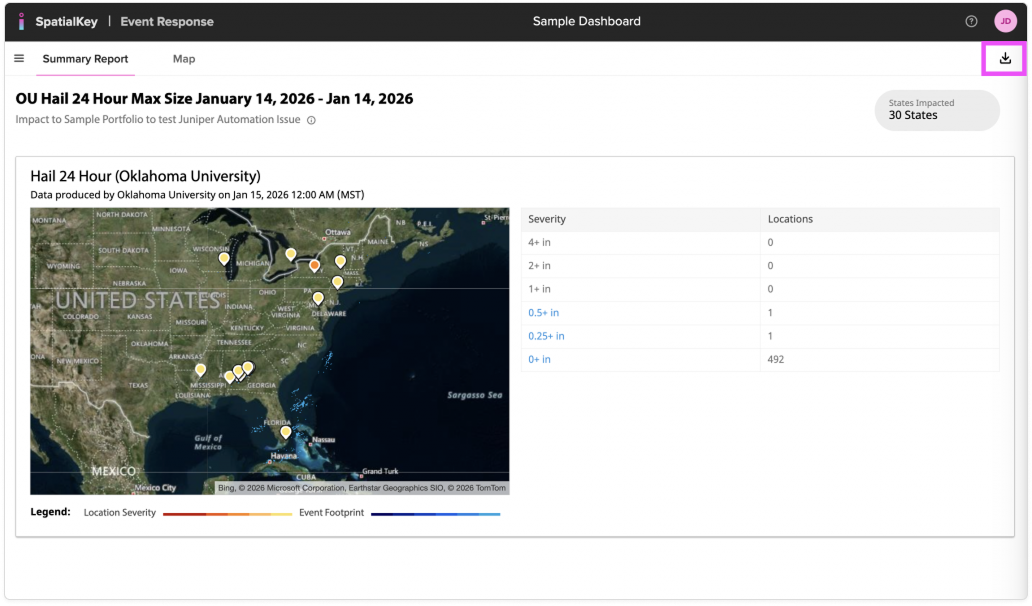
The Event Response app has an export that allows you to download a list of all Affected Locations (those impacted by the event) and the Event Shapefile. Just click the download icon in the top right corner of the dashboard.
Underwriting App Export
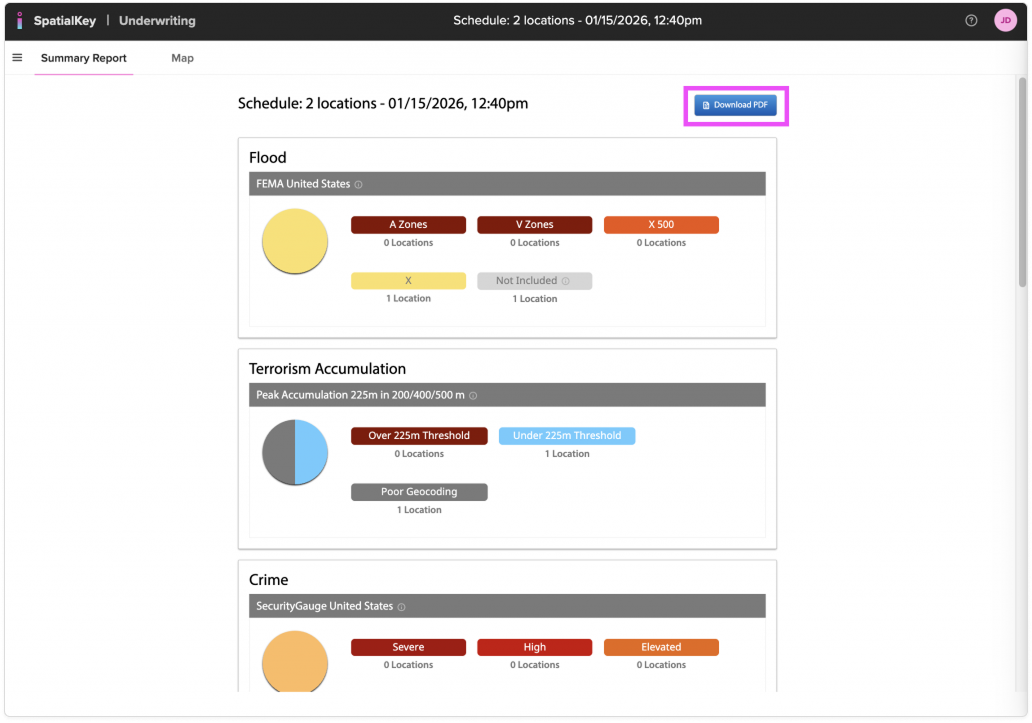
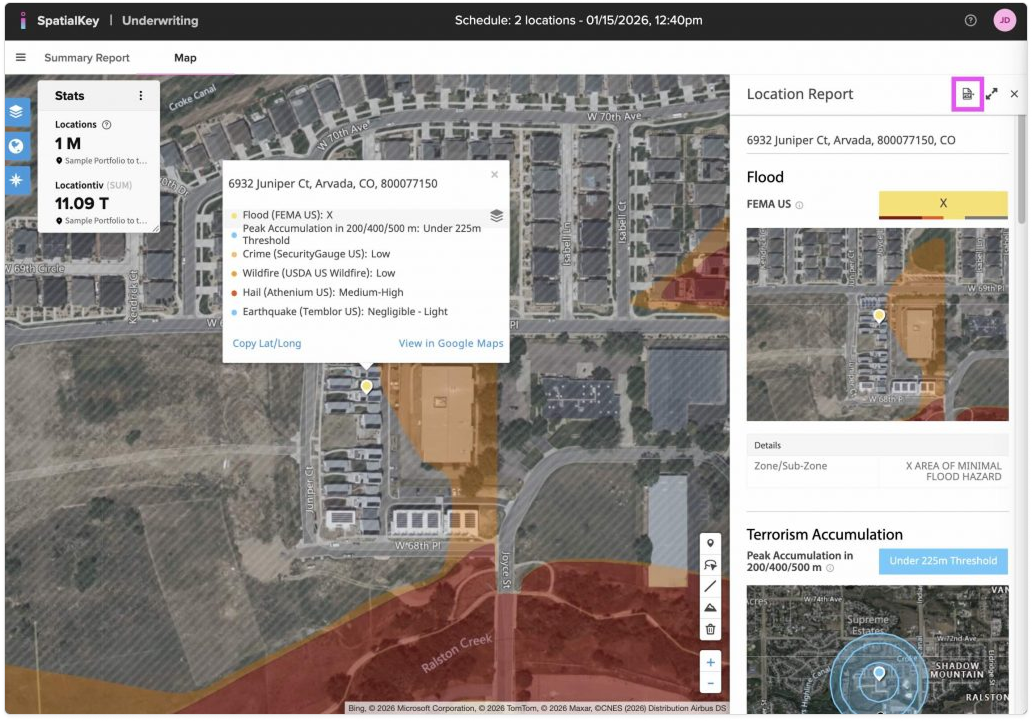
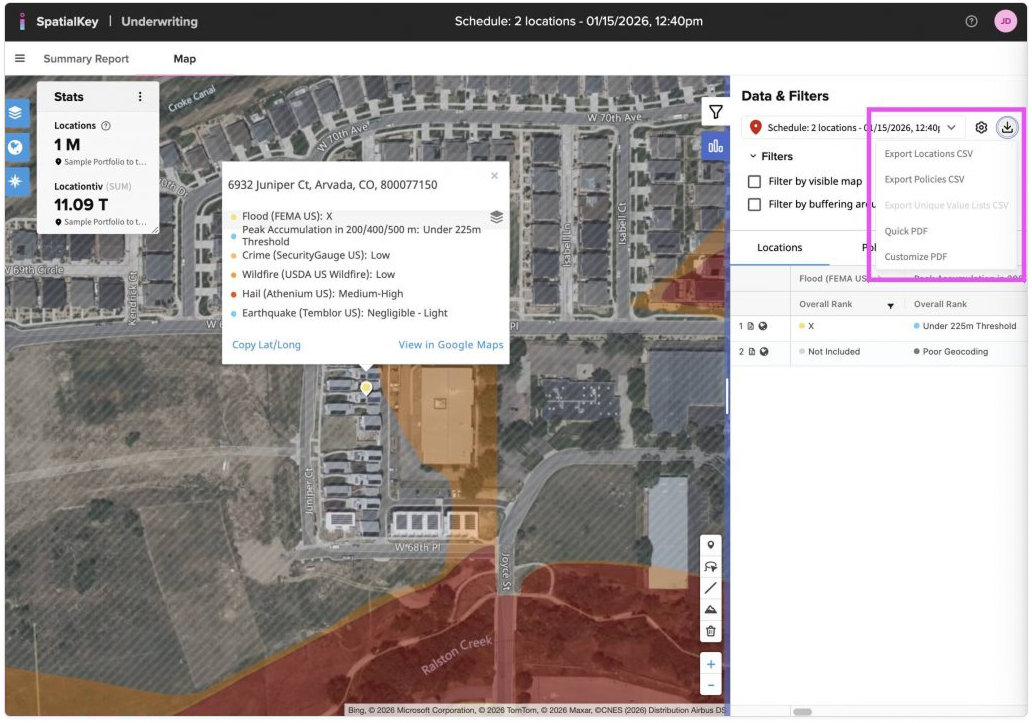
The Underwriting app additionally allows you to download the report views as a PDF. You can download the Summary Report, List Report and each individual Location Report.
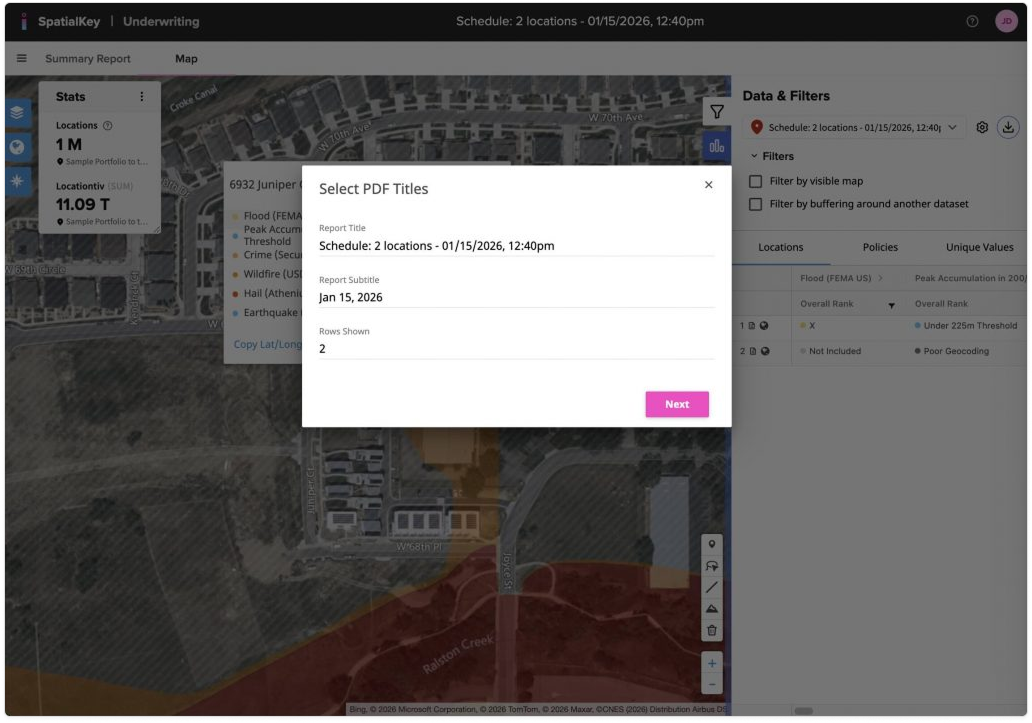
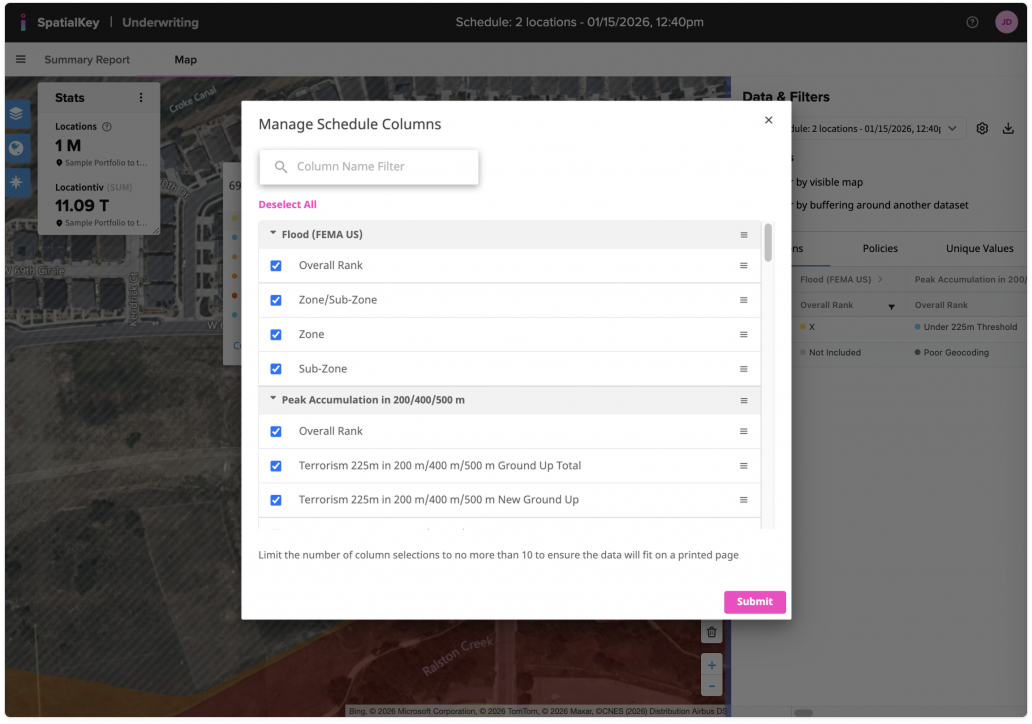
The List Report has 2 options: Quick PDF and Customize PDF. Quick PDF will export the first 10 columns of your data and all the rows. The Customize PDF allows you to edit the title, subtitle and # of rows that display on the PDF as well as which columns you’d like to show.
Was this helpful?