
You’ll only need SpatialKey Client for Windows if you’re using a small set of legacy applications that can’t run in a browser yet. Most of the SpatialKey platform—including Analyst, Underwriting, Accumulations, and Event Response—now runs entirely in modern HTML applications with no downloads required. This guide walks you through when the Windows client is needed, how it works, and how to install it so you can continue accessing tools like Map Analyst and Hazard Analyst while transitioning to the newer browser-based experience. Download a PDF version of this Quick Start Guide.
Whenever you log in and use the platform, you’ll log in via a browser (e.g. mysite.spatialkey.com). Most of what you do in the platform can be done directly in the browser, but a few things will require SpatialKey Client for Windows.
What is SpatialKey Client for Windows and how does it work?
SpatialKey Client for Windows is a lightweight desktop app that gets installed on computers where you will be accessing the SpatialKey platform.
SpatialKey Client for Windows can be easily installed by you or your organization’s IT department. Once installed, SpatialKey Client for Windows will be available to launch whenever needed. You’ll still access all your SpatialKey applications via a browser like you do today, but when you navigate to an application that requires SpatialKey Client for Windows, it will be automatically launched for you.
Why do I need to install SpatialKey Client for Windows?
SpatialKey Client for Windows enables a few SpatialKey applications, including Map Analyst and Hazard Analyst, to run. These apps still use Adobe Flash, a technology which is no longer supported by browsers.
Underwriting, Accumulations and Event Response applications launch in the browser and do not require SpatialKey Client for Windows.
Note, depending on what applications your organization licenses, the above list may look different.
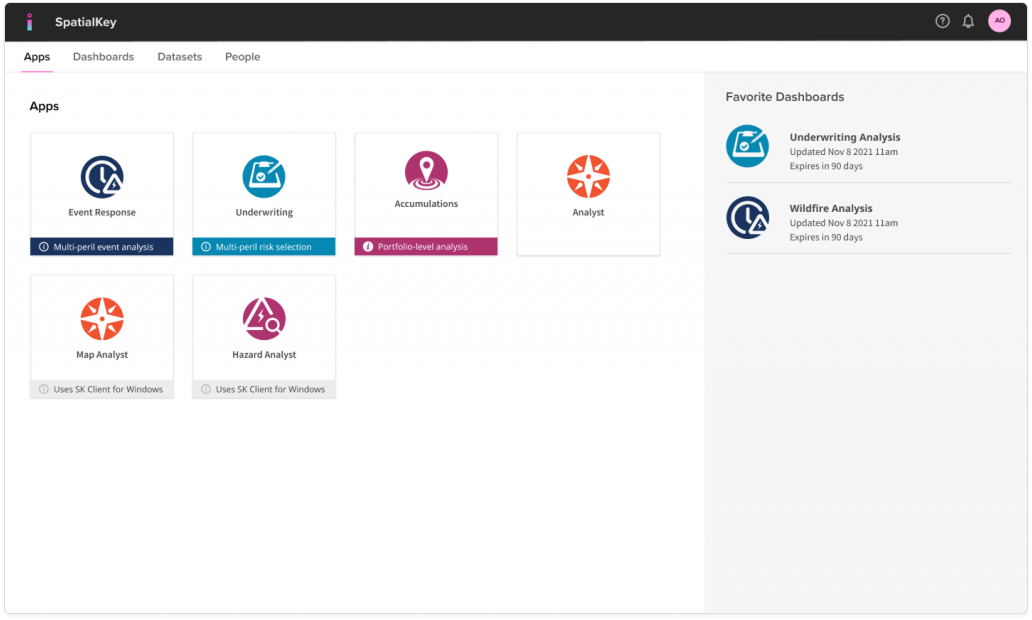
How to Enable SpatialKey Client for Windows
You’ll be prompted to download and install SpatialKey Client for Windows on your workstation the first time you click on an application with a “Uses SpatialKey Client for Windows” label. Follow the steps in the installer to complete the installation.
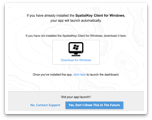
Pre-requisites:
- Windows operating system
- Chrome, Firefox, or Edge browser
Note: In order to ensure that the latest version of SpatialKey Client for Windows is installed, the system will perform a check each time it is opened.
After you’ve completed the installation steps above…
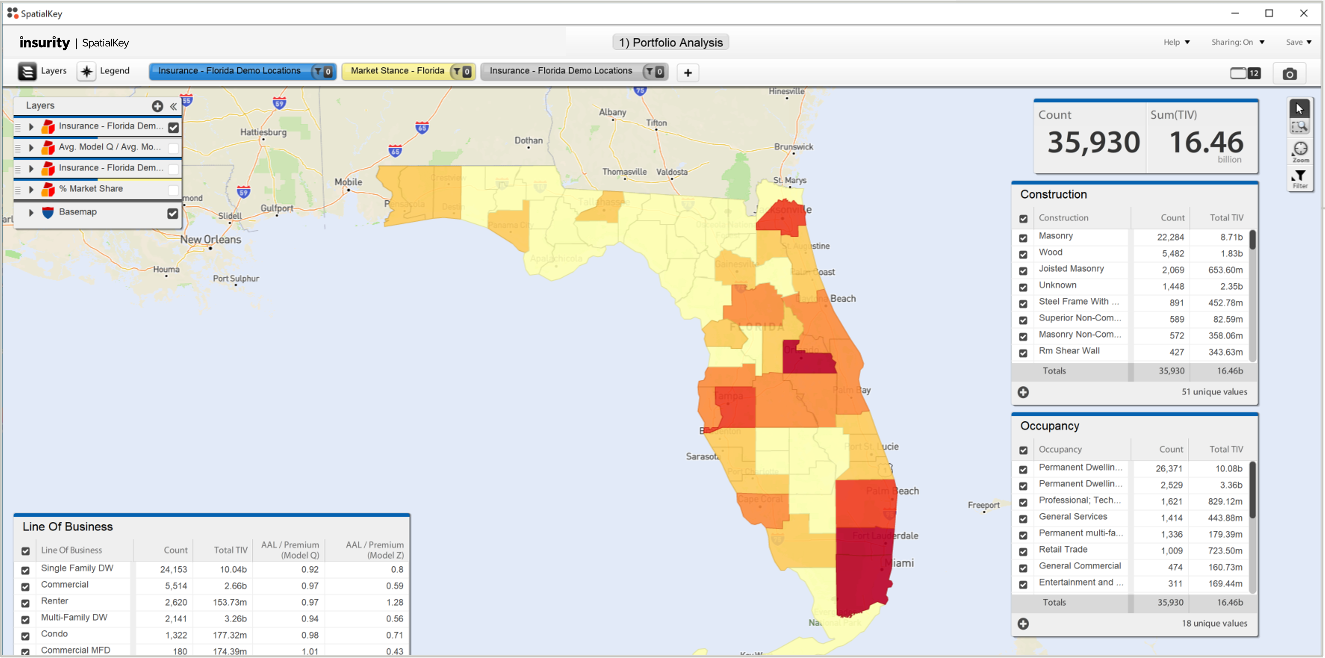
Click on the Map Analyst application to launch a dashboard. A window will appear outside of the browser with your dashboard, which will indicate that your installation of SpatialKey Client for Windows was successful.
That’s all! You’ve successfully installed SpatialKey Client for Windows.
Was this helpful?