
This quick start guide walks you through how to use the SpatialKey Command Line Tool to upload and manage data using the Import API, all from a Windows command line with minimal coding required. You’ll learn how to download and set up the tool, access your API keys, configure the XML file that controls authentication and import actions, and prepare CSVs, shape files, or insurance datasets for upload. The guide also shows you exactly how to run imports, overwrites, and automation from the command line, with examples you can copy and adapt for your own workflows. By the end, you’ll have everything you need to reliably and repeatably keep your SpatialKey data up to date. Download a PDF version of this Quick Start Guide.
Download the Command Line Tool
To begin, download the Command Line Tool package including sample data.
Download the Command Line Tool
Unzip the contents and put in an accessible location – you will need to connect to that location later. For example, place your unzipped folder at c:\program files\CommandLineTool.
Contents of the Command Line Tool package include:
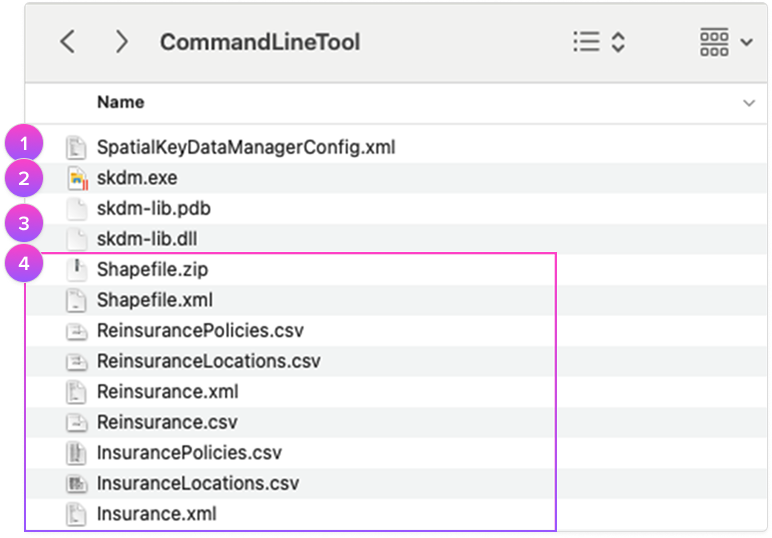
- SpatialKeyDataManagerConfig.xml
This file defines what actions will be taken during the import process and provides the authentication into your site. - skdm.exe
This is the program you will run to import your files from the command line. - skdm-lib.pdb& skdm-lib.dll
These are necessary but you can ignore, you won’t need to interact with these files. - Sample Files
There are several sample files you can reference, including XML descriptors. The XML defines the field types of the data that will be imported and defines key columns used within the platform for geocoding or financial modeling.
Access the API Keys
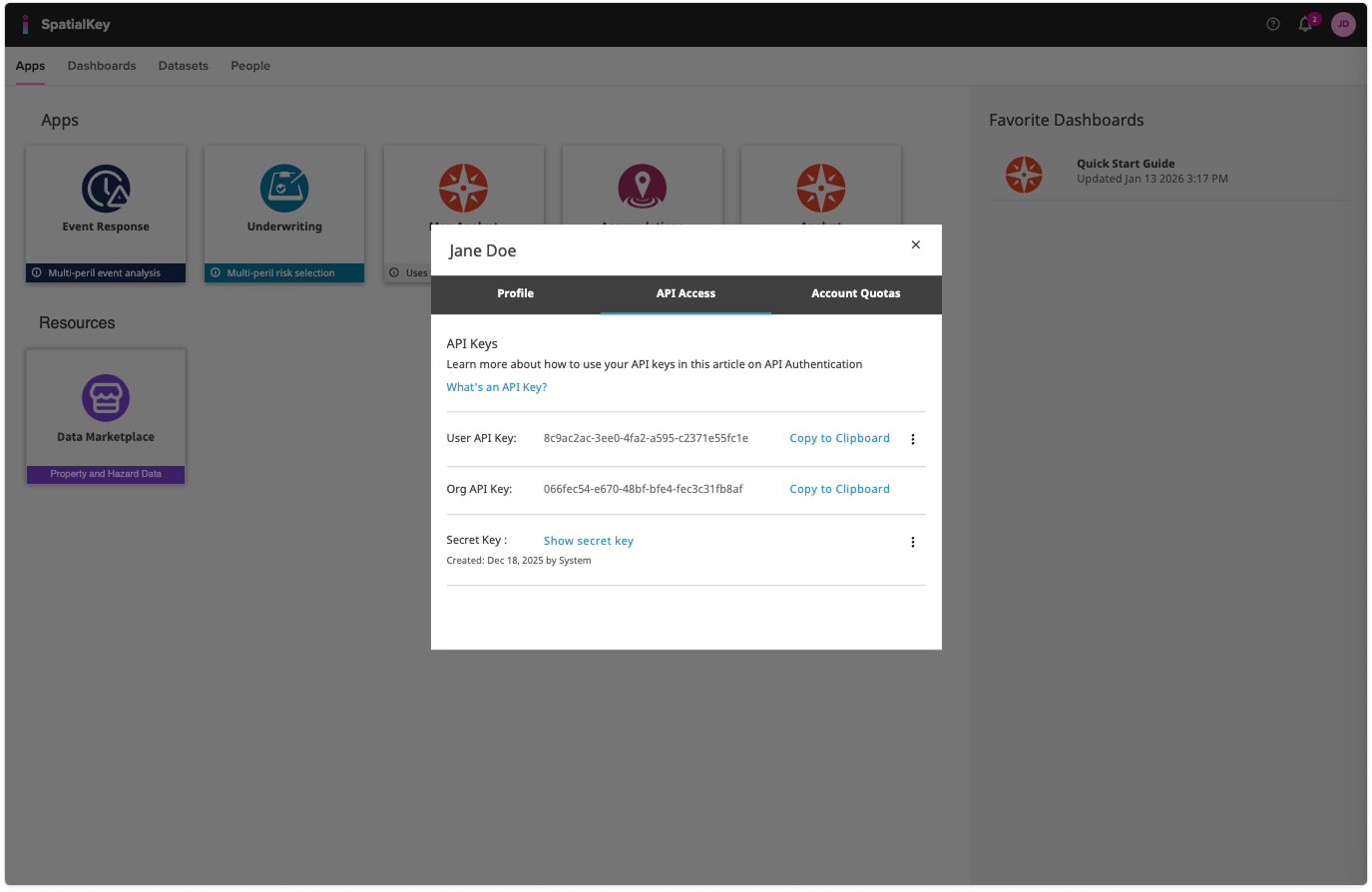
To use the Command Line Tool import method, you need to have access to the following three API keys:
- User API Key
- Org API Key
- Secret Key
These keys will be used to authenticate to your SpatialKey site in the config file as described on the next page. To access these keys, you will need to be a Data Admin or Super Admin.
- 1) You can check your permission level by clicking on your profile in the top right corner of any page.
Find your API keys
- 2) Once you’ve verified you have API admin permissions, click the “API Access” tab on your profile page to view the User API key, Org API key and Secret Key.
Set up the Data Manager Config XML
The Data Manager Config XML file is split into the following sections:
- Authentication
- Action
See the sample SpatialKeyDataManagerConfig.xml shipped with the application for the proper xml format.
If you know XML, these sections will be easy to identify – if you don’t know XML, be patient and search through the file until you find these sections and then plug in the required information.
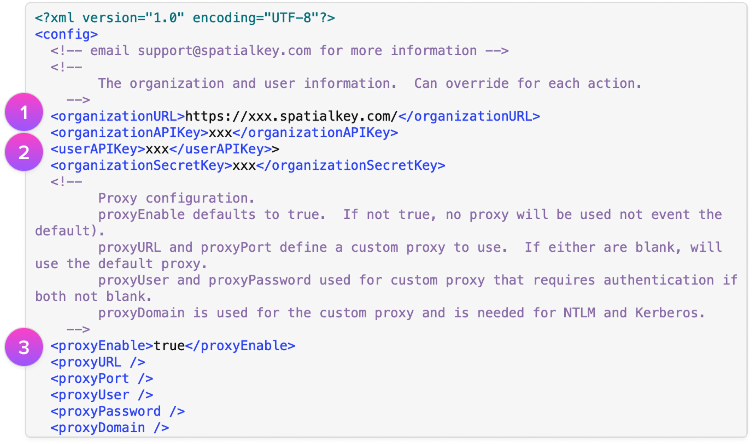
Authentication
- Enter Organization URL
This should be the same URL you use to access SpatialKey. - Enter API Keys
- a)Org API Key
- b)User API Key
- c)Secret Key
- Define Proxy (optional)
You likely don’t need to worry about this section because we’ll auto-detect a Proxy for you, but if we cannot auto-detect a proxy, you may need to work with your IT department to provide additional information to the Command Line Tool.- <proxyEnable> defaults to true. If “false”, no proxy will be used (not even the default proxy).
- <proxyURL> and <proxyPort> define a custom proxy to use. If either are blank, skdm will use the default proxy.
- <proxyUser> and <proxyPassword> are used for custom proxy that requires authentication if both are not blank.
- <proxyDomain> is used for the custom proxy and is needed for NTLM and Kerberos
| Proxy Example |
|---|
| <proxyEnabled>true</proxyEnabled> <proxyURL>127.0.0.1</proxyURL> <proxyPort>8888</proxyPort> <proxyUser>proxyusername</proxyUser> <proxyPassword>proxypassword</proxyPassword> <proxyDomain>proxydomain</proxyDomain> Note that leaving this code out of the XML will result in <proxyEnabled>true</proxyEnabled> and the rest will be auto-detected if needed. |
Actions
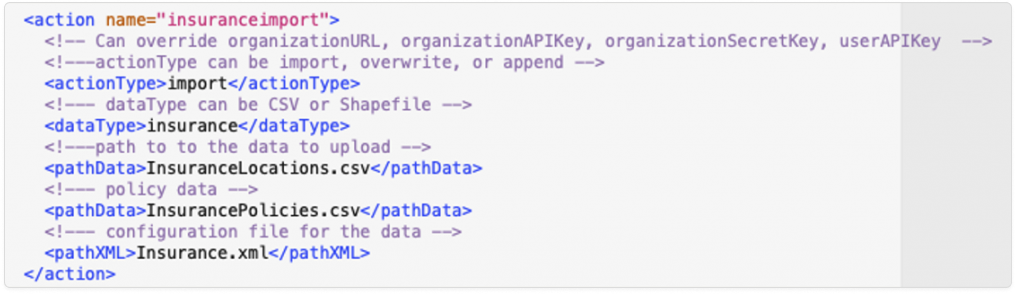
The “actions” section of the Config XML file defines all the actions that will be done when the Command Line Tool is executed. You can define several actions in the same file.
The “SpatialKeyDataManagerConfig.xml” fille has several actions already defined that you can use as a sample. Running this sample will:
- Import “InsuranceLocations.csv” & “InsurancePolicies.csv” (shown below) with XML that links the two and defines policy terms
- Overwrite “InsuranceLocations.csv” & “InsurancePolicies.csv” with XML that links the two and defines policy terms
- Import “ReinsuranceLocations.csv”, “ReinsurancePolicies.csv” & “Reinsurance.csv” with XML that links the three and defines policy & reinsurance terms
- Import “Shapefile.zip” with XML that describes the file
TIP! After you import a dataset, the dataset ID will be populated in the XML when the command line tool runs. This can help you automate subsequent “Overwrite” actions.
Actions
| Command | Options | Description |
|---|---|---|
| actionType | import, append, overwrite | Note that datasetId is required for the Append or Overwrite actions. If the Id isn’t provided, the action will be treated as a regular Import. If a datasetId is provided but the Import actionType is selected, the datasetId will be ignored. Note: new datasets that are imported will count towards your dataset quota, whereas append and overwrite just adjust the existing file. |
| dataType | CSV, Shapefile, Insurance | CSV and Shapefile refer to the actual data types. Insurance is a specific type of CSV import where insurance fields are specifically identified in the accompanying XML file. |
| pathData | Name of the dataset to load including extension, e.g. InsuranceLocations.csv. | |
| pathXML | Name of the accompanying XML file including extension, e.g. Insurance.xml. | |
| datasetId | The Id of the existing dataset to be overwritten or appended to. This can be found in SpatialKey in the settings for a given dataset (see image) or by using the “List” command in the Command Line Tool, [skdm.exe list]. If the Dataset Id isn’t provided, the action will be treated as a regular Import. |
Action Examples
| Import (Insurance files) <action name=”import example”> <actionType>import</actionType> <dataType>CSV</dataType> <pathData>InsuranceLocations.csv</pathData> <pathData>InsurancePolicies.csv</pathData> <pathXML>Insurance.xml</pathXML> <datasetId></datasetId> </action> |
Overwrite <action name=”overwrite example”> <actionType>overwrite</actionType> <dataType>CSV</dataType> <pathData>InsuranceLocations.csv</pathData> <pathData>InsurancePolicies.csv</pathData> <pathXML>Insurance.xml</pathXML> <datasetId>1111-848-33-33-283838</datasetId> </action> |
| Import (Reinsurance files) <action name=”import reinsurance example”> <actionType>import</actionType> <dataType>CSV</dataType> <pathData>InsuranceLocations.csv</pathData> <pathData>InsurancePolicies.csv</pathData> <pathData>Reinsurance.csv</pathData> <pathXML>Insurance.xml</pathXML> <datasetId></datasetId> </action> |
Overwrite Shapefile <action name=”shape example”> <actionType>overwrite</actionType> <dataType>Shapefile</dataType> <pathData>Shapefile.zip</pathData> <pathXML>Shapefile.xml</pathXML> <datasetId>1111-848-33-33-283838</datasetId> </action> |
Notes on Actions
DatasetId for Overwrite or Append
If you are doing an overwrite or append but haven’t defined a datasetId, the application will do an import instead. If you defined /no-wait, the datasetId will not be updated.
InsuranceId for Overwrite or Append
If you are working with an insurance dataset and want to overwrite or append to it, you need to first obtain the insurance id which is created when the insurance dataset is first uploaded into SpatialKey. Please contact us if you want to perform this action and we can help you get set up.
Append not allowed for Shapefile upload
Note that you can only upload new Shapefiles or Overwrite existing Shapefiles. You cannot append to Shapefiles.
Organization limits
- If the organization you are importing to has reached the dataset limit cap, the Command Line Tool will throw an error.
- If the dataset that you are importing exceeds the organization limits (shapefile size or number of records in the CSV), the Command Line Tool will throw an error.
Permissions
You’ll want to be sure that you have appropriate permissions for various actions you take via the Command Line Tool.
- Must have appropriate permissions to import datasets to the selected organization. It’s possible that a user is blocked for performing imports. The best way to test if you run into issues is whether a user can import directly into SpatialKey without using the Command Line Tool.
- Must have appropriate permissions for a dataset in order to update or append to it. You can check if you have permission to update or append to a dataset by going to the dataset’s setting in SpatialKey and seeing if you have the option to update or append to it there.
- Must have appropriate permissions for a dataset in order to delete it. You can check if you have permission to delete to a dataset by going to the dataset’s setting in SpatialKey and seeing if you have the option to delete to it there.
Gather Files for Import
What type of data can be imported into SpatialKey?
- CSV datasets
- Shape files
- Insurance datasets (these consist of 2-3 CSV files, one for the locations, one for corresponding policies and one for corresponding reinsurance)
When importing data through the Command Line Tool, an XML descriptor file is used in conjunction with the data you want to import.
You can download an XML descriptor for any existing shapefile or location dataset in SpatialKey to use as a template for importing new data.
- Navigate to any dataset’s settings page
- Click “Data Import API”
- Click “Generate API Config”
- Save the XML file with the extension “.xml” to the same location as your CSV file by clicking “File > Save Page As” in your browser — do not copy and paste the XML into another file.
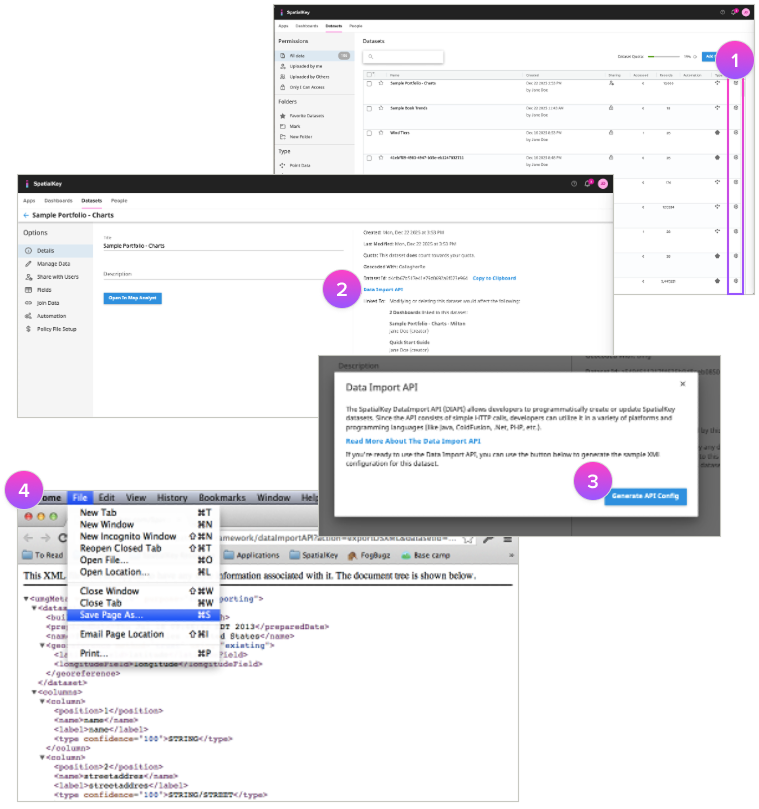
Note: This method doesn’t currently work for insurance-specific files like policy or reinsurance. In that case you can generate the XML descriptor file from scratch.
Run the Command Line Tool
Now let’s import your data. Follow the steps below to open the command-line prompt and navigate to the “CommandLineTool” directory where you put the unzipped folder and run the commands.
- Open the Start menu or press the Windows key + R. Type cmd or cmd.exe in the Run command box. Press Enter.
- In the command prompt window, type: cd CommandLineTool
Note: This only works for immediate folders right after the one you’re in. Alternatively, type: cd name\CommandLineTool to go down two levels of documents at once. If you want to go back one directory, type cd .. to go up a level. - Next type: “skdm.exe SpatialKeyDataManagerConfig.xml”
You can optionally specify a list of actions to perform. When no actions are specified, all actions from the Config XML file will be run by default.
Command Line Examples
- Run all upload actions in SpatialKeyDataManagerConfig.xml
skdm.exe upload - Run the specified upload action in SpatialKeyDataManagerConfig.xml
skdm.exe upload /no-wait “sample csv” - Run all upload actions in AnotherConfig.xml
skdm.exe /config AnotherConfig.xml upload - List all datasets for the organization and user defined in SpatialKeyDataManagerConfig.xml
skdm.exe list - Delete the given dataset at the organization and user defined in SpatialKeyDataManagerConfig.xml
skdm.exe delete 55555-66-88-33-abcd
Automation
Want to set up automation to update a file regularly? For example, maybe you receive updates to your portfolio each week and want to keep that file current in SpatialKey. You can use the Windows Task Scheduler to do this. Here’s an article with further instructions.
Command Format
| skdm.exe [global option(s)] <command> [command option(s)] [argument] |
Global Options
Options available in the Command Line Tool are listed below. The only option that most users will need is the config option – the other options are most useful in debugging situations.
| Command | Description |
|---|---|
| /help | Returns a list of options. |
| /version | Returns version of Command Line Tool. |
| /trace LEVEL | Trace adds verbosity to the Command Line Tool. Valid LEVEL options: null , 0, 1, 2. /trace or /trace 0 is the default and will mainly just tell you when the Command Line Tool job is complete /trace 1 will include status in what is returned /trace 2 is used more from a developer perspective to debug |
| /config NEWCONFIGFILENAME.XML | Specifies which config xml file to use for the command. The default config xml is “SpatialKeyDataManagerConfig.xml”, anything other than this name will need to be specified in the config option. Note that the config option can be used in conjunction with Commands and Arguments. |
Commands & Arguments
Commands available in the Command Line Tool are listed below. Arguments should be defined when only select items are intended to be specified. E.g. Run the specified upload action in SpatialKeyDataManagerConfig.xml. Note that Arguments are optional.
| Command | Options | Arguments | Description |
|---|---|---|---|
| upload | /no-wait, /keep-uploadid | [ACTION(S)] | Triggers processing of all listed [ACTION(S)] from the config xml file. Listing no [ACTION(S)] will trigger processing of all actions in the config xml. |
| list | Returns list of dataset ids for the organization identified in the config xml. | ||
| delete | [DATASETID(s) | Runs a delete action on the identified dataset id(s) for the organization and user defined in the config xml. |
/keep-uploadid – don’t cancel the upload id so it can be used in other manual operations
Was this helpful?