
Admin options are configured by a Super Admin and apply globally to anyone accessing the underwriting applications.
1. To access admin settings, click the hamburger menu when you first launch the Underwriting application and click “Admin Options”.
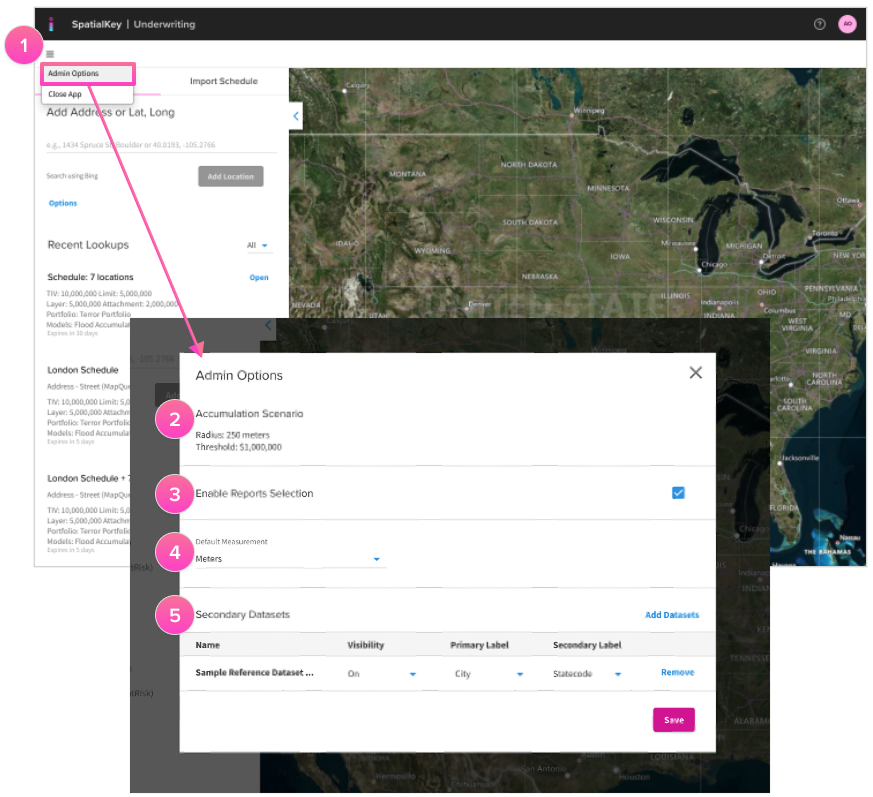
2. Review the accumulation scenario(s) parameters if you elected to have accumulation scenarios enabled for your organization. If any adjustments are required, contact your account manager or support@spatialkey.com. This section only appears if your organization has an accumulation model licensed.
3. Checking the Enable Reports Selection box will allow your underwriters to customize which report options (hazards and models) are run for each analysis. When you uncheck this option, the Report Options section is removed from the launcher, preventing underwriters from enabling or disabling models for their analysis. This setting is useful for organizations that want underwriters to always run all licensed models with no exceptions.
This section & checkbox only appears if your organization has more than 1 model licensed.
4. Set the Default Measurement type used across all dashboards and reports. Updating this setting applies the new measurement to both existing and future analyses. To view the change, log out and then log back in.
Note: There are a few reports/features that do not honor this measurement setting e.g., Hazard Hub models only provide feet if less than a mile and miles/decimal if over a mile, the elevation profile layer is always in meters, the distance drawing tool shows meters as you’re drawing and then once you’re done, drawing it will respect the admin setting.
5. Add up to 5 secondary datasets that would be beneficial for underwriters to reference for all underwriting analyses. You must identify both a primary label and secondary label for each selected dataset. This label will be visible when hovering over the reference dataset points in the dashboard. An admin can select up to 5 secondary datasets
Secondary dataset permissions will drive who sees these datasets. If a user does not have permission, they simply will not see it.
Was this helpful?