
Add clear, customizable labels to your map to highlight key data points. When you turn labels on, by default SpatialKey labels the top values in your dataset, but you can choose any column—numeric or text—or build custom label formulas using advanced options. Labels can be styled with adjustable text size and background color, and you can display up to 20 top values.
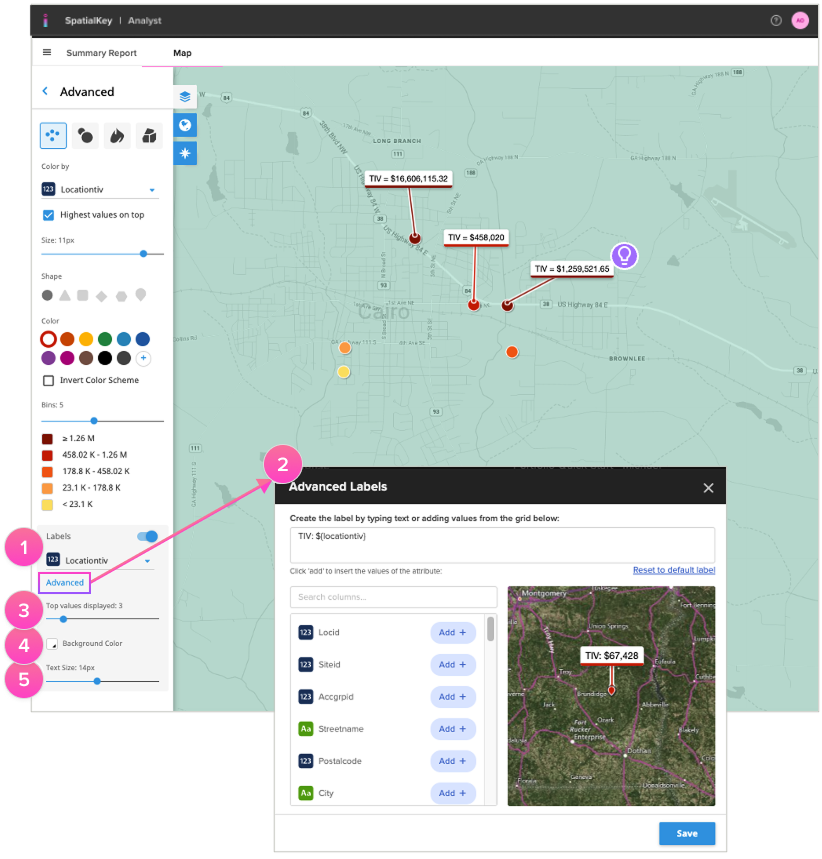
Click the “Advanced” link in the layer panel to find the toggle for labels along with other visualization options.
- Select a column (numeric or text)to quickly add top labels to your dataset.
- Use the Advanced option to create your own formula to fully customize the labels.
- Label up to 20 top values.
- Change the background color to help the labels stand out on the map. Labels default to a white background.
- Adjust the text size between 1-30px. Text size defaults to 15px.
TIP! Drag labels around to position them to your liking. Double-click a label to customize each one individually. Deleting the text within a label will return it to its default state.
TIP! Select “Filter by visible map” if you’d like to narrow what is labeled to only locations you can see on your screen (vs. top values across the dataset).
Was this helpful?